
This guide shows you how to turn on or turn off the blocking of files you download from the Internet. You can do this for all users or just specific users in Windows 10 and Windows 11.
Why Does This Matter?
Windows includes a safety feature called the Attachment Manager to protect your computer. It stops you from opening files that might be dangerous. These could be email attachments or files you downloaded from websites.
When you download a file from the Internet, Windows marks it with information about where it came from. This marking is called an Alternate Data Stream (ADS). If you want to open a blocked file anyway, you can right-click it, select Properties, and click Unblock.
How Does Windows Decide What to Block?
Windows looks at three things to decide if it should block a file:
- What program you are using
- What type of file it is
- Where you downloaded it from (Internet, local network, trusted sites, or restricted sites)
File Risk Levels
Windows sorts files into three risk groups:
- High Risk – Windows stops you from opening these files if they come from a restricted zone. If they come from the Internet, you see a warning that says “Windows found that this file is potentially harmful.”
- Medium Risk – Windows warns you and asks if you really want to run this software.
- Low Risk – Windows lets you open these files without any warning.
What Happens If You Disable File Blocking?
There is a policy called “Do not preserve zone information in file attachments.” If you turn this on, Windows stops marking files with where they came from. This means Windows cannot tell if a file is risky. This can create a security problem for your computer because dangerous files might not be blocked anymore.
⚠️ Admin Privileges Required: You must be signed in as an administrator to change these settings. These changes will not affect files that were already blocked before you make this change.
Option 1: Use Local Group Policy Editor
Note: Local Group Policy Editor only works on Windows 11 Pro, Enterprise, and Education editions. If you have Windows 11 Home, use Option 2 below.
- Open the Local Group Policy Editor. Choose whether you want this to apply to all users, specific users, or all users except administrators.
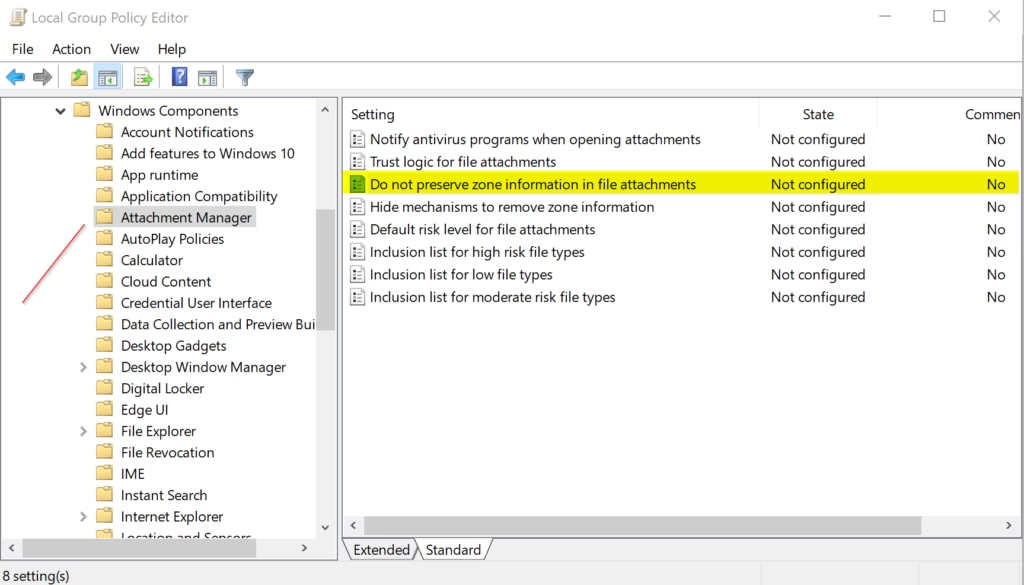
- In the left pane, go to this location:
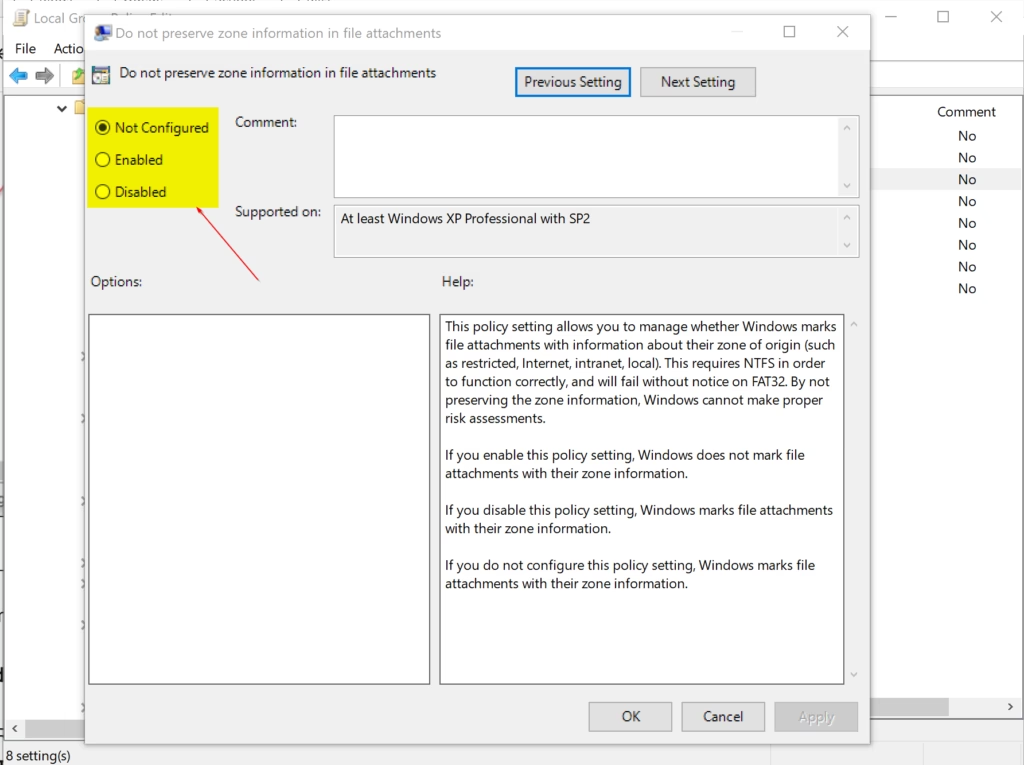
User Configuration\Administrative Templates\Windows Components\Attachment Manager - Look at the right pane. Find the policy called “Do not preserve zone information in file attachments.” Double-click it to edit it.
- To Turn ON File Blocking (Default Setting):
Select the dot next to “Not Configured” and click OK. - To Turn OFF File Blocking:
Select the dot next to “Enabled” and click OK. - You can close the Local Group Policy Editor.
Option 2: Use Registry Editor (All Windows 11 Versions)
This method works on all versions of Windows 11, including Home edition.
⚠️ Admin Privileges Required: You must run Windows Terminal as an administrator.
Right-click the Windows Terminal app and select “Run as administrator.”
To Turn ON File Blocking (Default Setting):
reg delete "HKEY_CURRENT_USER\Software\Microsoft\Windows\CurrentVersion\Policies\Attachments" /v SaveZoneInformation /f
reg delete "HKEY_LOCAL_MACHINE\SOFTWARE\Microsoft\Windows\CurrentVersion\Policies\Attachments" /v SaveZoneInformation /f
To Turn OFF File Blocking:
reg add "HKEY_CURRENT_USER\Software\Microsoft\Windows\CurrentVersion\Policies\Attachments" /v SaveZoneInformation /t REG_DWORD /d 1 /f
reg add "HKEY_LOCAL_MACHINE\SOFTWARE\Microsoft\Windows\CurrentVersion\Policies\Attachments" /v SaveZoneInformation /t REG_DWORD /d 1 /f
Press Enter to run the command.
Summary
Windows has a built-in safety feature that blocks dangerous files you download from the Internet. It marks each file with information about where it came from and checks the file type to decide if it is risky. You can turn this blocking on or off using either the Local Group Policy Editor (Pro and Enterprise editions) or the Registry Editor (all editions). Turning off file blocking can make your computer less safe, so only disable it if you have a good reason. Remember that you need admin rights to make these changes, and they do not affect files that were already blocked before you made the change.


Leave a Reply Cancel reply