
Want to clean up your Windows 11 computer? This guide shows you how to delete a user profile safely and easily.
What is a User Profile?
When someone logs into Windows 11 for the first time, Windows creates a “user profile.” Think of it as a special folder that holds that person’s desktop settings, documents, pictures, and other personal files.
All user profiles live in the C:\Users folder. For example, if the username is JohnDoe, their profile folder is C:\Users\JohnDoe.
Note: Deleting the user profile folder does not delete the user account itself. When the user signs in again, Windows will create a brand new profile folder with fresh default settings.
Why Delete a User Profile?
You might delete a profile to free up space, remove an old account, or clean up your computer after someone stops using it.
Before You Start
The user whose profile you want to delete must sign out first. You cannot delete a profile while that user is signed in.
You also need to be signed in with an admin account. This gives you permission to delete profiles. ⚠️ Admin privileges required.
Steps to Delete a User Profile in Windows 11
- Sign out the user: Ask the user to sign out or switch to another admin account if you are managing the PC.
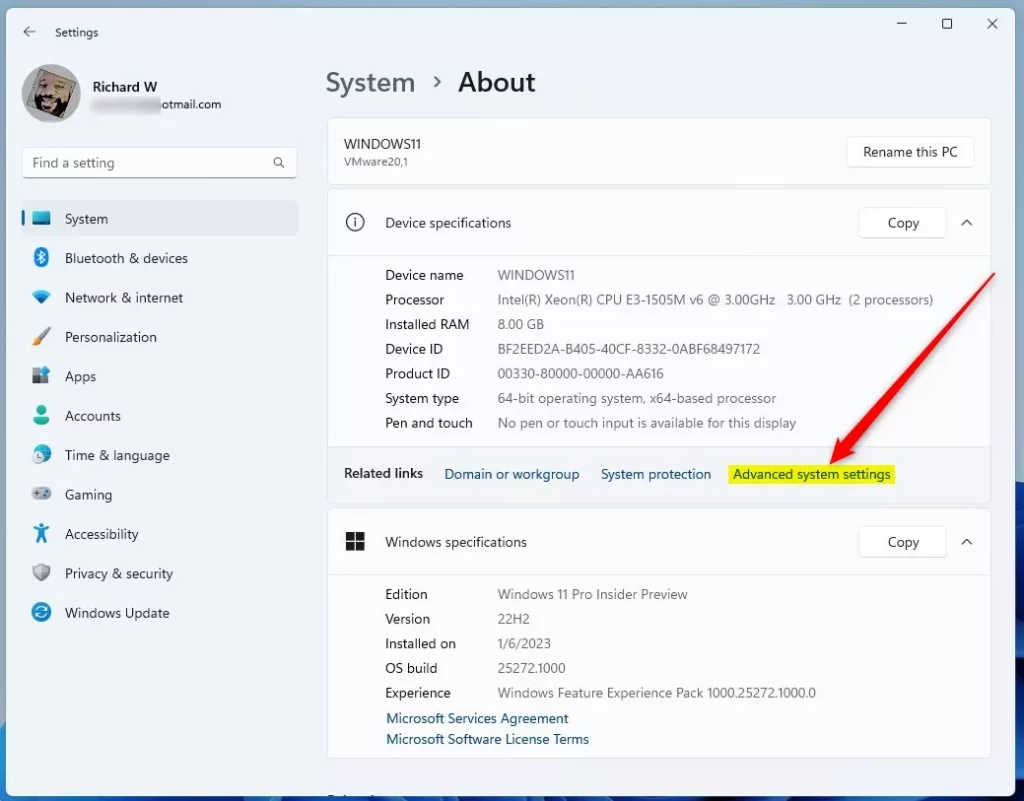
- Open Advanced System Settings:
- Click the Start button and select Settings (the gear icon).
- Go to System > About.
- On the right side, click Advanced system settings.
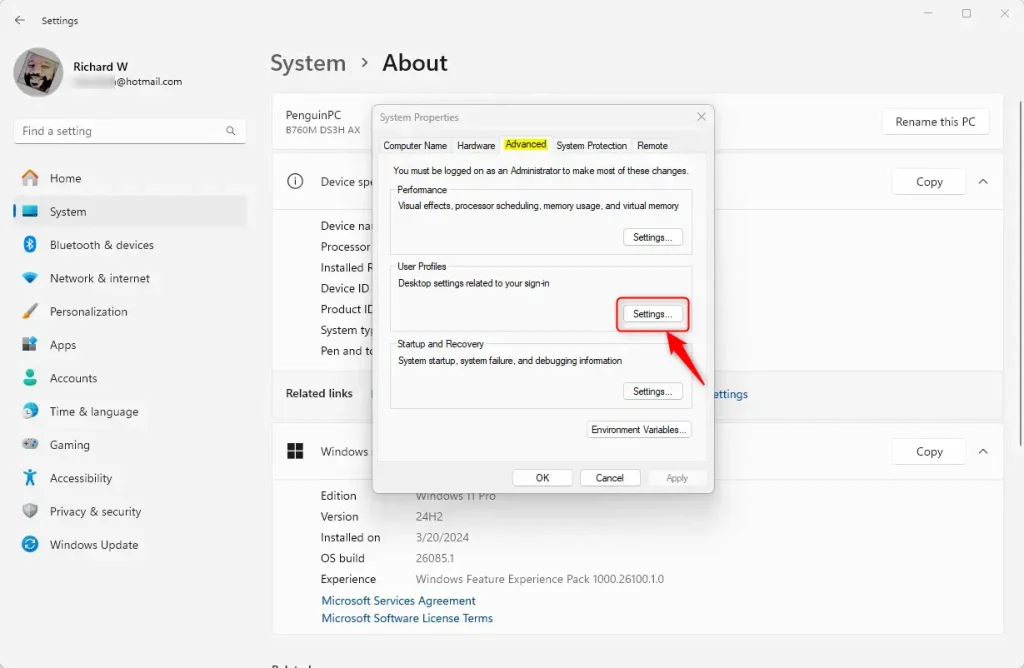
- Open User Profiles Settings:
- In the System Properties window, click the Advanced tab.
- Under User Profiles, click the Settings button.
- Select and Delete the Profile:
- From the list, click the user profile you want to remove.
- Click the Delete button.
- When asked to confirm, click Yes.
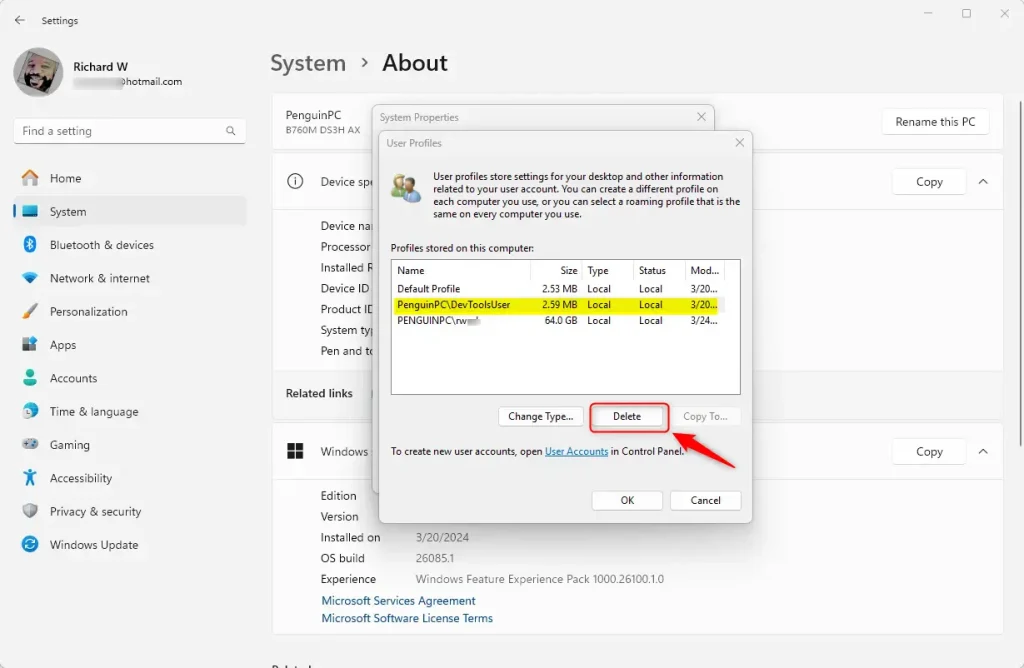
- Finish Up: Click OK to close all windows. The selected user profile is now deleted.
What Happens Next?
The next time the user signs into their account, Windows will create a brand new profile folder with default settings and folders. It will be like starting fresh.
Summary
- You can delete a user profile folder without deleting the user’s account.
- The user must be signed out before you delete their profile.
- You need admin privileges to delete profiles.
- Use Advanced System Settings to find and delete profiles safely.
- Confirm the deletion when prompted.
- A new profile folder is created when the user signs in again.
Want to learn more about user profiles in Windows 11? Check out this helpful guide: How to Find a User Profile in Windows 11.



Leave a Reply Cancel reply