
In this guide, we’ll show you easy steps to change the screen resolution on your Windows 11 computer. Screen resolution affects how clear and sharp things look on your screen.
What is Screen Resolution?
Screen resolution is the number of tiny dots (pixels) that make up the images and text on your screen. A higher resolution means sharper and clearer pictures, but things look smaller. A lower resolution makes everything bigger, but less clear.
For example:
- 1600 x 1200 pixels: Clear and sharp, but items look smaller.
- 800 x 600 pixels: Items look bigger but less sharp.
Your monitor can only use certain resolutions, depending on its type:
- Old monitors (CRT) usually work well at 800×600 or 1024×768.
- Newer monitors (LCD, LED) and laptops often support higher resolutions like 4K and look best at their “native” resolution (the one made for them).
Tip: For the clearest picture, use the native resolution of your monitor.
How to Change Screen Resolution in Windows 11 Settings
- Press Win + I on your keyboard to open Settings.
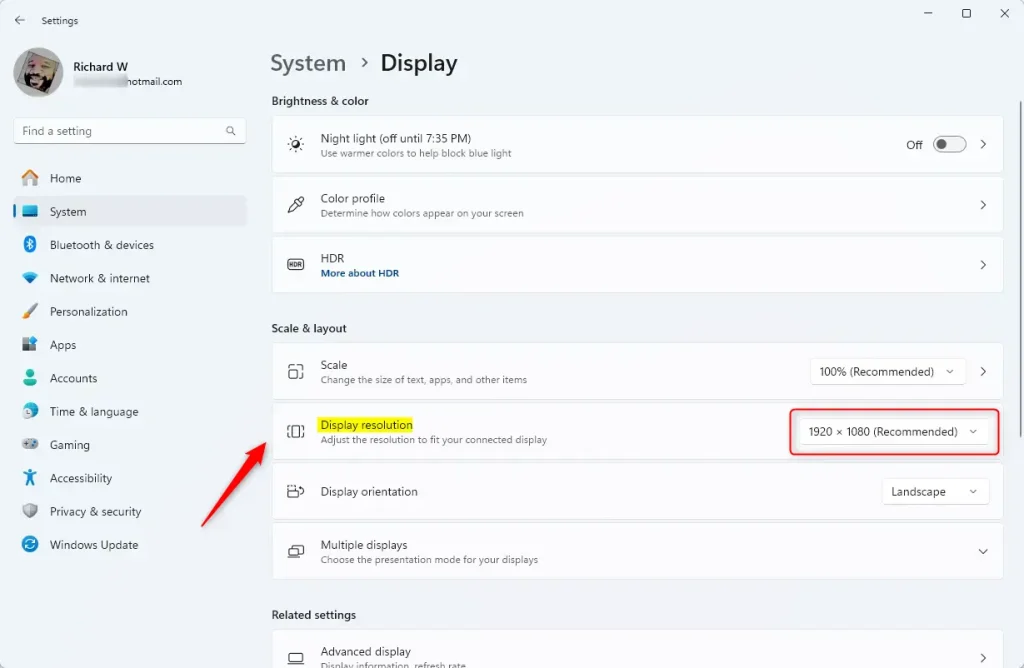
- Click on System on the left, then select Display on the right.
- If you have more than one screen, click on the display number you want to change.
- Under Display resolution, click the drop-down menu and pick the resolution you want.
- Click Keep changes if the new resolution looks good. If not, wait 15 seconds and it will switch back automatically.
More Ways to Change Resolution
1. Using Advanced Display Settings
- Open Settings (Win + I) > System > Display.
- Click Advanced display.
- Select your display, then click Display adapter properties.
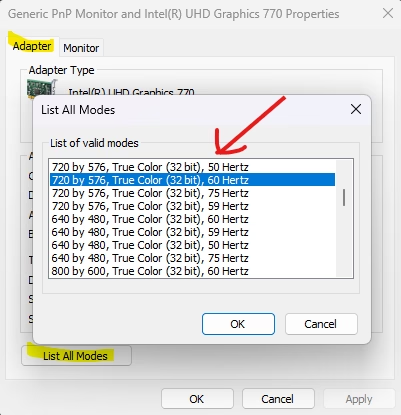
- In the new window, go to the Adapter tab and click List All Modes.
- Choose the resolution and refresh rate you want, then click OK twice.
- Click Keep changes if it looks good, or it will revert in 15 seconds.
2. Using NVIDIA Control Panel (if you have NVIDIA Graphics)
This works only if your PC has NVIDIA graphics and drivers installed.
- Open the NVIDIA Control Panel from the Start menu.
- Click on Change resolution under Display on the left side.
- Select your display, pick a resolution from the Resolution list, and click Apply.
- Confirm by clicking Yes within 20 seconds or it will revert.
3. Using Intel Graphics Control Panel (if you have Intel Graphics)
This option is only available if your PC uses Intel graphics and drivers.
- Open the Intel Graphics Control Panel.
- Click on the Display icon.
- If you have multiple displays, select the one you want to change from the drop-down menu.
- Choose a resolution from the list and click Apply.
- Confirm by clicking Yes within 15 seconds.
Helpful Tips
- Try different resolutions to find what looks best for you.
- If your screen goes blank or looks wrong, don’t worry! Windows will automatically go back to the old settings after a few seconds.
- Use the native resolution for the sharpest and clearest screen.
- Remember: Higher resolutions fit more on the screen, but items look smaller.
More Help
If you want to learn more about screen resolution and display settings, check out the official Microsoft guide here:
Change your screen resolution and layout in Windows – Microsoft Support
 support.microsoft.com
That’s all! Now you know how to change your screen resolution easily in Windows 11.

Leave a Reply Cancel reply