
Do you want to change your Windows 11 password, or have you forgotten it and need to reset it? This simple guide will help you do both step by step.
If you know your current password and just want to change it, follow these steps:
- Open Settings: Click the Start menu (the Windows icon at the bottom left) and select Settings.
Or press Windows key + I on your keyboard to open Settings quickly.
- In Settings, click Accounts from the left menu.
- Then click Sign-in options on the right side.
- Under “Ways to sign in,” find the Password section and click Change.
- Follow the instructions: enter your current password, then type a new password twice.
- Click Finish or Submit, and your password will be updated.
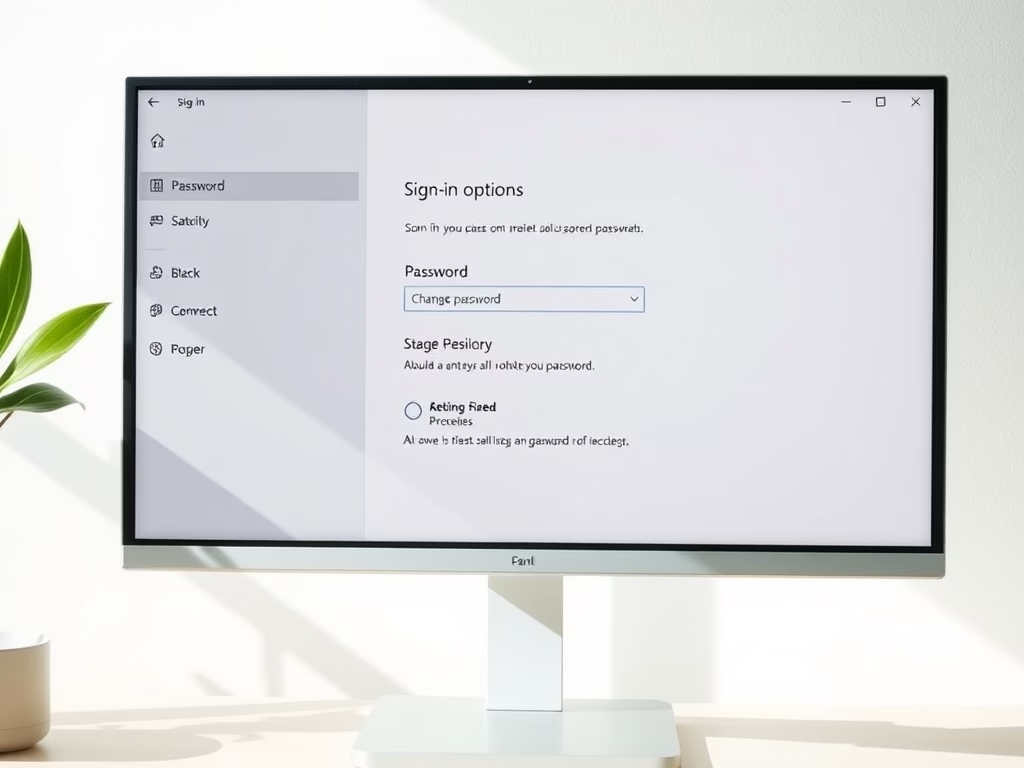
Here is what the Sign-in options screen looks like:

Note: You must know your current password to change it this way.
How to Reset Your Password if You Forgot It
If you don’t remember your password, don’t worry! You can reset it, but the steps depend on whether you use a Microsoft account or a local account to sign in.
If You Use a Microsoft Account
A Microsoft account is an email-based account like yourname@outlook.com. You can reset your password online:
- Go to the Microsoft Account Password Reset page.
- Follow the instructions to verify your identity and create a new password.
- Use your new password to sign in to Windows 11.
If You Use a Local Account
A local account is one that only exists on your computer (not linked to an email). To reset your password:
- On the login screen, enter any password you think might work.
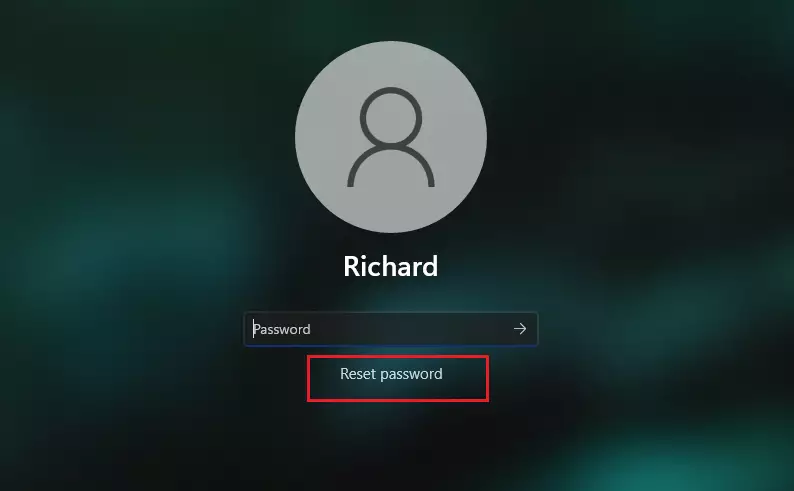
- If it’s wrong, click the Reset password link below the password box.
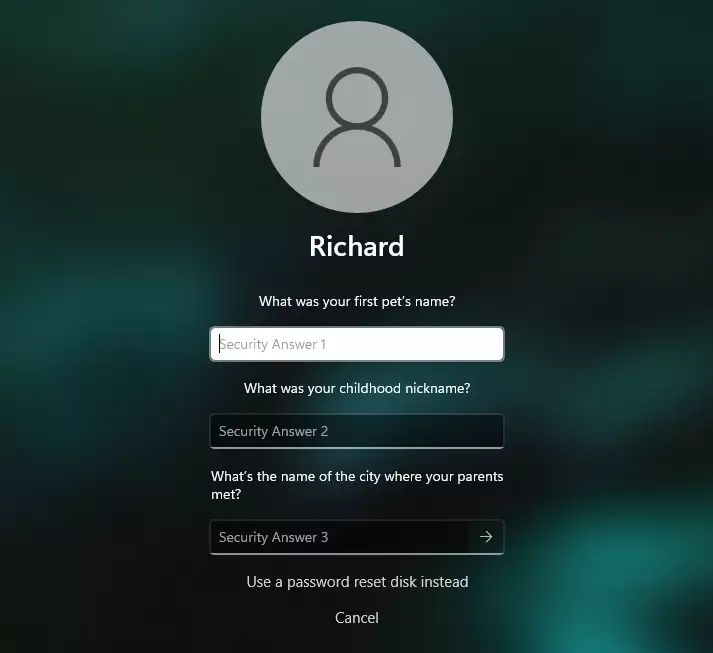
- Answer the security questions you set up when creating your account.
- Enter a new password and confirm it.
- Sign in with your new password.
Example of the Reset password link on the login screen:
Answer the security questions like this:
What If You Can’t Reset Your Password?
If you can’t remember your password, can’t answer the security questions, and cannot reset your Microsoft account online, the last option is to reset your whole computer.
Warning: This will erase all your files, programs, and settings, so use it only if you have no other choice.
How to Reset Your PC
- On the login screen, click the Power button (bottom-right corner).
- Hold down the Shift key on your keyboard, then click Restart.
- When the blue screen appears, click Troubleshoot.
- Select Reset this PC.
- Choose Remove Everything to erase all data and reset Windows.
- Follow the on-screen instructions to complete the reset.
Summary
- Change your password anytime from the Windows Settings if you know your current password.
- If you forget your password, reset it using security questions (local account) or Microsoft’s online tools (Microsoft account).
- Always keep your security questions and account info updated to avoid problems.
- If everything else fails, reset your PC—but remember this deletes everything!
Keeping your password safe and up-to-date helps protect your computer and personal data.



Leave a Reply Cancel reply