Change Emoji Skin Tone in Messenger for Windows 11

This article explains how to change the skin tone for hand gestures and emojis in the Messenger Desktop app on Windows 11.

The Messenger Desktop app is a standalone messaging app developed by Facebook that allows users to send and receive messages, make audio and video calls, and share files and media with other users without going through a web browser.

When you use the Messenger app on Windows, you can turn auto-start on or offchange your online status, turn message preview on or off, mute or unmute all notifications, and more.

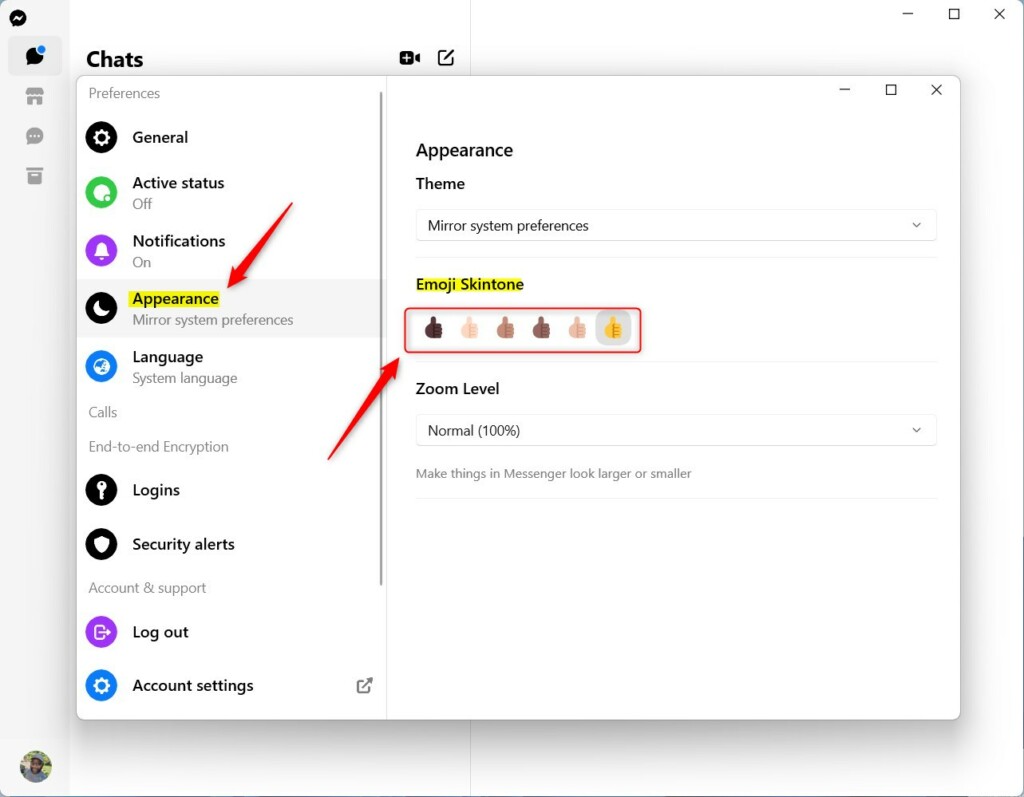
Using the Messenger app, you can also personalize by changing the skintone for gestures and emojis to represent your true personality. Skin tones are based on these colors: [Default], [Light], [Medium Light], [Medium], [Medium Dark], and [Dark].

Changing skin tones in the Messenger app allows users to personalize their messaging experience and better represent themselves in conversations. Users can make their conversations more inclusive and reflect their true personalities by selecting a specific skin tone for hand gestures and emojis.

This feature benefits people who want to represent themselves accurately in conversations and prefer emojis that reflect their skin tone.

Change skin tone for hand gestures and emojis in Messenger

As mentioned above, users can change their skin tone for hand gestures and emojis in the Messenger app to better represent themselves in conversations.

Here’s how to do that.

First, launch the app by clicking the Start menu and selecting it on the All Apps list.

Open Facebook Messenger Desktop app on Start menu

You can also launch the app from the Taskbar or Taskbar overflow.

Open Facebook Messenger desktop app on taskbar overflow

When the app opens, click your profile image and select Preferences at the bottom left of your screen.

Facebook Messenger app Preferences button

Next, select the Appearance tab on the left. Under “Emoji Skintone,” choose a skintone for emoji and hand gestures for your conversations.
That should do it!

Conclusion:

  • Personalize your messaging experience with customized skin tones for hand gestures and emojis
  • Represent yourself accurately in conversations by selecting a specific skin tone
  • Make conversations more inclusive and reflective of your true personality
  • Ensure emojis and hand gestures accurately reflect your skin tone
  • Enjoy a more personalized and authentic messaging experience in Messenger
Categories:

9 responses to “Change Emoji Skin Tone in Messenger for Windows 11”

  1. […] status, turn message preview on or off, mute or unmute all notifications, change skintone for emojis and hand gestures, turn spell-check and auto-correction on or off, turn open Messenger when used in a […]

  2. […] your online status, turn message preview on or off, mute or unmute all notifications, change skintone for emojis and hand gestures, turn to spell-check and auto-correction on or off, turn open Messenger when used in a browser, […]

  3. […] your online status, turn message preview on or off, mute or unmute all notifications, change skintone for emojis and hand gestures, turn to spell-check and auto-correction on or off, turn open Messenger when used in a browser, […]

  4. […] your online status, turn message preview on or off, mute or unmute all notifications, change skintone for emojis and hand gestures, turn to spell-check and auto-correction on or off, turn open Messenger when used in a browser, […]

  5. […] your online status, turn message preview on or off, mute or unmute all notifications, change skintone for emojis and hand gestures, turn spell-check and auto-correction on or off, turn open Messenger when used in a browser, on […]

  6. […] your online status, turn message preview on or off, mute or unmute all notifications, change skintone for emojis and hand gestures, turn spell-check and auto-correction on or off, turn open Messenger when used in a browser, on […]

  7. […] your online status, turn message preview on or off, mute or unmute all notifications, change skintone for emojis and hand gestures, turn spell-check and auto-correction on or off, turn open Messenger when used in a browser, on […]

  8. […] your online status, turn message preview on or off, mute or unmute all notifications, change skintone for emojis and hand gestures, turn spell-check and auto-correction on or off, and […]

  9. […] your online status, turn message preview on or off, mute or unmute all notifications, change skintone for emojis and hand gestures, and […]

Leave a Reply

Your email address will not be published. Required fields are marked *

Explore Topics

Exit mobile version