

This tutorial will show you how to change the pen double-tap spatial tolerance for your account in Windows 10 and Windows 11.
You can pair a pen via Bluetooth to connect the pen with your Windows 11 PC and use with the pen menu.
You can adjust the distance (spatial tolerance) the pointer can move between tapping when you double-tap with your pen.
Why Change Pen Double-tap Settings?
Adjusting the spatial tolerance helps your pen recognize double-taps more accurately. If your pen is too sensitive or not sensitive enough, changing this setting can fix the problem.
Option One
Change Pen Double-tap Spatial Tolerance in Settings
- Open Settings by pressing
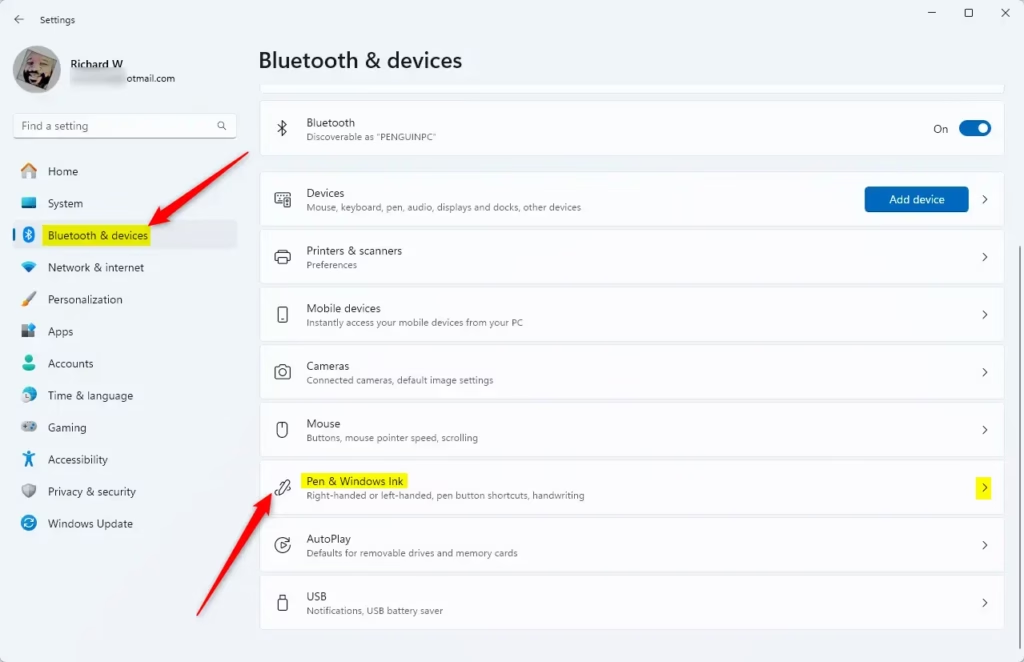
Win+I. - Click on Bluetooth & devices on the left side. Then click on Pen & Windows Ink on the right side. Open Pen & Windows Ink settings
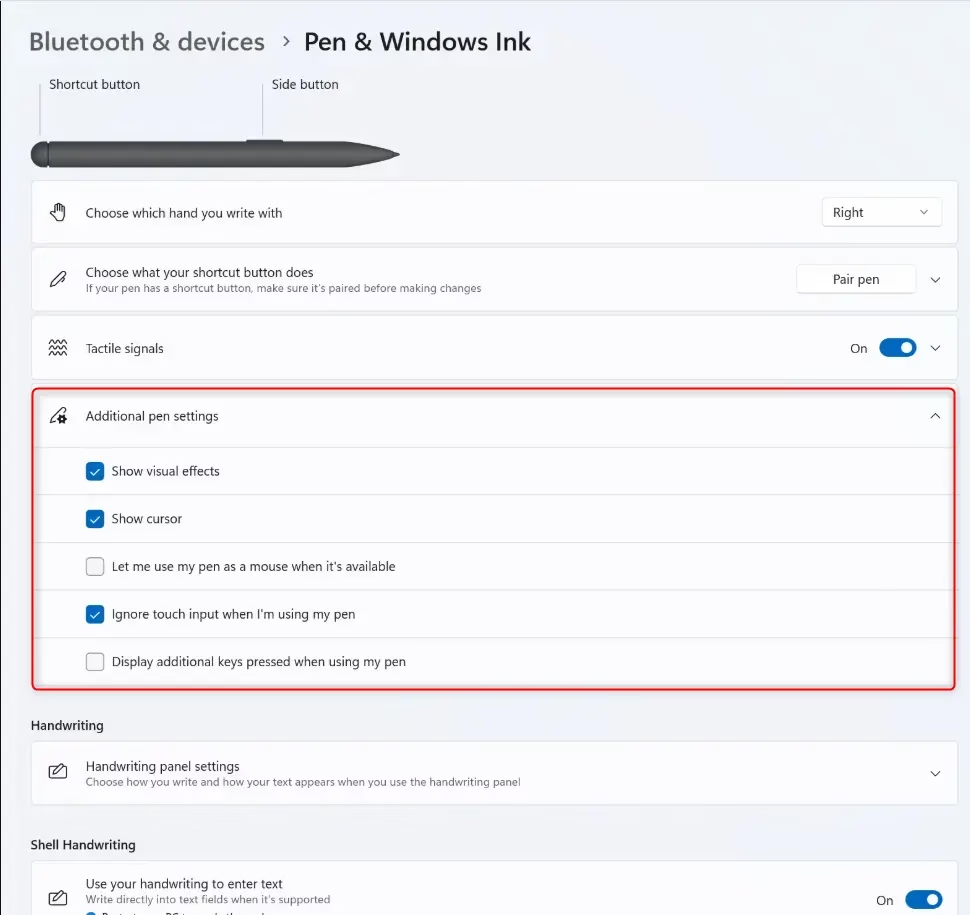
- Click on Additional pen settings to expand it open.
- Look for the slider labeled The distance your stylus can move between taps when you double-tap. Move the slider left to make it less sensitive or right to make it more sensitive. The default distance is 10. You can hover your cursor over the slider to see the current setting.
- Close Settings when finished.
Option Two
Change Pen Double-tap Spatial Tolerance in Control Panel
- Open Control Panel in icons view. Click on the Pen and Touch icon.
- Do the following:
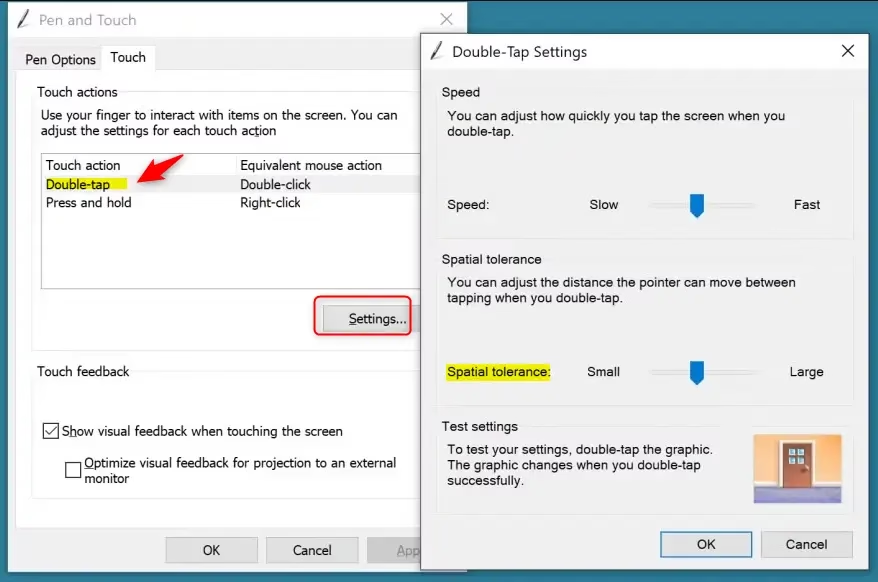
- Click on the Pen Options tab.
- Select Double-tap.
- Click on Settings.
- Move the Spatial tolerance slider left for a smaller distance or right for a larger distance. Choose what works best for you. Then click OK. You can double-tap on the door graphic under Test settings to test your current double-tap setting.
- Click OK again.
- Close Control Panel when finished.
Option Three
Change Pen Double-tap Spatial Tolerance in Registry Editor ⚠️ Requires Admin Privileges
- Open Registry Editor by typing
regedit.exein your search bar and running it. - In the left pane, navigate to this location:
HKEY_CURRENT_USER\Software\Microsoft\Wisp\Pen\SysEventParameters - In the right pane, find the DblDist DWORD value. Double-click it to edit it.
- Click on Decimal. Type a number between 3 (small) and 50 (large) for your preferred double-tap sensitivity. Then click OK. The default value is 20.
- Close Registry Editor when done.
- Sign out and sign back in, or restart your computer to apply the changes.
Summary
Changing your pen double-tap spatial tolerance adjusts how far your pen pointer can move between taps. This helps your pen recognize double-taps better. You can change this setting in three ways: through Settings, Control Panel, or Registry Editor. Each method achieves the same result. Choose whichever option is easiest for you.

Leave a Reply Cancel reply