How to Bring Back Classic File Explorer in Windows 11

This post shows students and new users how to restore Windows 10 classic File Explorer with Ribbon in Windows 11.

When Windows 11 is released to the general public, it will come with many new features and drastic changes that some may find unappealing.

These changes include a redesigned user desktop, centered Start menu and taskbar, rounded corners windows, themes and colors, and many more.

If you find that the modern File Explorer menu option in Windows 11 isn’t something you like, you can follow the steps below to restore the one in Windows 10 with a ribbon.

And if you decide you want to go back to the original in Windows 11, simply delete the registry key you created to restore it. It’s that simple.

To get started restoring the classic File Explorer with ribbon in Windows 11, follow the steps below:

How to restore File Explorer classic ribbon UI in Windows 11

The File Explorer ribbon UI in Windows 10 is great if you’re already used to it. You know where everything is, and nothing new to learn. Instead of learning something new, simply bring back the classic option in Windows 11 with you.

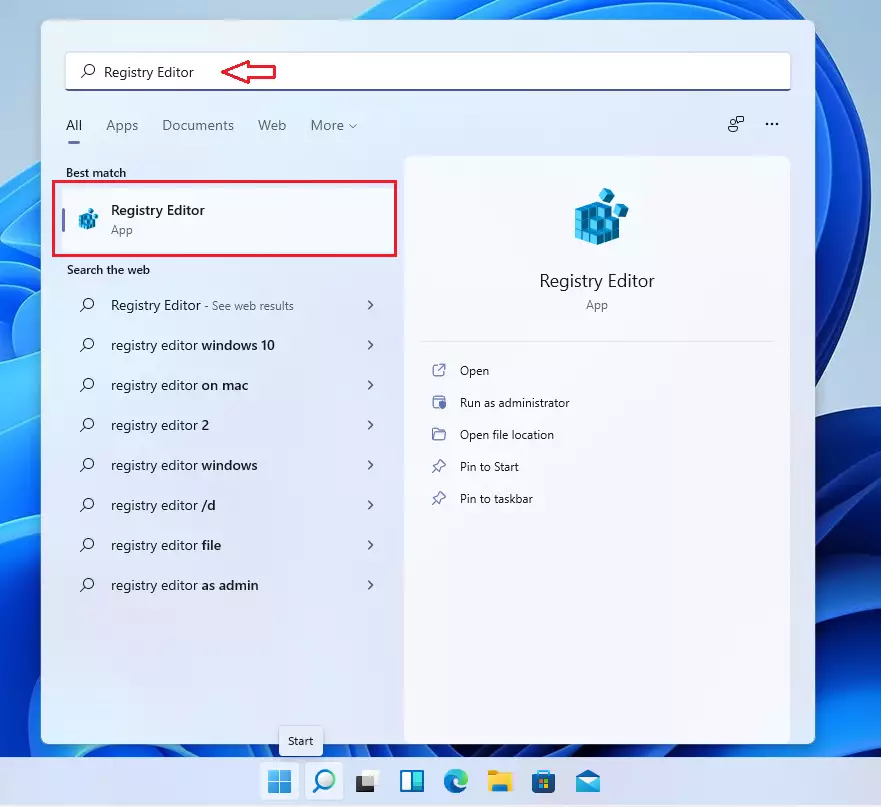
To do that, open the Windows Registry Editor app. Click on the Start menu, then search for ‘Registry Editor‘ as shown in the image below.

Select the Registry Editor app and open it.
Windows 11 Registry Editor interface for restoring File Explorer

When it opens, navigate to the path as shown below.

HKEY_LOCAL_MACHINESOFTWAREMicrosoftWindowsCurrentVersionShell Extensions

To get there, you could copy and paste the path above the directory into the Registry Editor navigator box.

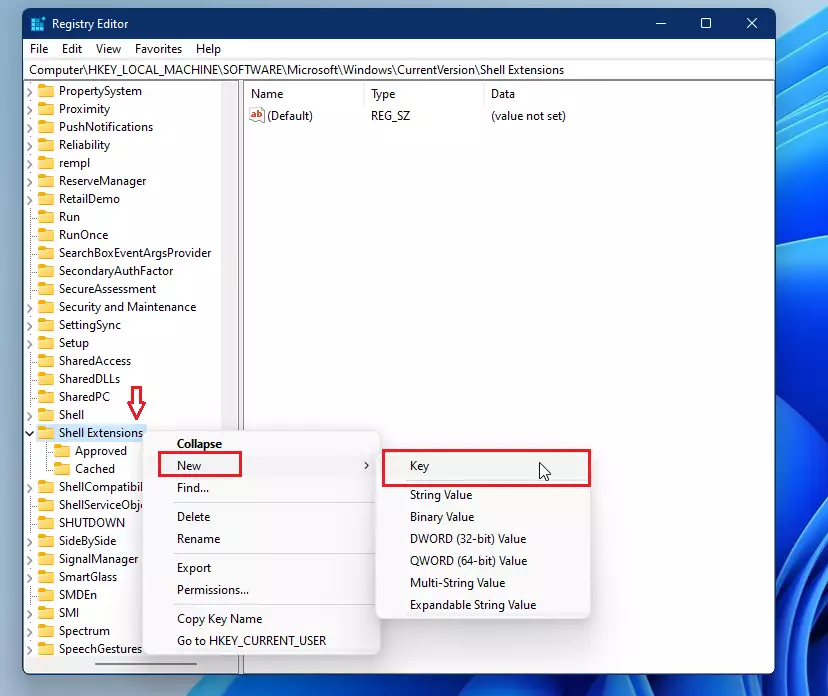
Next, right-click the Shell Extension folder and select New ==> Key, as shown below.
New key creation in Windows Registry for File Explorer

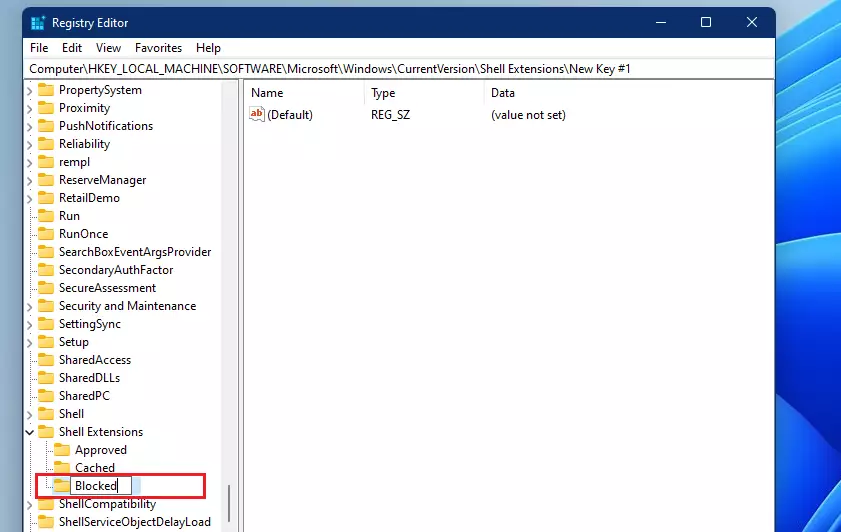
The name of the new Key is Blocked.

Blocked new key creation in Windows 11 Registry Editor

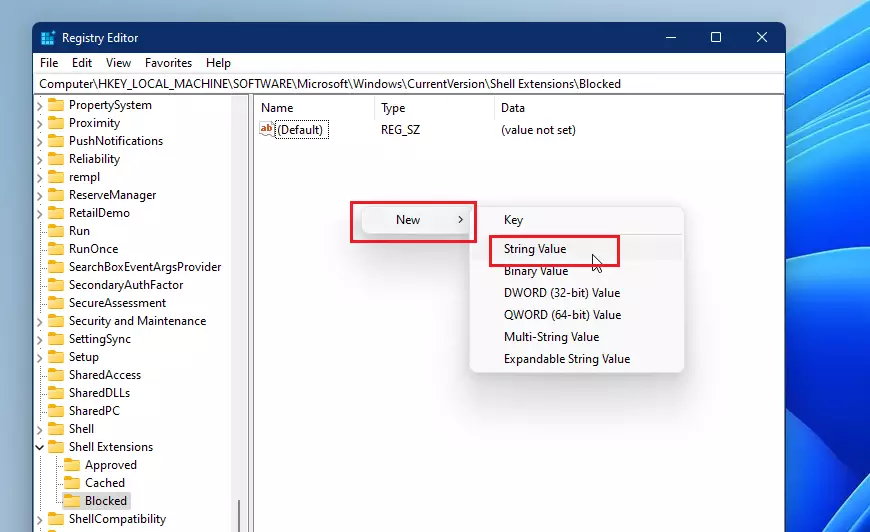
Next, select the newly created Blocked Key, then in the right pane, right-click and select New ==> String.
New string entry in Windows Registry for classic File Explorer

Name the new String Value: {e2bf9676-5f8f-435c-97eb-11607a5bedf7} and press Enter.
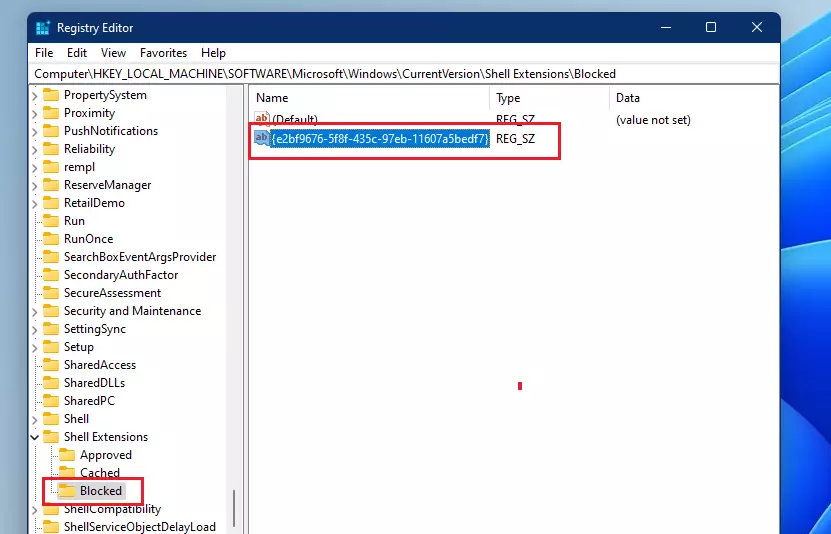
Classic File Explorer ribbon UI in Windows 11

After that, log out and back in or restart your computer.

You should see the classic File Explorer menu option similar to the one in Windows 10.
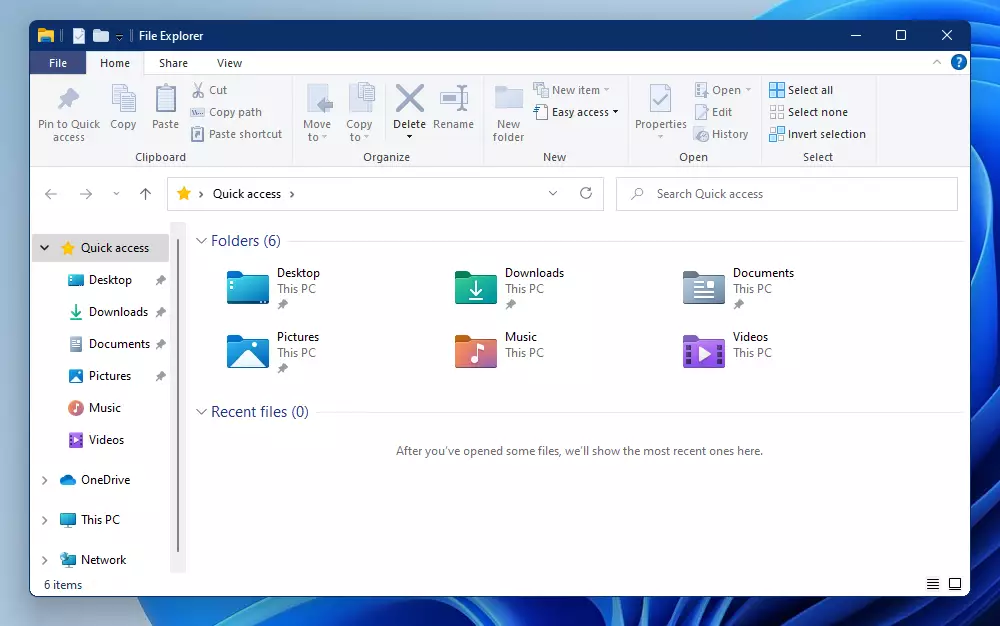
Classic File Explorer interface restored in Windows 11

That’s it!

Conclusion:

This post showed you how to restore the classic File Explorer menu in Windows 11. If you find any error above, please use the comment form below to report.

Frequently Asked Questions

How can I restore the classic File Explorer in Windows 11?

To restore the classic File Explorer in Windows 11, open the Registry Editor and navigate to HKEY_LOCAL_MACHINESOFTWAREMicrosoftWindowsCurrentVersionShell Extensions. Create a new key named 'Blocked' and add a string value with the name '{e2bf9676-5f8f-435c-97eb-11607a5bedf7}'.

What are the main changes in File Explorer with Windows 11?

Windows 11 features a modernized File Explorer with a centered layout, a simplified toolbar, and a new context menu. Many users find these changes unfamiliar, prompting them to seek ways to revert to the classic File Explorer style.

Can I revert back to the Windows 11 File Explorer after restoring the classic version?

Yes, you can easily revert to the original Windows 11 File Explorer by deleting the registry key you created to restore the classic version. Simply open the Registry Editor, find the 'Blocked' key, and delete it.

Is it safe to edit the Windows Registry to change File Explorer settings?

Editing the Windows Registry can be safe if done carefully, but it is important to back up the registry before making changes. Incorrect modifications can lead to system instability, so follow instructions closely.

What should I do if I encounter errors while restoring the classic File Explorer?

If you encounter errors while restoring the classic File Explorer, double-check the registry path and values you entered. If issues persist, consider seeking help in tech forums or using the comment section of the tutorial for assistance.

Categories:

Tags:

  1. Phoenix E Nicholson Avatar
    Phoenix E Nicholson

    Tried on my laptop and desktop. Did not work for either one.

  2. Harim Kim Avatar
    Harim Kim

    using the registrator editor worked for me. It literally took 2 – 3 seconds to open up a file but now it’s instant. thanks for posting this!

Leave a Reply to Phoenix E Nicholson Cancel reply

Your email address will not be published. Required fields are marked *

Exit mobile version