
If you have LED lights on your keyboard, mouse, or PC case that work with Windows 11’s Dynamic Lighting feature, you can easily change how bright they shine. This guide will show you simple steps to make the lights brighter or dimmer to suit your comfort.
What is Windows Dynamic Lighting?
Windows Dynamic Lighting lets you control LED lights on devices like keyboards, mice, and PC cases that support this feature. You can adjust each device separately or all at once using the Windows Settings app.
When your LED devices are connected, they appear as cards at the top of the Dynamic Lighting page. Just click on a device’s card to change its settings.
By changing the brightness, you can reduce eye strain in dark rooms or just make your setup look the way you want, whether brighter or softer.
How to Change LED Brightness in Windows 11
Follow these easy steps:
- Open the Settings app:
- Click the Start menu and select Settings, or
- Press Windows key + I on your keyboard.
- In Settings, click on Personalization from the menu on the left.
- Look for and click the Dynamic Lighting tile on the right.
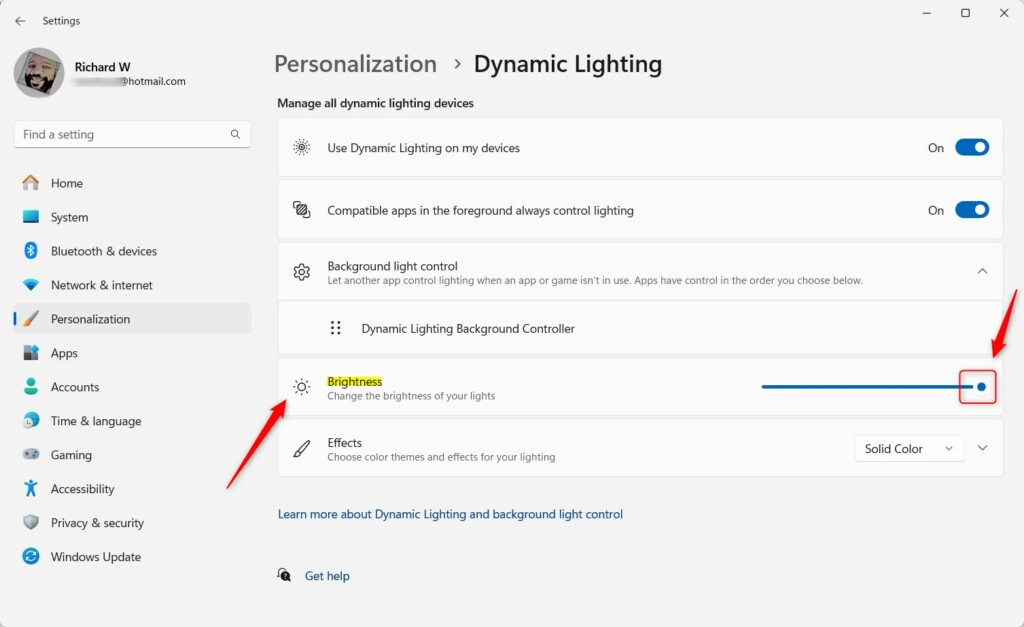
- On the Dynamic Lighting page, find the Brightness section.
- Use the slider to pick a brightness level between 0% (off) and 100% (full brightness).
- If you want to go back to the original brightness for all devices, click Reset for all devices.


When you’re done adjusting, just close the Settings app. Your changes will be saved automatically.
Advanced: Change Brightness Using the Windows Registry
If you want, you can also change the brightness through the Windows Registry. This is a bit more technical, so only try this if you feel comfortable.
Here’s how:
- Open the Registry Editor by typing regedit in the Start menu search and pressing Enter.
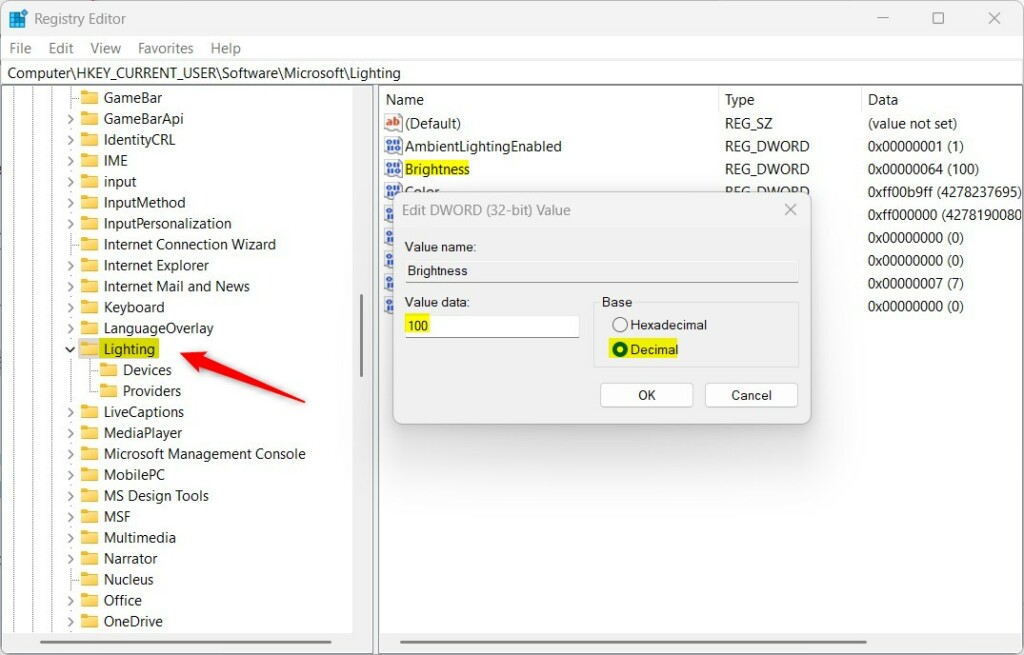
- Navigate to this key:
HKEY_CURRENT_USERSoftwareMicrosoftLighting
- Find the Brightness entry on the right side and double-click it.
- Enter a number between 0 and 100 to set the brightness percentage.
- Click OK and close the Registry Editor.
Summary
- You can easily adjust the brightness of LED lights on your devices using Windows 11’s Dynamic Lighting settings.
- This helps make your screen easier on your eyes and can improve comfort in different lighting conditions.
- Use the Settings app for a simple way, or the Registry Editor if you prefer advanced control.
- Try different brightness levels to find what feels best for you.
Enjoy customizing your PC lights just the way you like!



Leave a Reply Cancel reply