

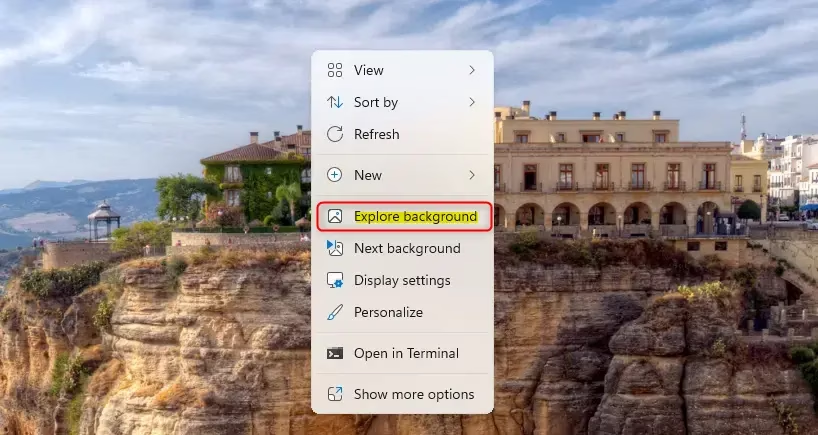
This tutorial will show you how to add or remove the Explore background option from your desktop context menu in Windows 11. This menu appears when you right-click your desktop and use Windows Spotlight as your background.
Why This Matters
Starting with Windows 11 build 26100.7309 (24H2) and build 26200.7309 (25H2), Microsoft added a new “Learn more about this background” option to your desktop context menu. When you click it, your browser opens to show information about the current Windows Spotlight image. If you don’t want this option, you can remove it easily.
What Happens When Done
After following these steps, the “Explore background” option will either appear or disappear from your right-click desktop menu, depending on which option you choose.
Option One: Current User Only
Add “Explore background” Context Menu for Current User
This is the default setting.
- Open the Windows Terminal app.
- Run this command:
reg delete "HKEY_CURRENT_USER\Software\Classes\DesktopBackground\shell.SpotlightLearnMore" /v ProgrammaticAccessOnly /f
Remove “Explore background” Context Menu for Current User
- Open the Windows Terminal app.
- Run this command:
reg add "HKEY_CURRENT_USER\Software\Classes\DesktopBackground\shell.SpotlightLearnMore" /v ProgrammaticAccessOnly /t REG_SZ /d "" /f
Option Two: All Users on Your Computer
Important: You must be signed in as an administrator to use this option.
Add “Explore background” Desktop context menu for All Users
This is the default setting.
Open the Windows Terminal app as an administrator.
Run this command:
reg add "HKEY_CLASSES_ROOT\DesktopBackground\Shell.SpotlightLearnMore" /v CommandStateSync /t REG_SZ /d "" /f
reg add "HKEY_CLASSES_ROOT\DesktopBackground\Shell.SpotlightLearnMore" /v ExplorerCommandHandler /t REG_SZ /d "{5C6B744C-4CD1-5EA7-BDC6-0E6679A956BF}" /f
reg add "HKEY_CLASSES_ROOT\DesktopBackground\Shell.SpotlightLearnMore" /v Position /t REG_SZ /d "Bottom" /f
Remove “Explore background” Desktop context menu for All Users
- Open Registry Editor by typing
regedit.exein your search bar. - In the left pane, navigate to this location:
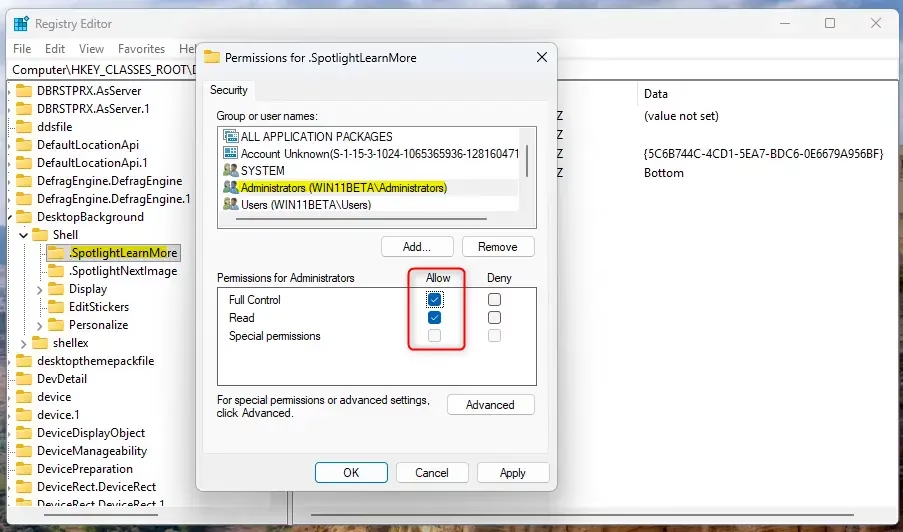
HKEY_CLASSES_ROOT\DesktopBackground\Shell\.SpotlightLearnMore - Important: You need admin privileges to change the owner and permissions. Right-click on the
.SpotlightLearnMorekey and select Properties. - Click the Owner tab. Click Edit, then change the owner to Administrators. Click OK.
- Go to the Permissions tab. Select Administrators and check the box for “Full Control”. Click OK.
- You can now close Registry Editor.
Summary
You now know how to control the “Explore background” option in your Windows 11 desktop context menu. Use Option One if you only want to change the setting for your account. Use Option Two if you want to change it for everyone who uses your computer. The “Explore background” option lets you learn more about Windows Spotlight images, but you can remove it if you don’t need it.
Leave a Reply Cancel reply