

This article explains adding a family member to your Microsoft Family Safety group in Windows 11
Microsoft Family Safety is designed to help families create a safe and secure online environment. It enables parents to monitor and manage their children’s online activities, set appropriate restrictions and permissions, and receive regular reports on their online behavior.
Adding a member to Microsoft Family Safety is a straightforward process. An account can be an organizer or member. Family organizers are administrators of the group. Members can share vital information like locations and screen time and request purchase approval from administrators.
There are some things to consider when adding a member to your family safety group.
- A Microsoft account with administrator privileges.
- Access to the internet.
- The Microsoft Family Safety app is installed on your device(s).
By using Microsoft Family Safety, parents can have peace of mind knowing that their children are protected from potentially harmful content and interactions online. Additionally, the tool allows families to share important information like locations and screen time and request purchase approval from family organizers.
Step 1: Sign in to your Microsoft account
- Open a web browser and go to the Microsoft Family Safety website.
- Sign in to your Microsoft account using your credentials.
Step 2: Access family settings
- On the Microsoft Family Safety homepage, locate the Family tab and click on it.
- Select your family group from the list.
- Under your family group, click on Family settings.

Step 3: Add a member
- In the Family settings page, click on the Add a family member option.
- Choose the option that suits the member you want to add. You have the choice to add a child or an adult.
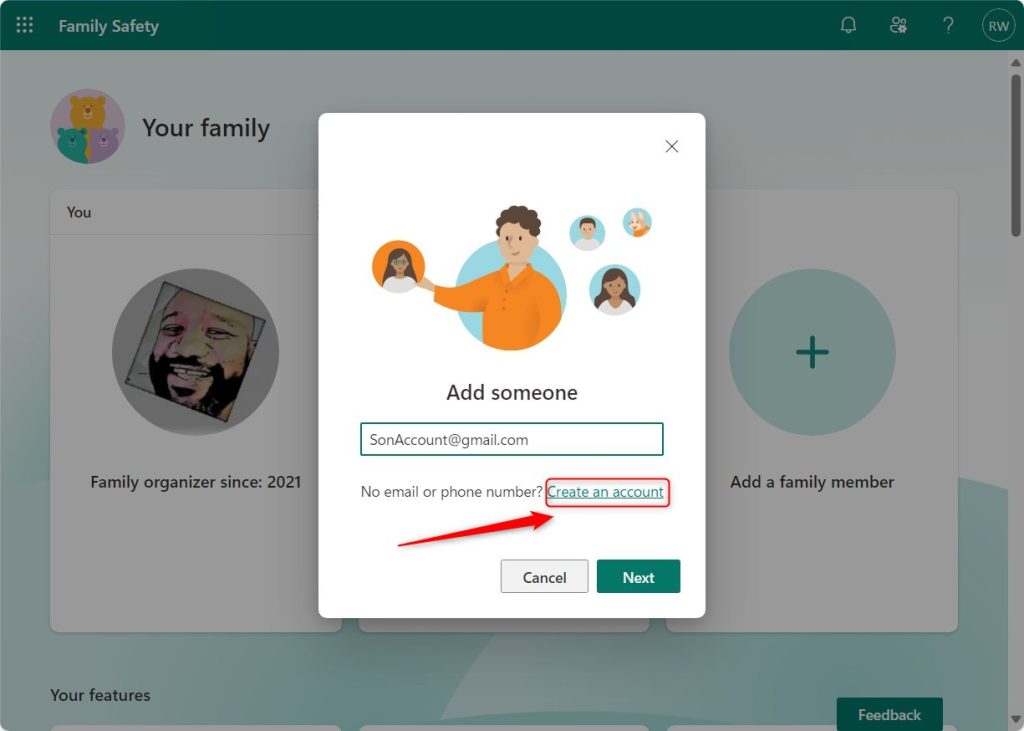
- Follow the on-screen instructions to complete the member details, such as name and email address.
Add a member with an existing Microsoft account. Click Create an account if the member doesn’t already have a Microsoft account.

Step 4: Set up permissions and restrictions
- Once the member is added, you can customize their permissions and activity restrictions.
- Click on the member’s name to access their individual settings.
- Explore the available options, such as screen time limits, app and game restrictions, web browsing filters, and more.
- Configure the settings according to your preferences and the needs of the member.
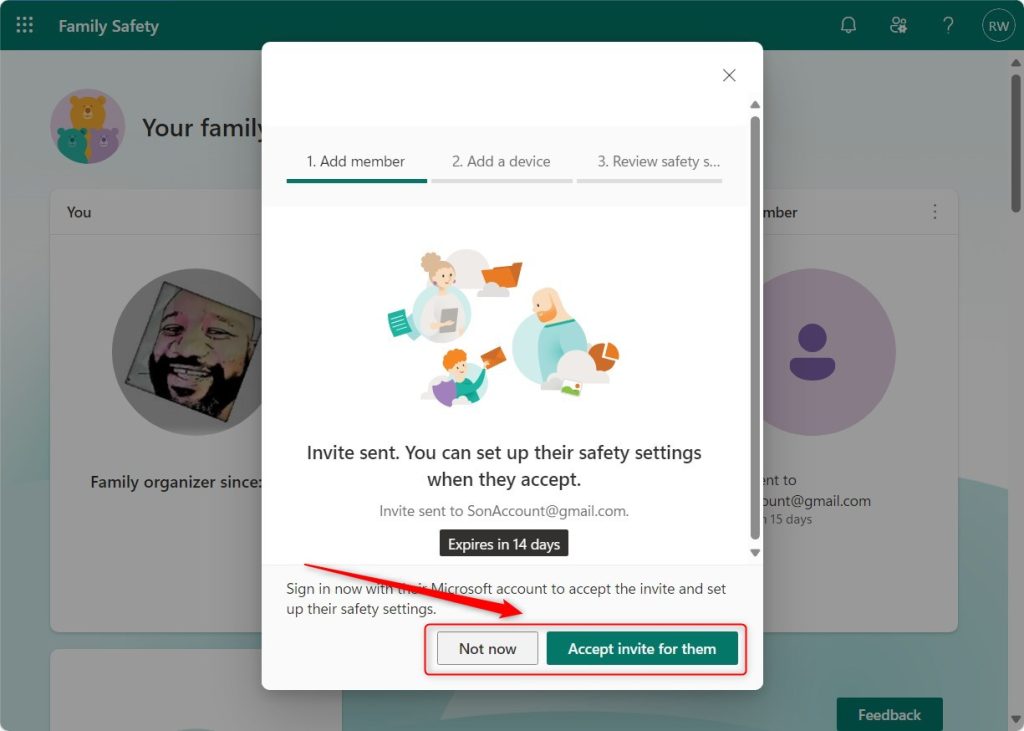
When you add a member, you can accept the invite for them or allow the user to use the invitation link sent to their email to accept the invite.

Step 5: Confirm the member’s access
- When you have finished setting up the member’s permissions and restrictions, click on the Save or Done button to confirm.
- The member will receive an email invitation to join your family. They will need to accept the invitation and follow the instructions provided.

Step 6: Regularly review and update settings
- It’s essential to regularly review and update the Family Safety settings, ensuring they align with your family’s changing needs.
- As your family grows or circumstances change, you can follow the same process to add or remove members.
That should do it!
Conclusion:
- Adding a family member to your Microsoft Family Safety group is a simple process that provides parents peace of mind.
- Following the outlined steps, you can effectively monitor and manage your children’s online activities, set restrictions, and receive reports on their behavior.
- Regularly reviewing and updating the Family Safety settings ensures alignment with your family’s evolving needs, allowing for seamless inclusion or exclusion of members as circumstances change.



Leave a Reply Cancel reply