
If you use Wi-Fi on your Windows 11 computer, sometimes you might want to change how your device connects to your Wi-Fi or update its security settings. This guide will help you do that in simple steps.
When you connect your Windows 11 computer to a Wi-Fi network, Windows saves the network details like its name (SSID) and password in something called a network profile. This helps your computer connect automatically next time.
Sometimes, you may want to change your Wi-Fi password or other settings without deleting the network profile. Here’s how you can update these settings easily.
How to Change Your Wi-Fi Settings in Windows 11
Follow these easy steps:
- Open Windows Settings:
Click the Start menu button (the Windows icon on the bottom left) and then click Settings.
Or, press Windows key + I on your keyboard to open Settings right away.
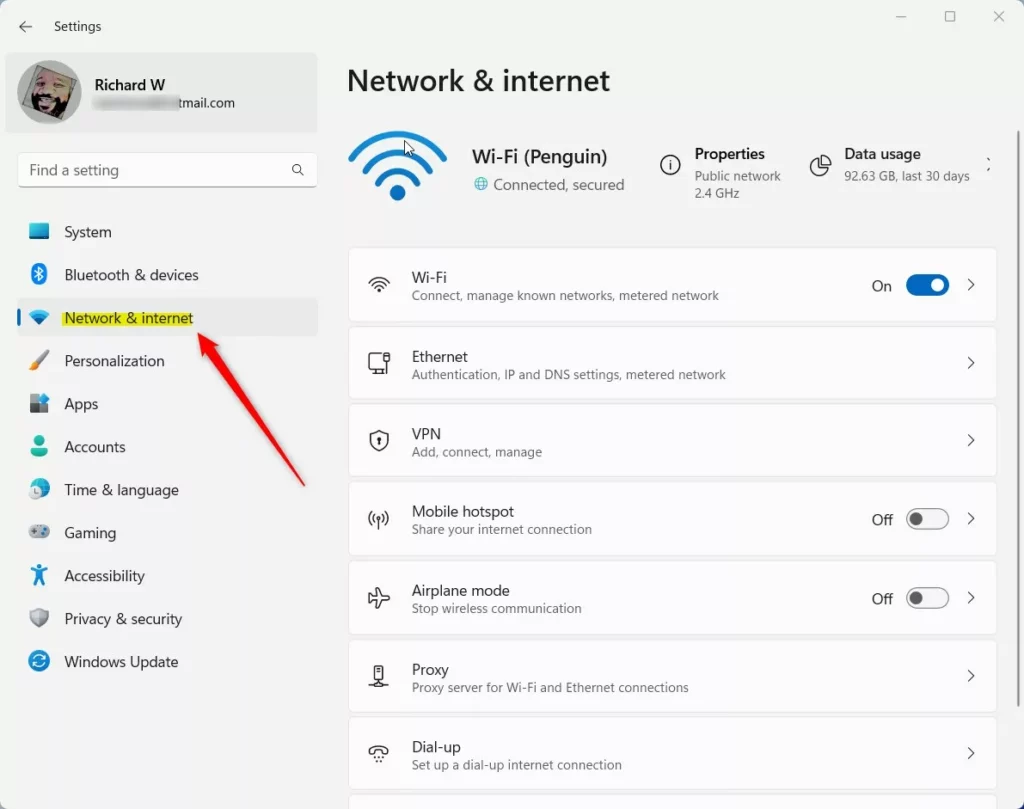
- Go to Network & Internet:
In the Settings window, click on Network & internet on the left side.
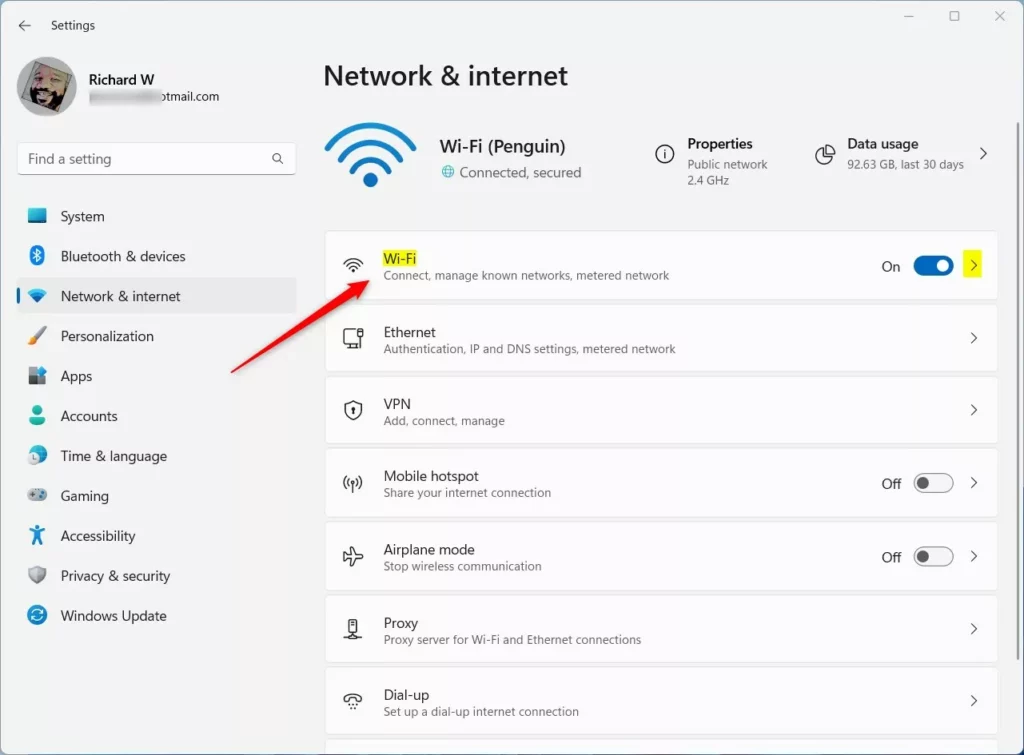
- Click on Wi-Fi:
On the right side, click the Wi-Fi section to see more options.
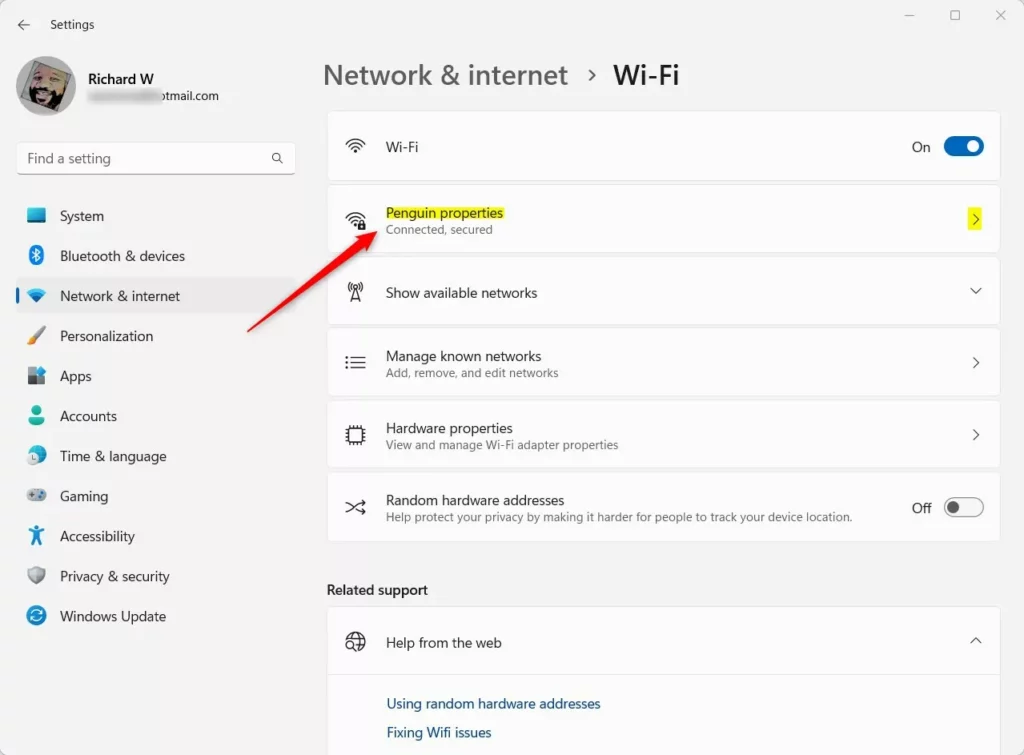
- Manage your Wi-Fi networks:
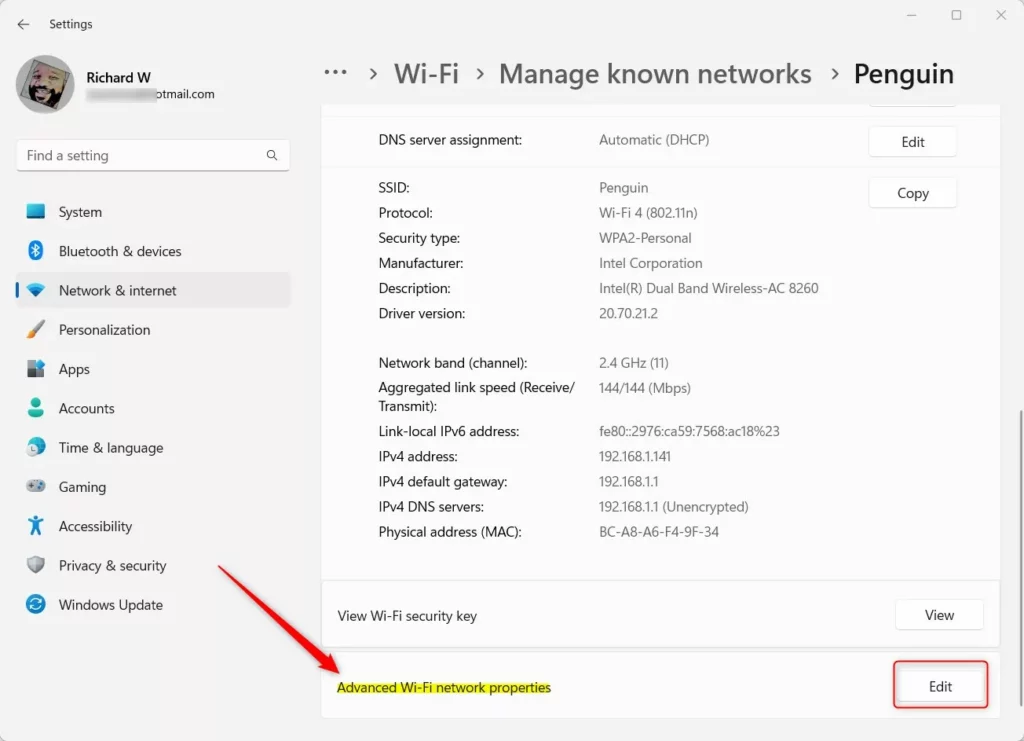
Click Manage known networks to see the list of Wi-Fi networks your computer remembers.
- Pick the Wi-Fi network you want to change:
Find your Wi-Fi network from the list and click on it.
- Open Advanced settings:
Click on Advanced network settings or Properties (depending on your Windows version). Then click Edit to change connection and security settings.
What Can You Change?
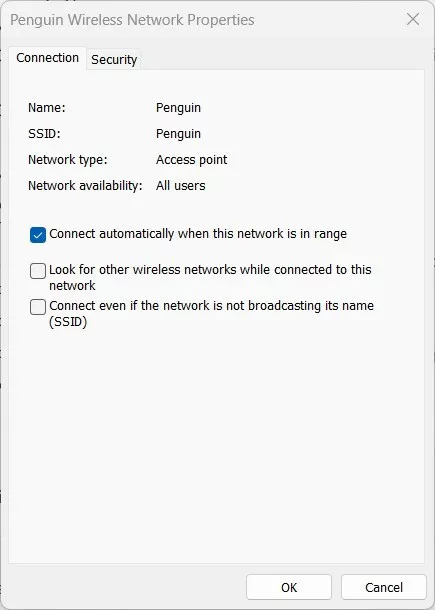
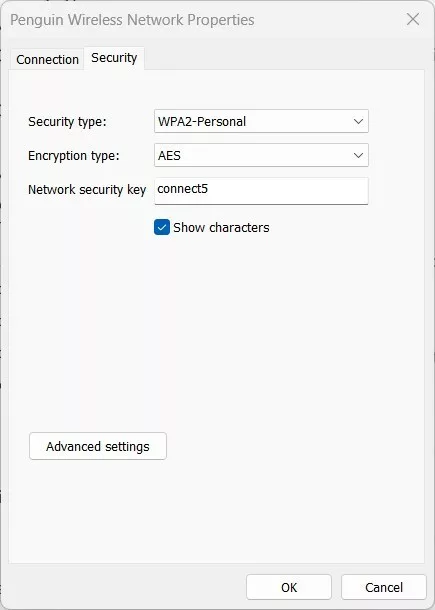
In the window that opens, you will see two tabs: Connection and Security.
- Connection tab:
- Choose to connect automatically when the network is nearby.
- Allow Windows to look for other networks even while connected.
- Connect even if the network is hidden (not broadcasting its name).
- Security tab:
- Change the security type (like WPA2 or WPA3).
- Change the encryption type (how data is protected).
- Update the Wi-Fi password (called Network security key).
Example Screenshots
Summary
- You can update your Wi-Fi settings in Windows 11 without deleting the network.
- Changing your Wi-Fi password or security settings helps keep your connection safe.
- Knowing how to access these settings makes it easier to fix problems or improve your Wi-Fi experience.
If you want to learn how to connect to Wi-Fi networks or find your Wi-Fi password, check out these helpful guides.


Leave a Reply Cancel reply