
This simple guide will help you change how bright your screen gets when your laptop or tablet is in Battery Saver mode in Windows 11.
What is Battery Saver?
Battery Saver helps your device use less power when running on battery. It does this by turning off or slowing down some features, so your battery lasts longer.
By default, Battery Saver turns on automatically when your battery goes below 20%.
How Does Brightness Change?
When Battery Saver is on, Windows usually lowers your screen brightness by about 30% to save power. But you can change this to be brighter or darker depending on what you like.
You can also choose to turn this brightness change on or off completely.
Important Notes:
- Battery Saver only works when your device is running on battery power (not plugged in).
- When you plug your device in to charge, Battery Saver automatically turns off and your brightness goes back to normal.
How to Change the Brightness Percentage for Battery Saver
- Open Windows Terminal. You can do this by:
- Click the Start button, type Windows Terminal, and press Enter.
- Choose either PowerShell or Command Prompt inside Windows Terminal.
- Type the following command, then press Enter:
powercfg /setdcvalueindex SCHEME_CURRENT SUB_ENERGYSAVER ESBRIGHTNESS <percentage> - Replace
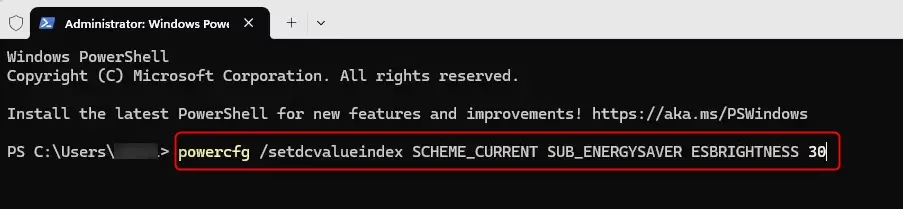
<percentage>with a number between 0 (very dark) and 100 (full brightness). For example, to set it to 30%, type:powercfg /setdcvalueindex SCHEME_CURRENT SUB_ENERGYSAVER ESBRIGHTNESS 30
Here is what it looks like in Windows Terminal:
You’re done!
Summary
- Battery Saver helps save power and makes your battery last longer.
- You can change how much your screen brightness lowers when Battery Saver is active.
- Use the simple command above to pick the brightness level that feels right for you.
- Remember, when you plug your device back in, Battery Saver turns off and brightness returns to normal.
For more info about Battery Saver settings, you can visit this Microsoft page: Energy Saver settings overview



Leave a Reply Cancel reply