How to Use Sticky Notes in Windows 11


Sticky Notes is a built-in Windows 11 app that lets you pin digital reminders and to-do lists directly to your desktop. You can type quick notes, phone numbers, and ideas without opening a heavy word processor.
Signing in with a free Microsoft account syncs your notes across every Windows 11 PC you own. You can also color-code each note to keep your projects, chores, and shopping lists neat and easy to find.
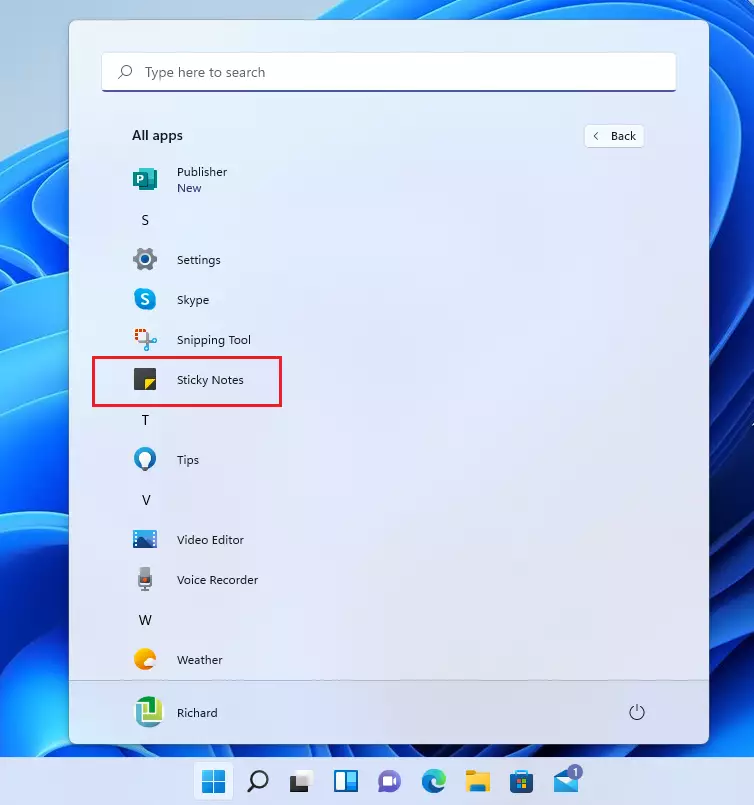
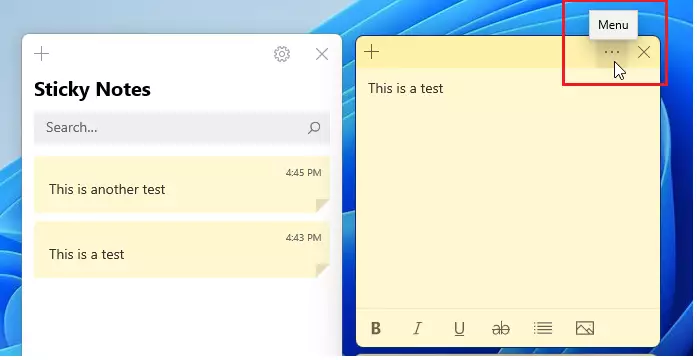
Open Sticky Notes by clicking the Start menu , selecting All apps, and finding Sticky Notes. You can then type directly into the note that appears, create new notes with the ‘+’ button, and customize colors via the (…) menu.
How to Open Sticky Notes
Sticky Notes Windows 11 opens quickly through the Start menu so you can jot down reminders right away. Press the Win on your keyboard, type the words Sticky Notes into the search box, and click the app icon in the results list to launch it.
To keep the app handy, right-click the Sticky Notes icon on your Taskbar and select Pin to taskbar .
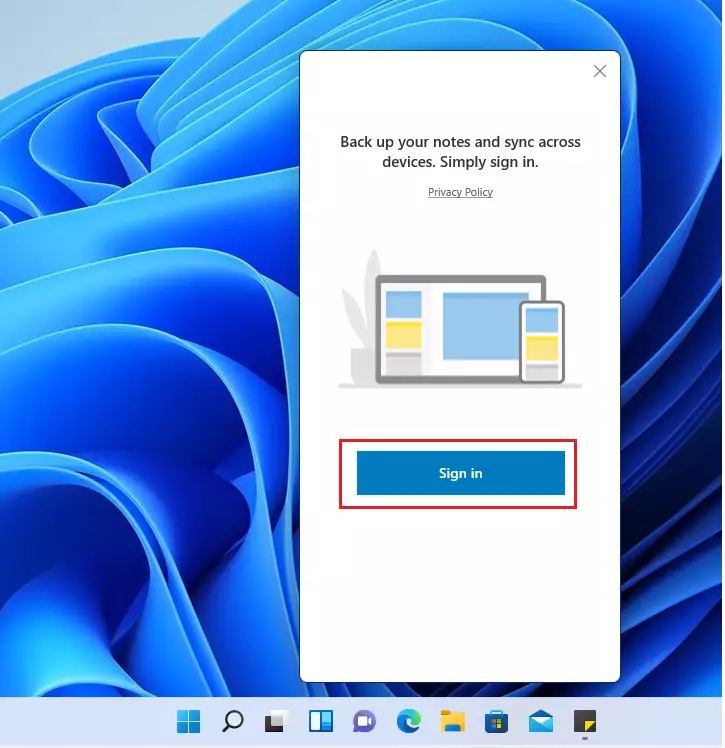
When you first open the app, it asks you to sign in with a Microsoft account. This enables cloud backups and syncs your notes across devices. Closing the sign-in window bypasses this step for local-only typing.
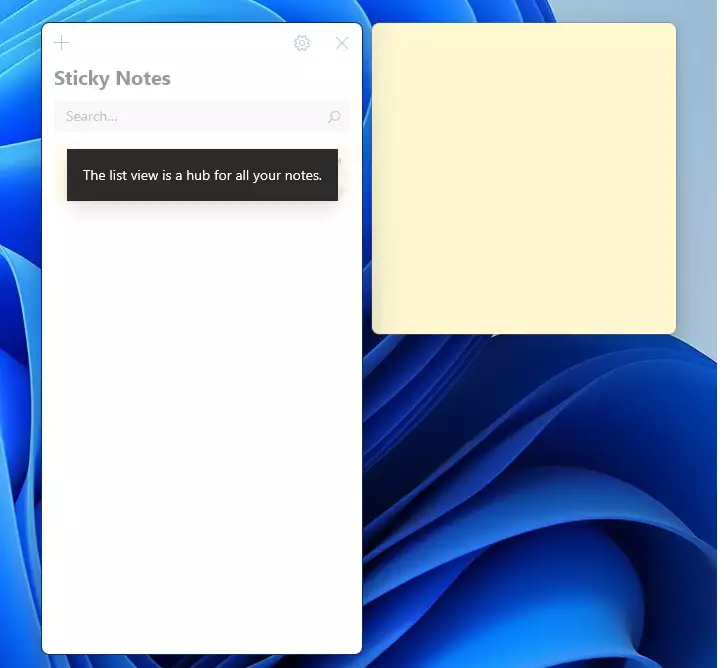
Managing Your Notes
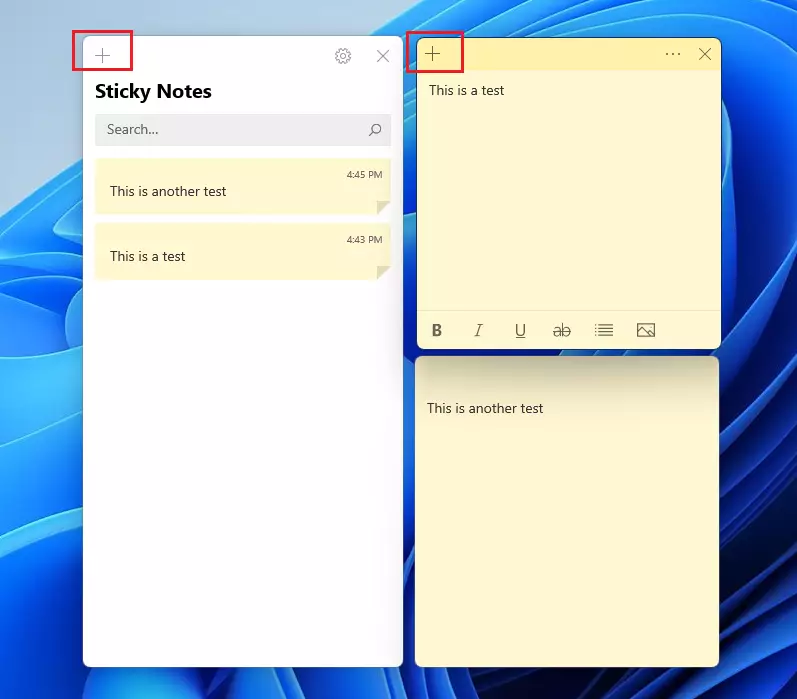
Sticky Notes Windows 11 helps you keep track of daily tasks by letting you create new notes, change background colors, and organise your desktop workspace. Click the plus icon on any open note to add a new one, or use the three dots menu to switch colors.
To create a new note, click the + button at the top of any open note.
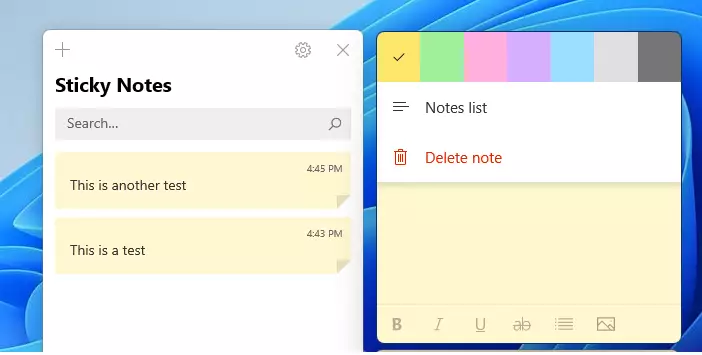
To change the color of a note, click the three dots (...) menu button. Choose a color from the palette to help organize your tasks.
To delete a note, click the same three dots menu and select the trash can icon (Delete note).
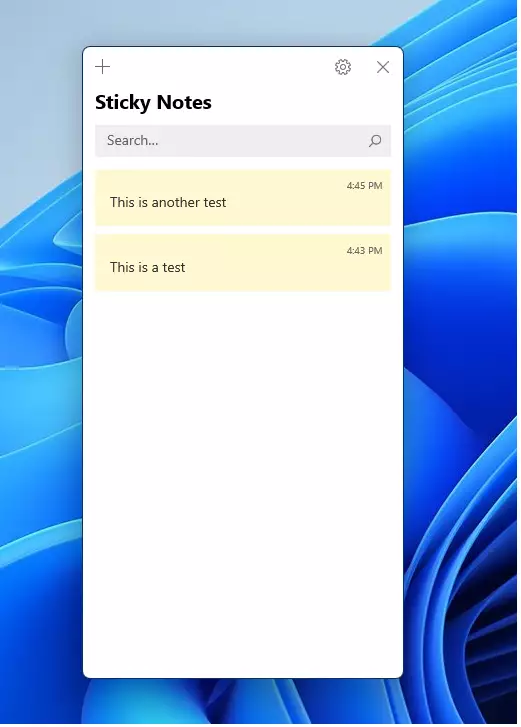
Repositioning notes requires clicking and dragging the top header bar. Resizing happens by dragging any of the four corners. Closing a window via the X keeps the content intact inside the central Sticky Notes hub.
How to Show or Hide All Notes
Cluttered screens benefit from a temporary toggle to hide active reminders.
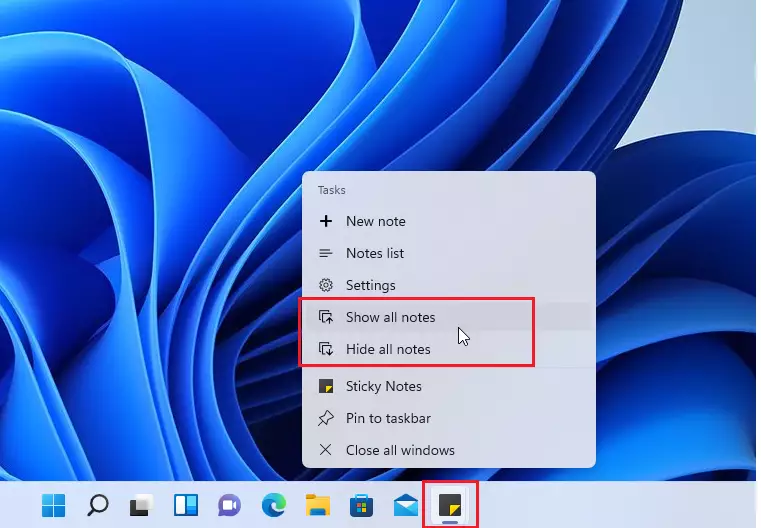
Right-click the Sticky Notes icon on your Taskbar and select Show all notes or Hide all notes from the menu.
Summary
Sticky Notes in Windows 11 serves as a reliable utility for tracking important data. Text capture, pen drawing, and cross-device syncing combine into a robust system for daily productivity.
Was this guide helpful?
100% of readers found this helpful (2 votes)

About the Author
Richard
Tech Writer, IT Professional
Richard, a writer for Geek Rewind, is a tech enthusiast who loves breaking down complex IT topics into simple, easy-to-understand ideas. With years of hands-on experience in system administration and enterprise IT operations, he’s developed a knack for offering practical tips and solutions. Richard aims to make technology more accessible and actionable. He's deeply committed to the Geek Rewind community, always ready to answer questions and engage in discussions.




No comments yet — be the first to share your thoughts!