How to Unlock Accounts in Windows 11


Account locking in Windows 11 blocks sign-in after too many wrong password tries, which stops anyone from guessing their way into your PC. The number of tries is set by policy. Current Windows 11 builds use 10 failed attempts by default, and many work and school PCs set it lower, such as 5. The feature protects your files, but it also locks you out if you forget your own sign-in details.
If no administrator account on the PC can sign in, the fix takes a trip into the Windows Recovery Environment (a hidden repair screen on your PC) to clear the block with the Command Prompt tool. If you can still reach any administrator account, the two methods below are faster. Also, a lockout usually clears by itself after the lockout duration, which is 10 minutes by default on current Windows 11 builds. Waiting is the simplest fix if you are not in a hurry.
Unlock a locked local Windows 11 account by opening lusrmgr.msc, double-clicking the account, unchecking “Account is locked out,” and clicking OK. Alternatively, open Windows Terminal as an administrator and use the command net user “username” /active:yes.
Microsoft Account vs. Local Account
First, find out whether your Windows 11 PC uses a Microsoft Account or a Local Account. They work differently, and some tools only work with one type.
To check, go to Settings Accounts Your info A Microsoft Account shows an email address under your name. A Local Account shows the words Local account. If you cannot sign in at all, think back to how you first set up the PC. If you sign in with an email address, it is almost certainly a Microsoft Account.
How to unlock a local account using the Local Users and Groups manager
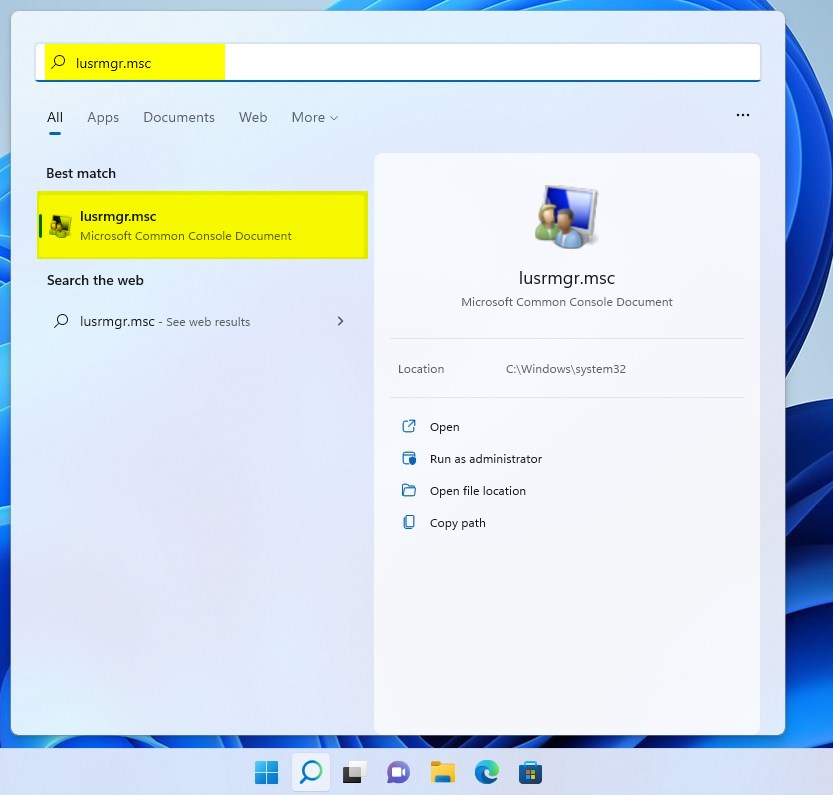
You can unlock a Windows 11 account with the Local Users and Groups manager if you have Windows 11 Pro, Enterprise, or Education. This built-in tool lets you fix a locked user account quickly by changing its status. Press the Win, type lusrmgr.msc in the search box, and open the manager to fix your locked sign-in.
Windows 11 Home does not include this tool, so searching for it there finds nothing. Home users should use the Terminal method later in this guide. The tool also manages Local Accounts only. For a Microsoft Account, use the recovery steps at the end.
- Open the Start menu and type
lusrmgr.msc. - Select the result to open the manager. You should see a window called Local Users and Groups with two folders, Users and Groups.
(Admin privileges required)
You must be signed in to a different administrator account to change another account's status. If the locked account is the only administrator, wait out the lockout period or use the Windows Recovery Environment route described at the start.
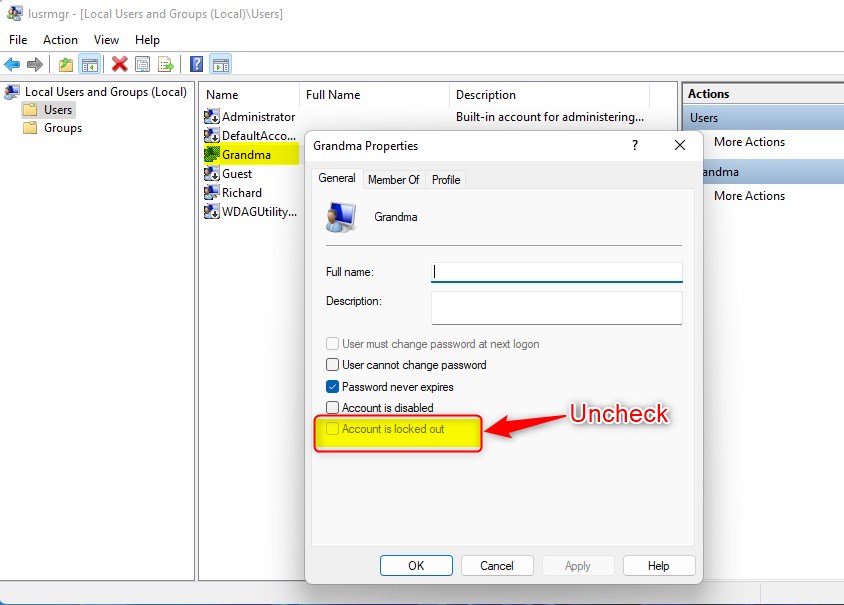
- Click the Users folder on the left. The list of accounts on this PC appears in the middle pane.
- Find the name of the locked account in the list.
- Double-click the account name to open its properties.
- Uncheck the box that says Account is locked out. If the box is greyed out and already unchecked, the account is not locked right now. In that case, look for another cause, such as a disabled account or a wrong password.
- Click OK and close the window. No restart is needed. Go to the sign-in screen and try the account again with the correct password.
How to unlock an account using the Terminal
You can unlock a Windows 11 account from the Terminal by running one command in PowerShell or Command Prompt. This method works well if you prefer typing to clicking through menus, and it is the option for Windows 11 Home, which has no Local Users and Groups tool. Open Windows Terminal with administrator rights, type the unlock command with your specific username, and press Enter to restore access.
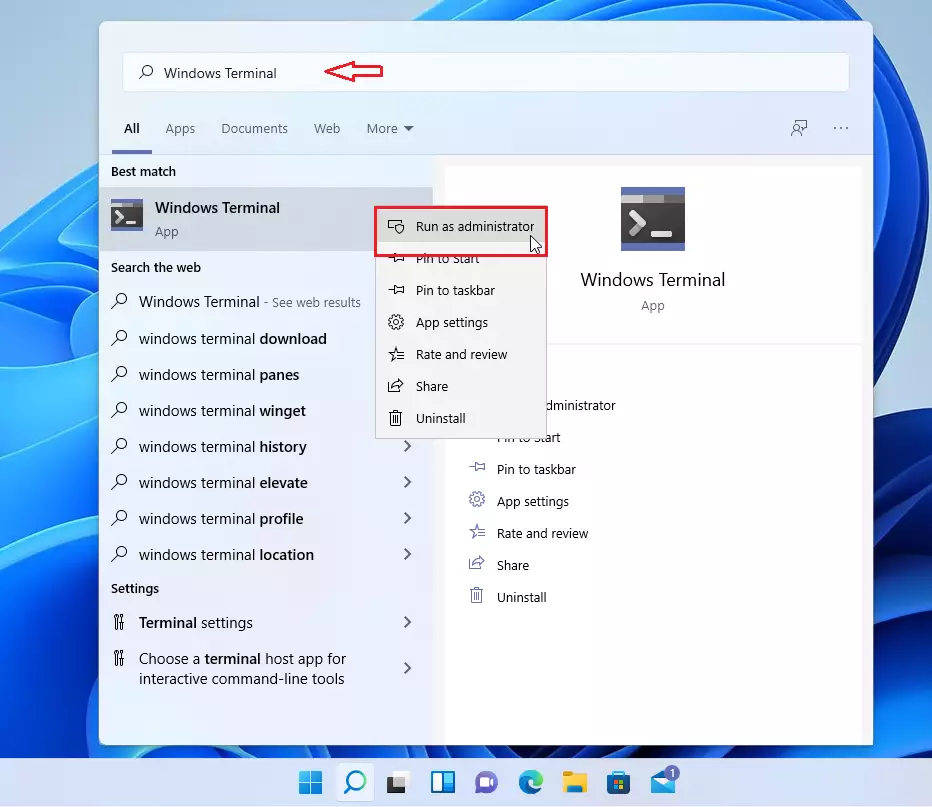
- Open Windows Terminal as an administrator. The quickest way is to right-click the Start button and choose Terminal (Admin). You can also search for Terminal, right-click it, and choose Run as administrator.
- Click Yes if User Account Control asks for permission. Then choose either Windows PowerShell or Command Prompt. Both accept the command below, so use whichever you prefer. A window with a command prompt appears, ready for typing.
(Admin privileges required)
As with the first method, this only works from an administrator session. If the Terminal does not open with admin rights, the command fails with an access denied message.
Type the following command and press Enter:
net user "genericuser" /active:yes
Remember to replace "genericuser" with the actual name of the account you are trying to unlock. If you are not sure of the exact name, check the account list under Settings Accounts, or in the Users folder in Local Users and Groups on Pro editions. When the command works, the Terminal reports that it completed successfully. You can then sign in to the account straight away, with no restart.
Summary
Windows 11 locks accounts after a set number of failed sign-in attempts as a security measure. The default is 10, though your PC's policy may use a lower number. Local accounts can be unlocked with tools like lusrmgr.msc or the Terminal. Microsoft Accounts, however, are locked on Microsoft's side, so they require Microsoft's account recovery form instead.
Have a question about this guide?
Answered by AI from this guide. Good questions may be added to this page — please don't include personal details.
Did this guide fix your problem?

About the Author
Richard
Tech Writer, IT Professional
Richard is a writer at Geek Rewind who turns complex IT tasks into clear, step-by-step guides. He draws on years of hands-on experience in system administration and enterprise IT operations, focusing on Windows, Linux and WordPress: the problems people actually run into, and the fixes that work. His server and WordPress guides come from systems he runs himself. Richard builds and maintains the platform behind Geek Rewind, from its Ubuntu servers and Nginx configuration to its custom WordPress plugins. Many new tutorials start with readers' questions, and he's always glad to answer them in the comments.
No comments yet — be the first to share your thoughts!