How to Enable Tamper Protection in Windows 11


Tamper Protection in Windows 11 stops malicious apps from turning off Microsoft Defender and changing your antivirus settings. It locks your core security features so unauthorized programs cannot disable real-time protection, cloud-delivered protection, or file exclusions.
You can turn on this feature inside the Windows Security app to keep your PC safe from advanced digital threats that try to silently disable your defenses. Windows 11 enables this setting by default for most home users, but you can check and change its status at any time.
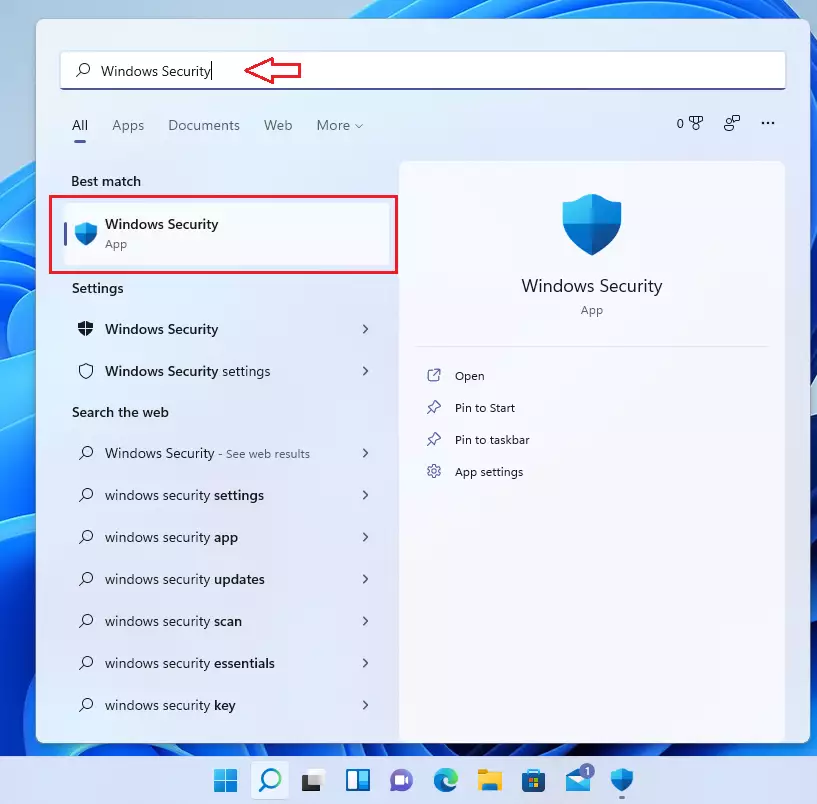
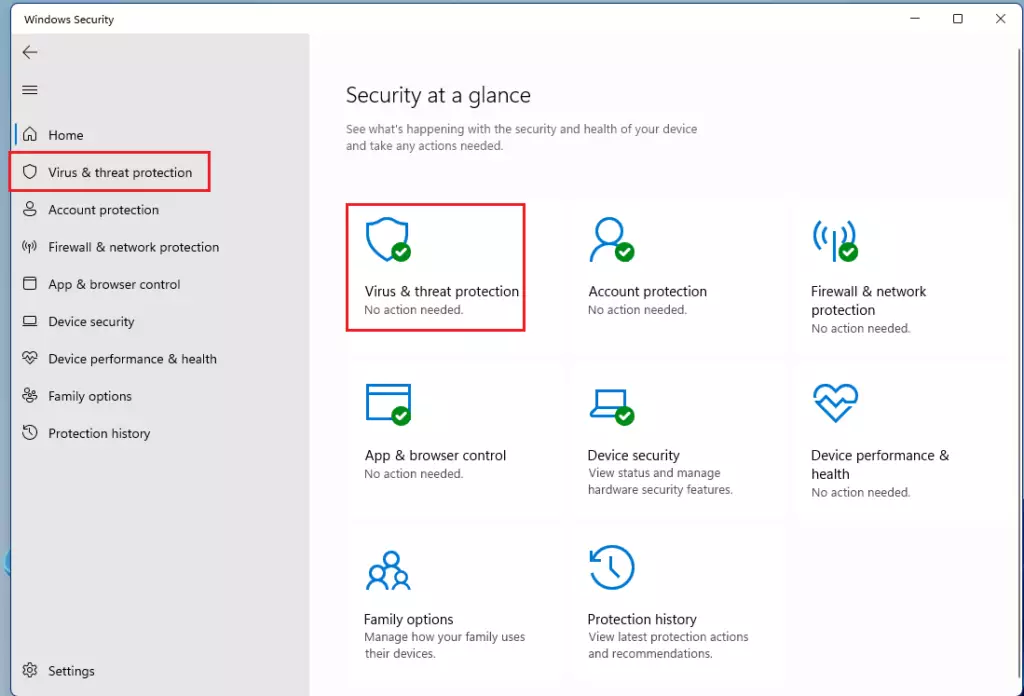
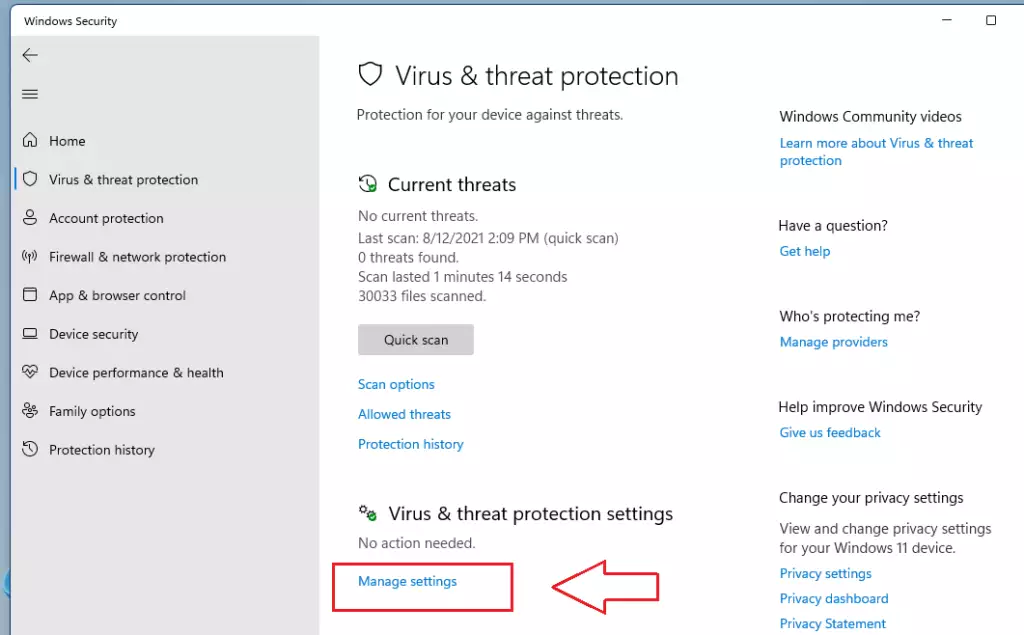
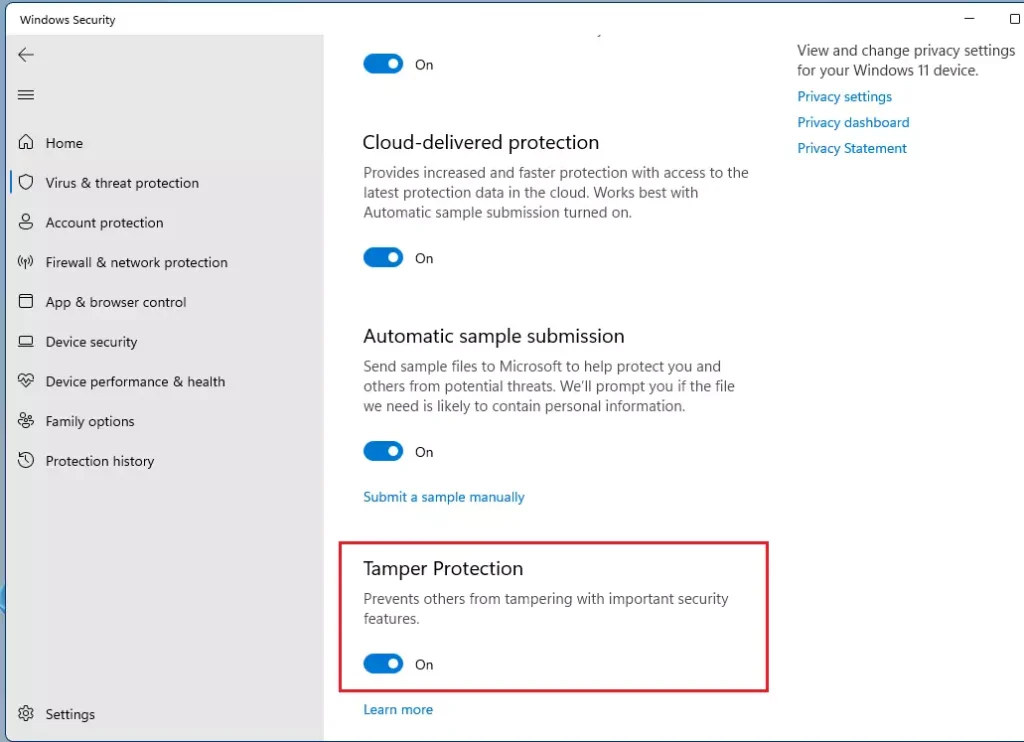
To enable Tamper Protection, open Windows Security, go to Virus & threat protection, click Manage settings, and toggle Tamper Protection to On. This prevents malware from disabling your Microsoft Defender settings.
Why use Tamper Protection?
Malicious software often tries to turn off your antivirus to hide itself. Tamper Protection acts like a digital lock. It ensures that only you, the administrator, can change these important security settings. Windows 11 turns this feature on by default to protect your device right out of the box.
What happens when done?
Once enabled, your antivirus settings are locked. Even if a malicious app tries to change them using Registry Editor, Windows commands or PowerShell, or Local Group Policy, the system blocks the attempt. This prevents unauthorized security changes that could leave your PC vulnerable.
How to change Tamper Protection settings
Tamper Protection settings in Windows 11 are changed through the Windows Security app to keep your antivirus settings safe from unwanted changes. Open the Windows Security app from your taskbar search, go to Virus & threat protection, click Manage settings, and scroll down to the Tamper Protection switch to turn it on or off.
- Click the search box on your taskbar and type Windows Security. Select it from the list.
- Click on Virus & threat protection.
- Under the Virus & threat protection settings section, click Manage settings.
- Use the switch to turn Tamper Protection to On or Off.
Enterprise and Advanced Management
In workplaces, IT administrators can manage Tamper Protection using tools like Microsoft Intune (a mobile device management and application management service) or Group Policy (settings for managing groups of computers).
Troubleshooting Common Errors
If your Tamper Protection settings are greyed out in Windows 11, it typically means your company's IT department controls them.
Can I disable Tamper Protection if I am an administrator?
However, if your device is managed by an organization through Microsoft Intune or Group Policy, the option may be greyed out, requiring you to contact your IT department to change the configuration.
Summary
Tamper Protection is a vital layer of defense in Windows 11. It prevents unauthorized apps from disabling your antivirus. By keeping this feature active, you protect your system from malicious changes. You can manage this setting through the Windows Security app or via enterprise tools like Microsoft Intune.
Was this guide helpful?

About the Author
Richard
Tech Writer, IT Professional
Richard is a writer at Geek Rewind who turns complex IT tasks into clear, step-by-step guides. He draws on years of hands-on experience in system administration and enterprise IT operations, focusing on Windows, Linux and WordPress: the problems people actually run into, and the fixes that work. His server and WordPress guides come from systems he runs himself. Richard builds and maintains the platform behind Geek Rewind, from its Ubuntu servers and Nginx configuration to its custom WordPress plugins. Many new tutorials start with readers' questions, and he's always glad to answer them in the comments.


The procedure you described above is easy but doesn’t allow me to turn it on anyways. Something is wrong, I have to remove McAfee apps from a download that another application did install without me noticing it. However, I can’t turn it on the Tamper Protection.
Do you have any other suggestions on what to do?