How to Enable or Disable Magnifier in Windows 11

Magnifier in Windows 11 is a built-in accessibility tool that enlarges parts of your screen so you can see small text and images clearly. Press the Windows logo key + Plus sign (+) at the same time to turn it on instantly.
This tool helps when you have trouble reading small print or need a closer look at a photo on your display. Press the Win+Esc to turn it off when you finish.
Press Windows logo key + Plus sign (+) to turn on Magnifier and Win+Esc to turn it off. You can also enable or disable it in Settings under Accessibility Magnifier
Prerequisites
No special hardware is required, but a high-resolution monitor helps maintain image clarity when zoomed in. This feature is built into the operating system and does not require additional downloads.
Quick Keyboard Shortcuts
The fastest way to control this feature is with your keyboard:
- Turn on Magnifier: Windows logo key + Plus sign (+).
- Turn off Magnifier: Win+Esc.
- Zoom In: Windows logo key + Plus sign (+).
- Zoom Out: Windows logo key + Minus sign (-).
- Read text aloud: Ctrl+Alt+← Click.
How to Enable or Disable Magnifier via Settings
Turn Windows 11 Magnifier on or off through the main Settings app by opening the Accessibility menu and toggling the feature switch. This gives you quick access to the screen zoom tool without needing to remember keyboard shortcuts, making it ideal if you prefer using the mouse to control your display options.
- Open the Settings app by pressing Win+I on your keyboard, or by clicking Start and selecting Settings.

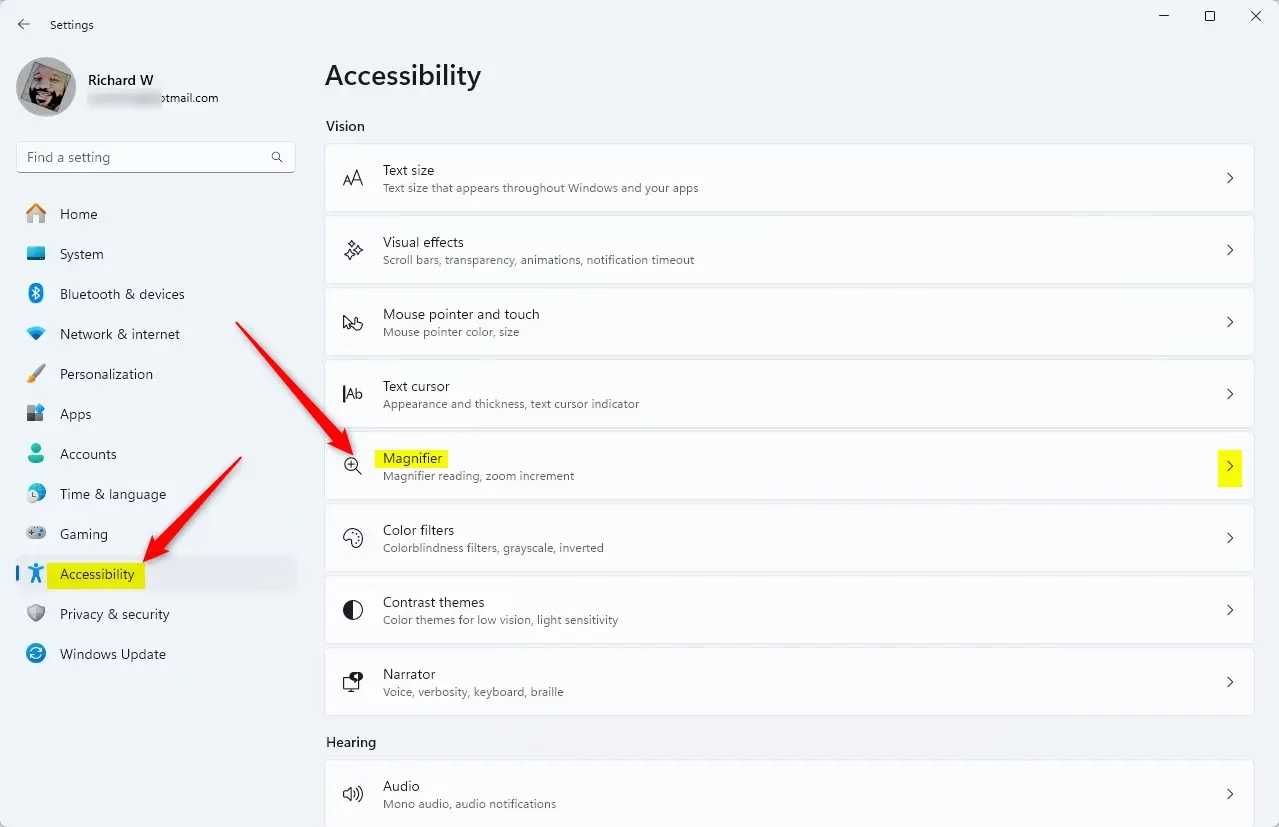
windows 11 start settings - In the Settings menu, click on Accessibility on the left side of the window.
- Select Magnifier on the right side of the screen.
Windows 11 Magnifier tool icon displayed on the computer screen - Find the Magnifier switch and toggle it to On or Off.
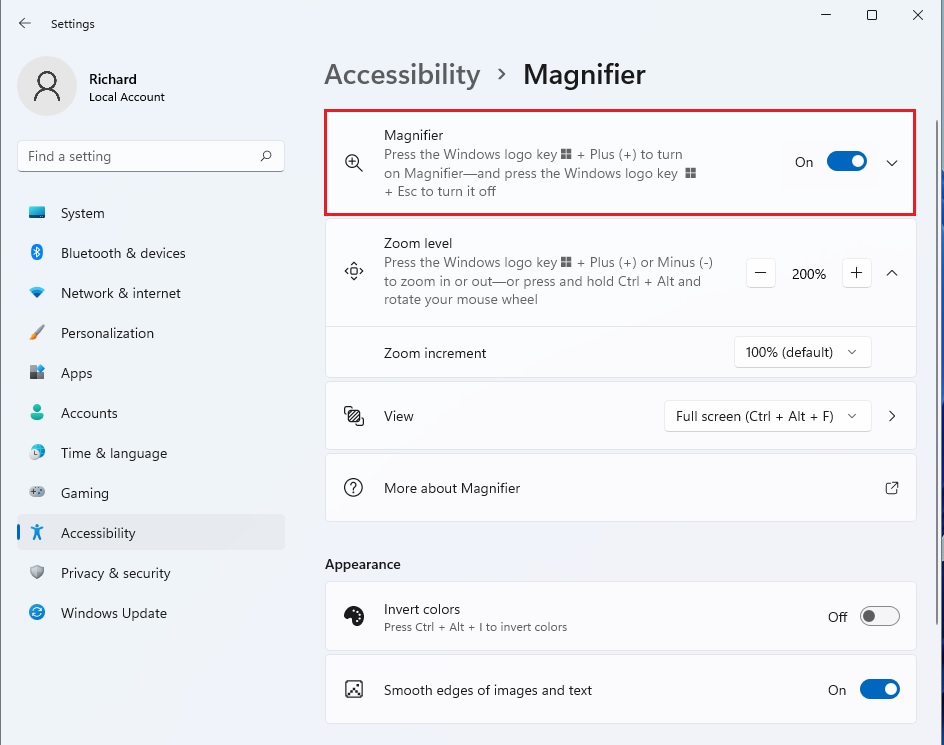
enable magnifier in windows 11
Customizing Magnifier Views
Change how Windows 11 Magnifier displays zoomed content by switching between Full Screen, Lens, and Docked view modes. Each layout handles screen magnification differently so you can find the option that matches how you read text, view images, or navigate around your desktop.
- Full Screen: The entire screen zooms in. This is the default mode.
- Lens: Only the area around your mouse pointer is magnified, acting like a physical magnifying glass.
- Docked: A separate window appears at the top of your screen, showing a magnified view of your mouse area while the rest of the screen stays normal.
Advanced Configuration
Fine-tune Windows 11 Magnifier behavior by adjusting zoom increments, enabling color inversion, and setting up focus tracking for your cursor. These advanced options help you tailor the zoom tool to match your exact visual needs while reading documents or browsing the web.
- Zoom Increments: Adjust how much the screen zooms each time you press the plus or minus keys.
- Color Inversion: Enable this to make the screen easier to read if you have light sensitivity.
- Focus Tracking: Ensure Magnifier follows your keyboard cursor or text insertion point automatically.
- Smoothing: Use edge smoothing to keep text readable even at high zoom levels.
Summary
Windows 11 Magnifier is a great tool to make your screen easier to see, whether you turn it on with a quick shortcut or through the Settings menu. You can also change its zoom levels, views, and tracking to fit exactly what you need.
Was this guide helpful?
0% of readers found this helpful (1 votes)

About the Author
Richard
Tech Writer, IT Professional
Richard is a writer at Geek Rewind who turns complex IT tasks into clear, step-by-step guides. He draws on years of hands-on experience in system administration and enterprise IT operations, focusing on Windows, Linux and WordPress: the problems people actually run into, and the fixes that work. His server and WordPress guides come from systems he runs himself. Richard builds and maintains the platform behind Geek Rewind, from its Ubuntu servers and Nginx configuration to its custom WordPress plugins. Many new tutorials start with readers' questions, and he's always glad to answer them in the comments.


No comments yet — be the first to share your thoughts!