How to Run Apps as Administrator in Windows 11

Running apps as administrator in Windows 11 gives a program full access to change system files and install software that standard user accounts block for security. You can launch any program with these elevated rights in two clicks by right-clicking the app icon and choosing “Run as administrator” from the menu.
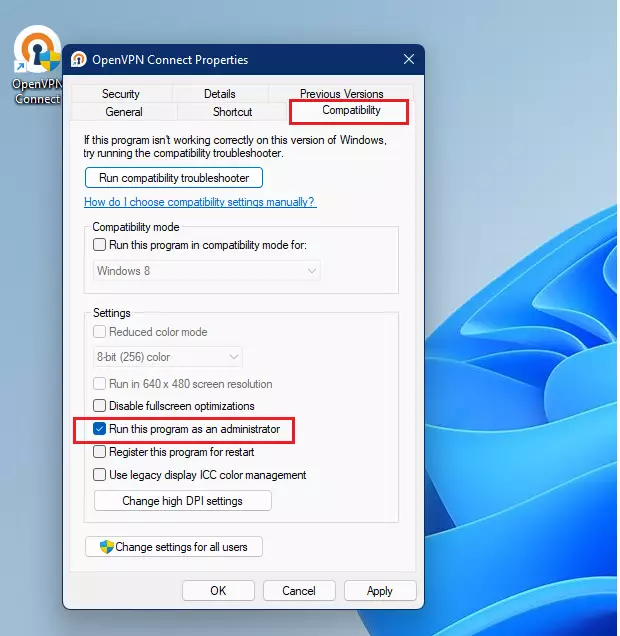
Right-click an app’s shortcut or executable file and select “Run as administrator.” For permanent elevation, right-click the app, select Properties, go to the Compatibility tab, and check “Run this program as an administrator.
Why run as an administrator?
Running programs as an administrator grants those programs extra permissions. These permissions allow programs to change important Windows 11 system settings that ordinary programs cannot alter.
What happens when done?
When you run an app as an administrator, it gets full access to make system changes a normal user can’t, such as altering important Windows settings .
How to run an app as an administrator once
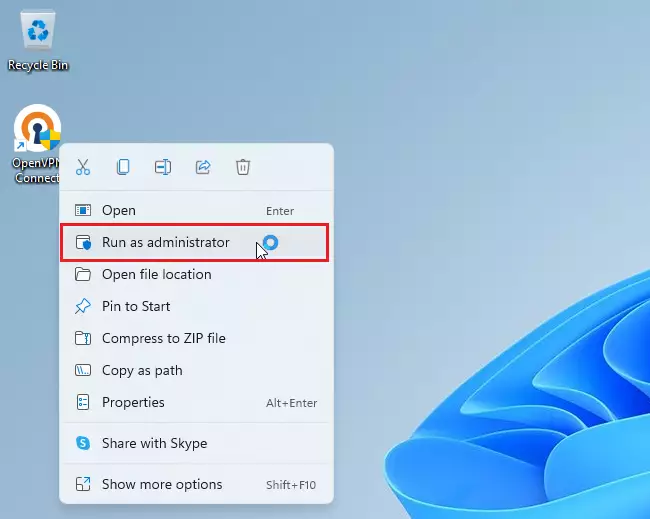
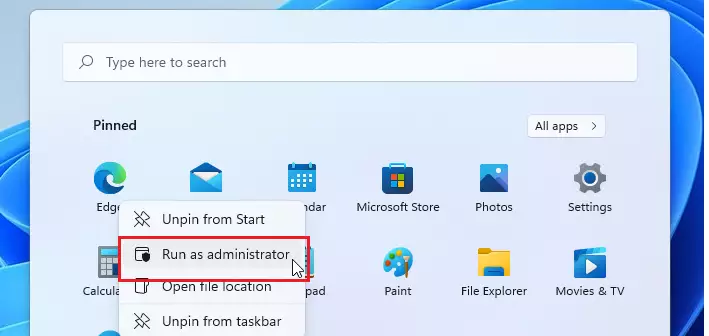
You can run apps as administrator for a single session when a program needs temporary system changes without granting permanent full access to your PC. Find the app shortcut or .exe file, right-click the icon, and pick Run as administrator from the menu that appears. Click Yes on the User Account Control warning prompt to launch the program with full permissions right away.
- Find the app icon on your desktop or in your Start menu .
- Right-click the icon.
- Select Run as administrator.
- Alternatively, select the app and press Ctrl+Shift+Enter on your keyboard.
How to always run an app as an administrator
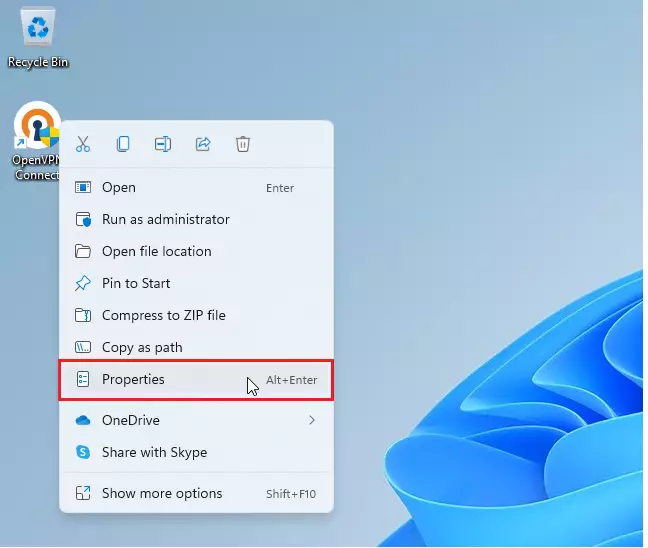
You can configure Windows 11 to always run apps as administrator so you never have to right-click and approve them manually every single time you open them. Right-click the app shortcut, open Properties, go to the Compatibility tab, and check the box next to Run this program as an administrator. Save your changes by clicking Apply, and the program will automatically request elevated permissions on every future launch.
- Right-click the app icon and select Properties.
- Click on the Compatibility tab.
- Check the box that says Run this program as an administrator.
- Click OK to save your changes.
Note: You'll need admin privileges for this step.
Pinning an Admin-Elevated Shortcut
You can create a special shortcut that always runs your app as an administrator, allowing you to pin it to your taskbar for quick access with elevated rights.
Security Risks and UAC
Command Line Alternative
Command prompt provides another way to launch programs with administrator rights. To launch programs from the command line instead, open a terminal and type `runas /user:Administrator "program_name"`. This lets the application perform system-level tasks.
runas /user:Administrator "C:\Path\To\Your\App.exe"
Summary
Running an app as an administrator gives it special power to change system files, which you can do temporarily or permanently through app settings, but always remain careful about security.
Is it safe to run all applications as an administrator?
No, it is not safe. Running every app as an administrator removes the safety barriers Windows provides. If a malicious program gains these rights, it can install viruses, steal data, or corrupt your system files. Only grant these permissions to trusted software that requires them to function properly.
Why does Windows ask for permission every time I open an app?
Windows asks for permission via the UAC prompt to ensure that you are aware an application is attempting to make system-level changes. This prevents background malware from silently modifying your computer settings or installing unauthorized software without your explicit consent and knowledge.
Was this guide helpful?

About the Author
Richard
Tech Writer, IT Professional
Richard, a writer for Geek Rewind, is a tech enthusiast who loves breaking down complex IT topics into simple, easy-to-understand ideas. With years of hands-on experience in system administration and enterprise IT operations, he’s developed a knack for offering practical tips and solutions. Richard aims to make technology more accessible and actionable. He's deeply committed to the Geek Rewind community, always ready to answer questions and engage in discussions.


No comments yet — be the first to share your thoughts!