How to Reset File Associations in Windows 11

File associations in Windows 11 control which program opens when you double-click a specific file type, such as opening a .jpg photo in a picture viewer instead of a web browser. Resetting these settings fixes problems where files open in the wrong app.
You can quickly restore default programs in the Settings app under Apps Default apps This built-in Windows 11 tool lets you fix broken file links or clear apps that took over your file types by accident.
Open Settings , click Apps, then Default apps. Scroll down and click Reset to restore all default apps. This will revert custom choices, so you’ll need to re-select your preferred applications.
Reset All Default Apps
If many file types are opening in the wrong programs, you can reset all the default app settings at once. This is a quick way to fix multiple issues.
Step 1Open Windows Settings
Open Settings in two ways:
- Press the Win+I on your keyboard.
- Click the Start menu (the Windows icon on your taskbar ) and then click the Settings gear icon.
The main Windows Settings window will then appear.
Step 2Go to Default Apps
In the Settings window, click on Apps in the left-hand menu. Then, on the right side, click on Default apps.
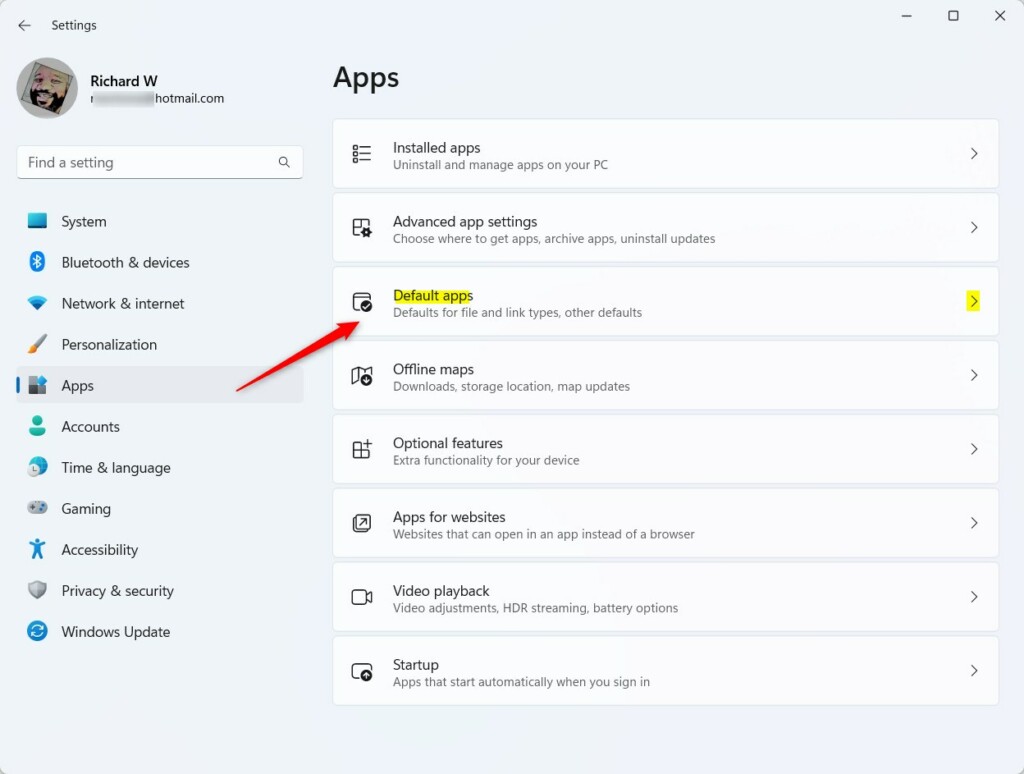
Step 3Find the Reset Option
The "Default apps" page in Windows 11 contains a "Reset all default apps" section. Next to this section, you will find a Reset button. Clicking this Reset button restores all default app settings to their original Windows configuration.
Step 4Confirm the Reset
A confirmation box will appear. The confirmation box will tell you that this action will reset all your default app settings to Microsoft's recommended choices. This means any changes you made to default apps will be undone. Click OK to confirm.
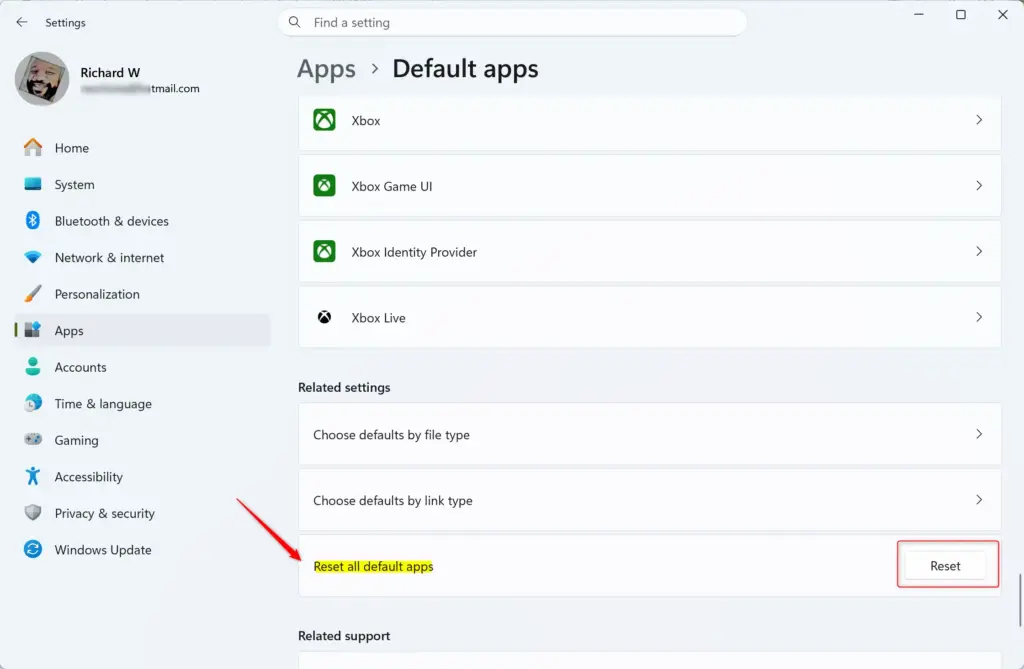
Step 5Check for Confirmation
A small checkmark appears next to the reset button to let you know Windows 11 finished clearing your settings. This visual cue confirms that all file associations successfully returned to their original factory defaults. Watch for this checkmark before closing the Settings app to ensure the process actually completed.
Resetting all file associations in Windows 11 offers a good way to fix many problems at once. This action will change all your custom settings for file types. If you only want to change one specific file type, use the next method described in the article.
Change the Default App for a Specific File Type
If only one type of file is causing problems, like your .JPG photos opening in a video player, resetting everything might be too much. Windows lets you change the default app for individual file types.
Step 1Open Settings and Go to Default Apps
Open Settings by pressing Windows key + I. Then go to Apps > Default apps.
Step 2Find the File Type
On the "Default apps" page in Windows 11, you can find the file type you want to change by scrolling down to "Choose defaults by file type." Look for specific extensions like ".jpg" for pictures or ".docx" for documents and click on the one you need to adjust.
Step 3Change the Default App
Selecting a specific file type in your settings lets you pick a brand-new program to handle it. Clicking the current app name opens a list of installed software on your computer. You can then choose a different program from that list to change which app opens that file type from now on.
You'll then see a list of other applications capable of opening this file type. Select the app you want to use. If your desired app isn't listed, you might find options like "Look for an app in the Microsoft Store" or "Choose an app on your PC."
Step 4Confirm Your Choice
Clicking OK or clicking outside the menu saves your new default app choice in Windows 11. The system applies this change immediately so your files open with the correct program. Testing a file of that type right afterward ensures the new app works properly.
Only use apps you trust to avoid security problems.
Step 5What If It Still Doesn't Work?
Restarting your computer usually fixes stubborn file associations that refuse to update in Windows 11. Your PC sometimes holds onto old settings in memory until a fresh reboot clears them out. Shutting down and turning your computer back on forces Windows to apply your new default app choices.
Restarting Your PC
Restarting your computer is often the most effective solution. After changing a default app, restart your PC. This helps Windows update its settings and recognize the new default program.
Signing Out and Back In
If you don't want to restart your whole PC, try signing out of your account and then signing back in. This reloads your settings without a full reboot.
Using the "Open With" Menu
You can also use the "Open with" option:
- Find a file of the type you're having trouble with in File Explorer.
- Right-click on the file.
- Hover over Open with.
- Click Choose another app.
- In the window that appears, select the app you want to use.
- Make sure to check the box that says Always use this app to open . files (for example, "Always use this app to open .jpg files").
- Click OK.
This action instructs Windows 11 to consistently use the application you selected for a specific file type, ensuring all future files of that type open with your preferred program.
If you can't find the app you want in the "Choose another app" list, click More apps to see more options. You can also click "Look for another app on this PC" to find the app's file (usually a .exe file) in its installation folder.
Why Reset File Associations?
Resetting file associations in Windows 11 fixes issues where files open in the wrong program after installing new software or making a mistake. This action clears out broken or unwanted links and forces your computer to use the correct programs again. It serves as a quick way to wipe the slate clean when your file types get scrambled.
- Accidental Changes: You might have clicked the wrong option by mistake, or a new program might have changed settings without you knowing.
- New Software: Sometimes, when you install new software, it automatically sets itself as the default for certain file types.
- Settings Issues: In rare cases, the file association settings can become broken, causing files not to open correctly.
- Troubleshooting: If a specific file type isn't opening right, changing its association is a good first step to fix the problem.
By learning how to manage your file associations, you can make sure your files always open with the programs you prefer.
Summary
Managing how you reset file associations in Windows 11 helps you control which programs open your personal files. You can wipe all default settings at once or update individual file types through the main Settings menu. A quick computer restart helps lock in these changes if your files do not open with the right app right away.
How do I change the default app for multiple file types in 🪟 Windows 11?
Click. Click Apps. Click Default Apps. Click the default you want to set, and then choose the application To choose default apps by file type, scroll down and click Choose default apps by file type.
Was this guide helpful?

About the Author
Richard
Tech Writer, IT Professional
Richard, a writer for Geek Rewind, is a tech enthusiast who loves breaking down complex IT topics into simple, easy-to-understand ideas. With years of hands-on experience in system administration and enterprise IT operations, he’s developed a knack for offering practical tips and solutions. Richard aims to make technology more accessible and actionable. He's deeply committed to the Geek Rewind community, always ready to answer questions and engage in discussions.



[…] UserChoice Protection Driver is a Windows feature that helps prevent unauthorized changes to file type associations. When a user sets a default program for opening a specific file type, Windows adds an entry for […]
Resetting file type associations? Why on earth some wants all those unwanted Microsoft apps back on its PC? The opposite is true, I guess.
I prefer other apps (Firefox, Thunderbird and so on), so I deleted Edge from W10 a long time
ago, and I am glad with that decision. The EU was not able to stop those Seattle alligators, better do that on our own (with a litte help from henrypp’ s simplewall).