How to Reset Microsoft Store App in Windows 11


Resetting the Microsoft Store in Windows 11 clears out corrupted cache files and bad data that stop apps from downloading or opening correctly. This built-in repair tool fixes common issues like error code 0x80070005 without deleting any of the games or programs you already installed on your PC.
Open Windows Settings , go to Apps, and select Installed apps to find the Microsoft Store and run the reset. You only need to sign back into your Microsoft account after the process finishes.
Open Start , right-click Microsoft Store, select App settings, and click Reset. Alternatively, press Win+R, type wsreset.exe, and press Enter to clear the cache. This resolves common app issues by restoring it to default settings.
Prerequisites
A stable internet connection prevents errors. Checking for pending updates in Settings Windows Update also helps Keeping your Windows 11 system updated offers the best defense against app problems.
Method 1Using App Settings
You can reset Microsoft Store Windows 11 through the App settings menu when the app freezes or fails to download apps. This built-in option clears corrupted app data and local cache files without deleting your personal files or purchased apps, making it a safe first step to fix everyday store errors.
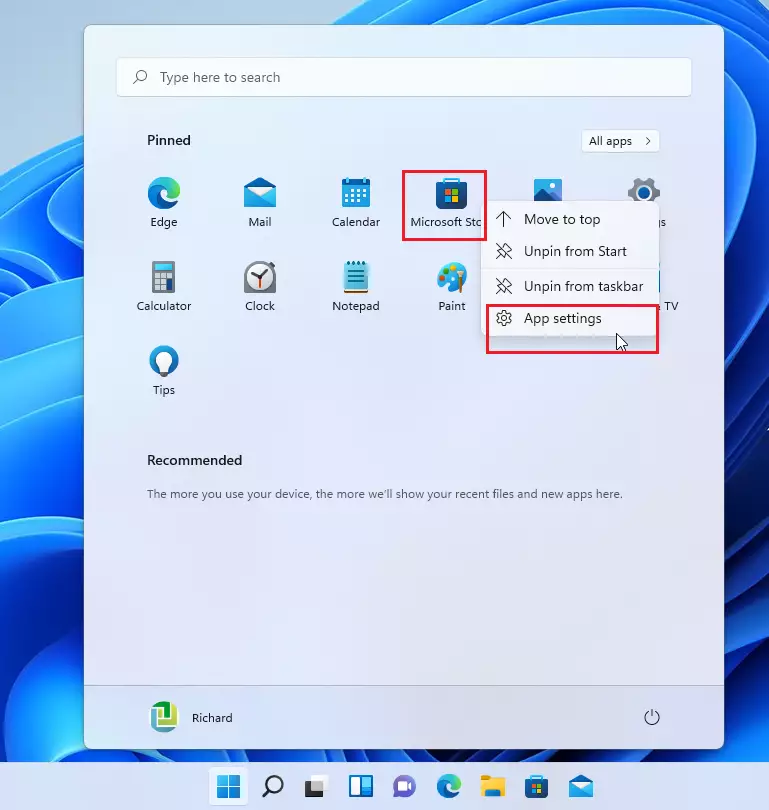
- Open your Start menu .
- Find the Microsoft Store icon.
- Right-click on it and select App settings.
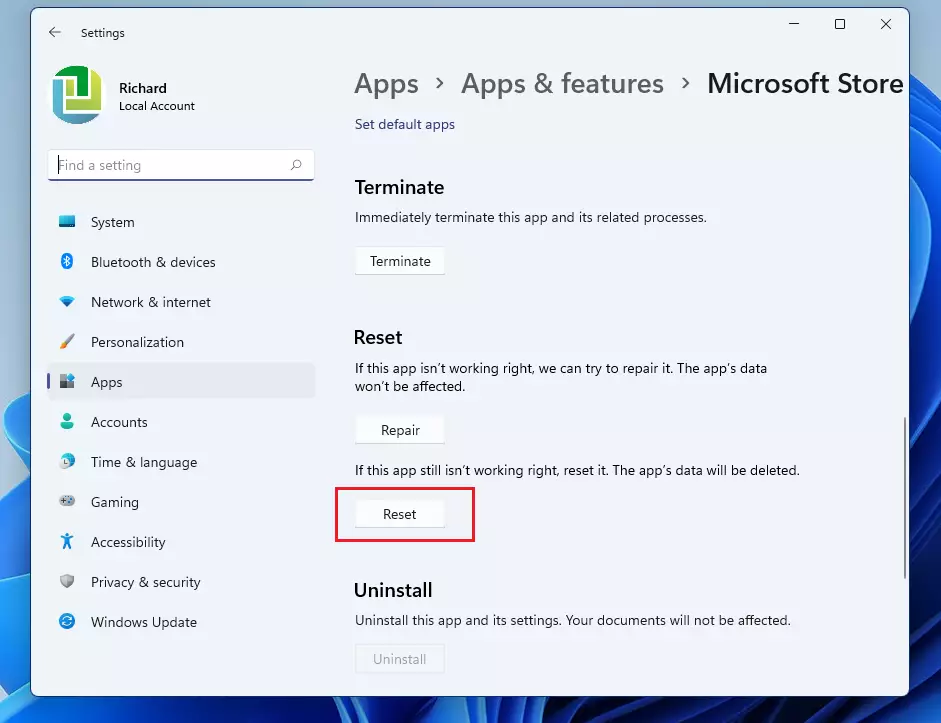
Scroll down to the Reset section. Try the Repair button first, since this won’t delete your data. If that fails to resolve the problem, click the Reset button.
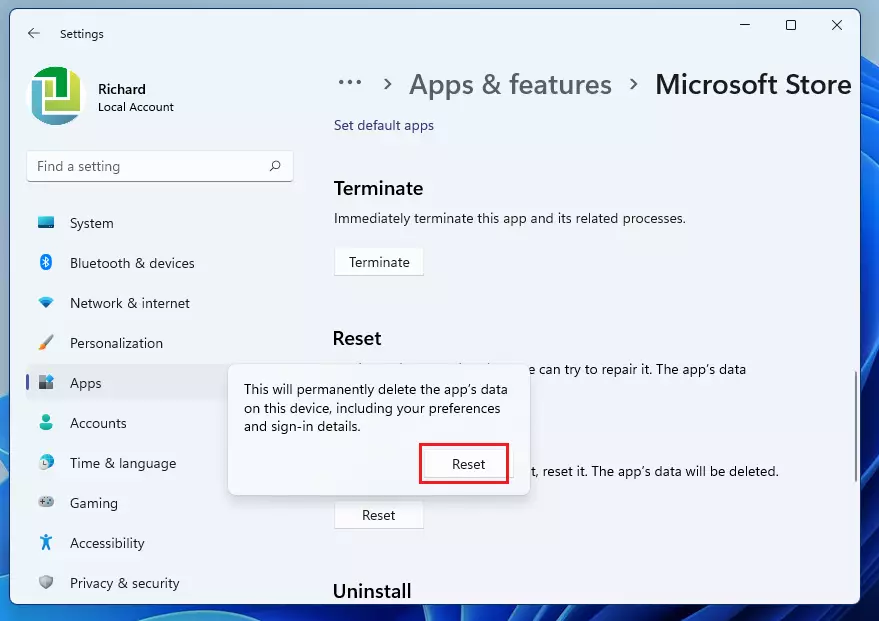
A warning will appear, letting you know this action will delete the app’s data, including your sign-in details. Confirm by clicking Reset again.
Method 2Using WSReset.exe
You can use the built-in WSReset.exe command to clear the Microsoft Store cache when downloads get stuck or the app refuses to open. Running this tool deletes temporary files and restarts the store automatically in a few seconds, fixing most common glitches without changing your account settings.
- Press Windows Key + R on your keyboard.
- Type wsreset.exe and press Enter.
- A blank command prompt window will open. Wait for it to close automatically; the Store will then launch on its own.
Method 3Using PowerShell (Admin Required)
You can reinstall and re-register the Microsoft Store using PowerShell as an administrator when basic repairs fail to fix persistent errors. This advanced command completely removes and reinstalls the store package from its core system files, giving you a fresh installation.
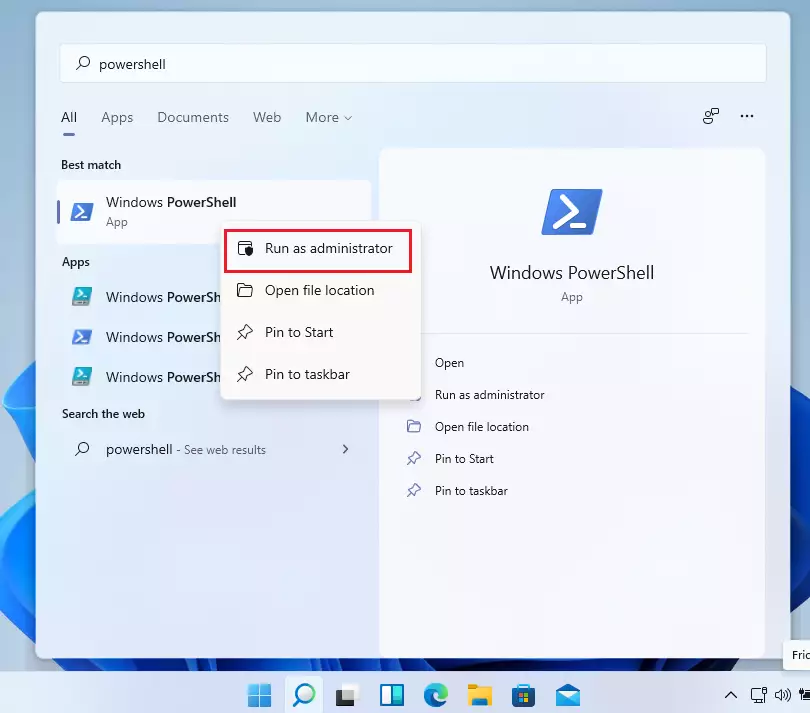
- Click the Start button and type PowerShell.
- Right-click the result and choose Run as administrator.
To reset the store for your own user account, copy and paste the following command into the window and press Enter:
To reset the Microsoft Store app for all users on the computer, use this command: `Get-AppxPackage *WindowsStore* | Reset-AppxPackage`. This command ensures that the Microsoft Store application returns to its default settings for every account logged into the device, clearing any accumulated errors or data issues.
Get-AppxPackage -AllUsers *WindowsStore* | Foreach {Add-AppxPackage -DisableDevelopmentMode -Register "$($_.InstallLocation)\AppXManifest.xml"}
Advanced Repair: SFC and DISM
If the Store continues to misbehave, system files on your PC might be damaged. Requires admin privileges.
- Open PowerShell as administrator.
- Type
sfc /scannowand press Enter. - After that finishes, type
DISM /Online /Cleanup-Image /RestoreHealthand press Enter.
Summary
If your Microsoft Store is crashing or not opening in Windows 11, fix it by resetting the app through its settings or by using the WSReset.exe tool. For more stubborn issues, re-registering the app with PowerShell resolves deeper problems.
What should I do if the Microsoft Store is completely missing from my PC?
If the app is missing, reinstall it using PowerShell. Open PowerShell as an administrator and run the command: Get-AppxPackage -AllUsers Microsoft.WindowsStore | Foreach {Add-AppxPackage -DisableDevelopmentMode -Register "$($_.InstallLocation)\AppXManifest.xml"}. This forces Windows to reinstall the store package from your system files.
Does resetting the store require a Windows restart?
A reboot isn't necessary here, so launch the Microsoft Store right away to verify the fix.
Was this helpful? Let us know in the comments below!
Was this guide helpful?

About the Author
Richard
Tech Writer, IT Professional
Richard, a writer for Geek Rewind, is a tech enthusiast who loves breaking down complex IT topics into simple, easy-to-understand ideas. With years of hands-on experience in system administration and enterprise IT operations, he’s developed a knack for offering practical tips and solutions. Richard aims to make technology more accessible and actionable. He's deeply committed to the Geek Rewind community, always ready to answer questions and engage in discussions.


No comments yet — be the first to share your thoughts!