
Skip to content
Follow
Windows

How to Open and Edit Windows 11 Registry

Richard
Written by
Richard
Nov 18, 2021 Updated Sep 15, 2026 3 min read
How to Open and Edit Windows 11 Registry

The Registry Editor is a built-in database tool in Windows 11 that stores low-level settings for your operating system and installed apps, such as configuration paths like HKEY_CURRENT_USER\Control Panel\Desktop. Opening this tool lets you fix stubborn PC problems, turn on hidden features, or change how your system works.

Advertisement

Because incorrect changes can break your computer, you must back up the Registry before you edit any keys or values.

⚡ Quick Answer

Open Registry Editor by searching for it in the Start menu . Navigate to the desired key using the folder structure or the address bar. Double-click a value to edit it, or select it and press Del to remove it.

Advertisement

How to open the Registry Editor

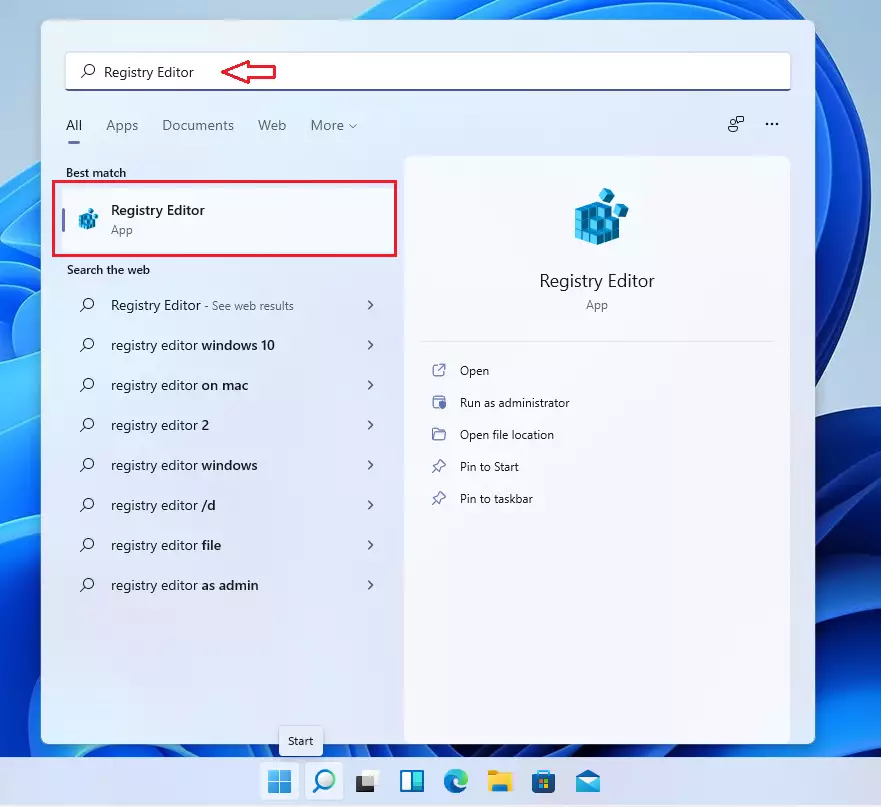
Registry Editor opens quickly when you use the Windows search bar to find the app. You can access this tool to edit Windows 11 registry settings by clicking the Start button , typing the name of the app, and selecting the main program from your search results.

  1. Click the Start menu.
  2. Type Registry Editor in the search bar.
  3. Click the Registry Editor app from the results.
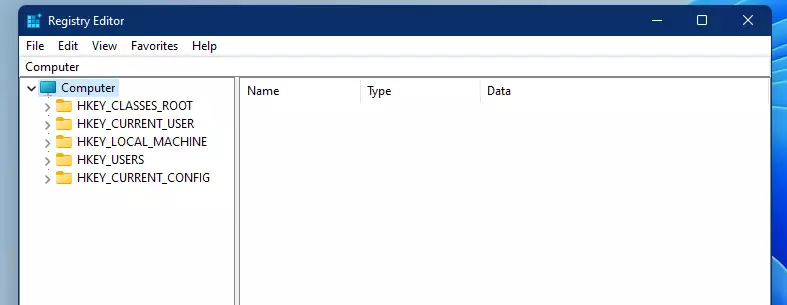
The Registry Editor interface open on a Windows 11 desktop screen
registry editor in windows 11

The editor window will open. It will look like a set of folders on the left side of your screen.

Windows 11 search results showing the Registry Editor application icon
windows registry app

Advertisement

How to browse the registry

Browsing the Windows 11 registry involves clicking through a folder-like structure to find specific system settings. You can manually expand keys on the left side of the window or paste a direct address into the path bar at the top to jump straight to the exact folder you need.

Users can copy and paste the registry path `HKEY_CURRENT_USER\Software\Microsoft\Windows\CurrentVersion\Run` into the navigation bar of the Registry Editor and then press Enter to access startup program settings. This action allows immediate access to a specific section of the Windows 11 Registry.

Computer\HKEY_LOCAL_MACHINE\SOFTWARE\Microsoft\Windows NT\CurrentVersion\SoftwareProtectionPlatform
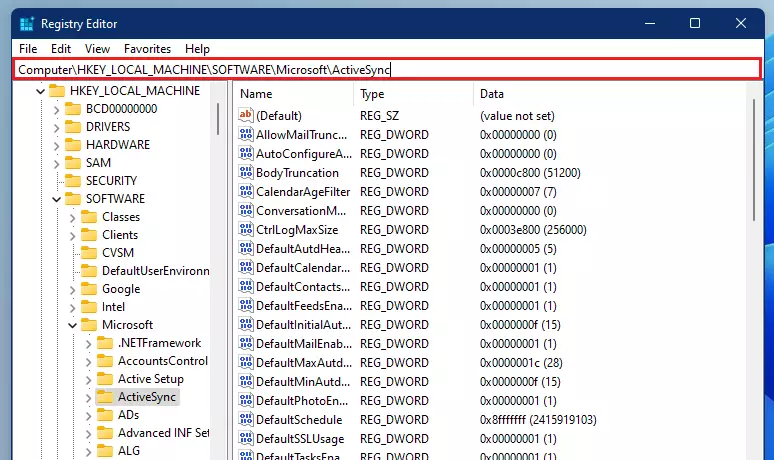
Registry Editor navigation bar used to paste specific Windows registry paths
windows registry navigation box

Registry folders contain lists of values. These values represent actual computer settings. Changing these settings can alter how Windows 11 works. For example, a specific value might control whether a certain feature is turned on or off.

Advertisement

How to edit or delete a value

📝NoteThis step requires administrator privileges.
  • To edit: Double-click the name of the setting you want to change. A box will pop up where you can type your new value.
  • To delete: Click the item name once to highlight it, then press the DELETE key on your keyboard.

Summary

⚠️WarningEditing the Windows 11 registry lets you change system settings to fix problems or customize your PC, but it's important to back up your registry first because mistakes can cause serious issues.

Editing the Windows 11 registry lets you change system settings to fix problems or customize your PC, but it's important to back up your registry first because mistakes can cause serious issues.

How do I get to the registry editor in 🪟 Windows 11?

To open the Registry Editor, click the Start button and type 'Registry Editor' in the search bar. Then, click on the 'Registry Editor' app that appears in the search results. This will open the tool where you can view and change system settings.

How do I edit a Windows registry?

You edit the Windows registry using the Registry Editor tool. Navigate to the specific setting you want to change by clicking through the folders. Double-click the item you want to modify, enter the new value, and click 'OK'. Always back up your registry first.

Advertisement

Why can't I find the registry editor?

The Registry Editor is usually found by searching for 'Registry Editor' in the Start menu. If you can't find it, it might be an issue with your Windows installation. Ensure you are searching correctly. It's a powerful tool, so it's not always prominently displayed.

How to correct registry errors in 🪟 Windows 11?

Windows 11 does not have a built-in tool to automatically correct registry errors. It is generally recommended to avoid editing the registry unless you know exactly what you are doing. If you suspect errors, restoring from a backup or reinstalling Windows might be necessary.

Was this guide helpful?

0% of readers found this helpful (1 votes)

Tags: #Windows 11
Was this helpful?
Richard

About the Author

Richard

Tech Writer, IT Professional

Richard, a writer for Geek Rewind, is a tech enthusiast who loves breaking down complex IT topics into simple, easy-to-understand ideas. With years of hands-on experience in system administration and enterprise IT operations, he’s developed a knack for offering practical tips and solutions. Richard aims to make technology more accessible and actionable. He's deeply committed to the Geek Rewind community, always ready to answer questions and engage in discussions.

Advertisement

📚 Related Tutorials

How to Backup and Restore Microsoft Defender Firewall in Windows 11
Windows How to Backup and Restore Microsoft Defender Firewall in Windows 11
How to Back Up and Restore Windows 11 Registry
Windows How to Back Up and Restore Windows 11 Registry
How to Enable Automatic Registry Backup in Windows 11
Windows How to Enable Automatic Registry Backup in Windows 11
How to Reset Windows 11 Settings App
Windows How to Reset Windows 11 Settings App

No comments yet — be the first to share your thoughts!

Leave a Comment

Your email address will not be published. Required fields are marked *