
This article explains how to open and use PowerShell in Windows 11.
PowerShell is a cross-platform task automation solution comprising a command-line shell, a scripting language, and a configuration management framework. It runs on Windows, Linux, and macOS and is commonly used for automating system management.
However, it is not an app that new users regularly use. Instead, it is a handy tool mainly used by advanced users and those who know how it works.
Windows 11 also has a command-line interface app called Windows Terminal. Windows Terminal is the default console for opening installed shells like PowerShell and the Command Prompt.
Below are some steps that one can use to open and use PowerShell in Windows 11.
Open PowerShell in Windows Terminal
Windows Terminal defaults to PowerShell. Launch the Windows Terminal app and begin using PowerShell.
Read the post below to open PowerShell via Windows Terminal.
How to open PowerShell in Windows Terminal
Open PowerShell from Windows Search
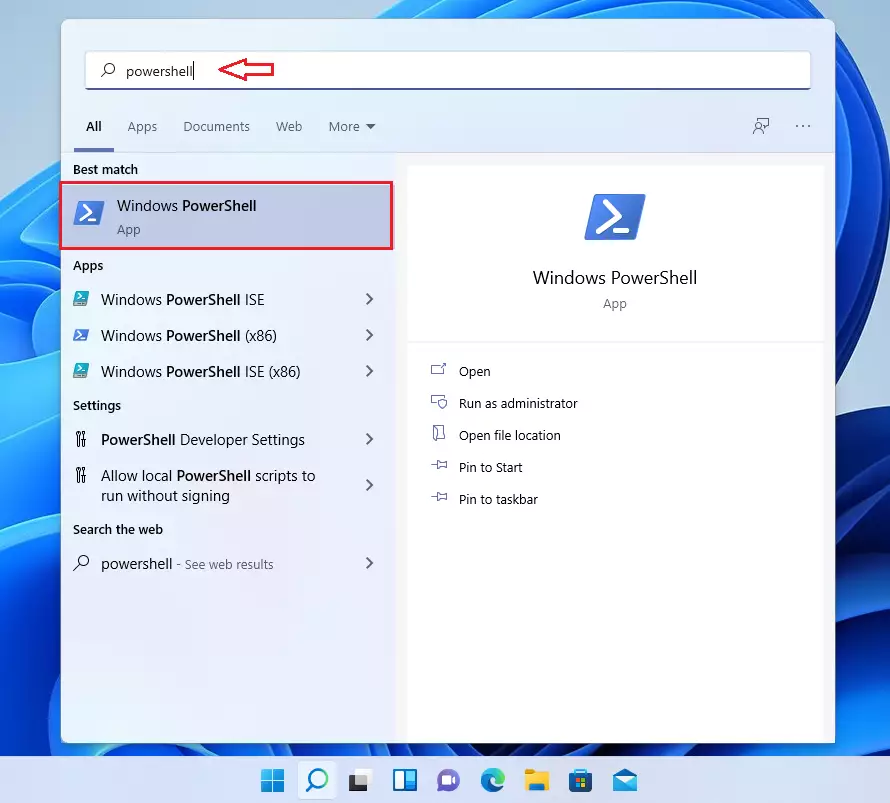
Windows Search allows you to search for apps and settings. It can also be used to open PowerShell in Windows 11.
Open Windows Search or press the keyboard shortcut Windows key + S.
Then, type PowerShell into the Windows Search box. Under Best Match, select the Windows PowerShell app to open.
Open PowerShell from the Run box
The Windows Run command box can open an application or document whose path is known directly. Command variables can also be entered in the box to execute those commands quickly.
To open PowerShell via the Run command, search for the Run apps from the start menu or press the keyboard shortcut: Windows key + R.
Next, type PowerShell in the Run box and press Enter or OK to open PowerShell.

Open PowerShell from File Explorer
Another way to open PowerShell is via File Explorer. All programs have their executable in File Explorer. If you know where the executable lives, you can browse it and launch the app.
First, open File Explorer or use the keyboard shortcuts: Windows key + E. Next, navigate to and open the C:\Windows\System32\WindowsPowerShell\v1.0 folder.
Locate and double-click the PowerShell executable to open PowerShell.

Open PowerShell using the Power User Menu
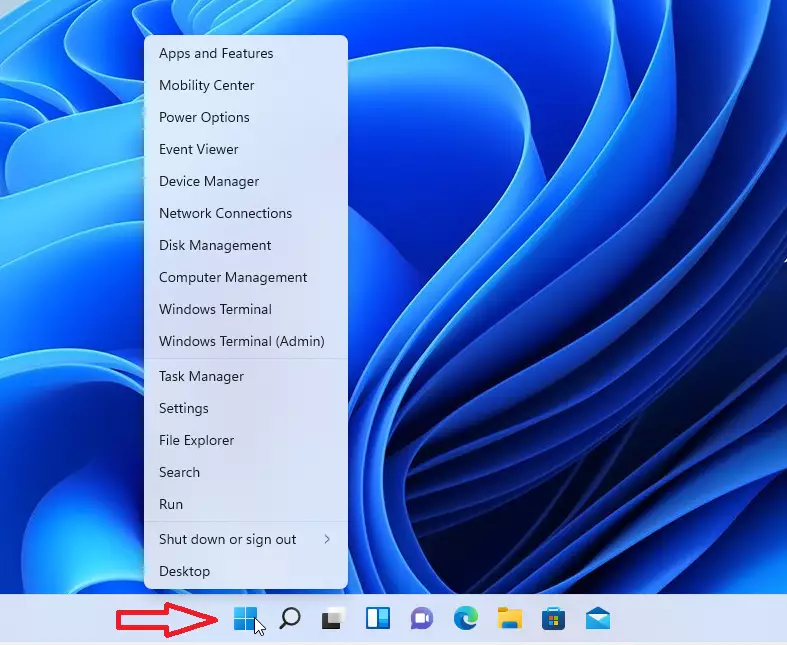
One more method in Windows 11 is through the Power User Menu. First, press the keyboard shortcut: Windows key + X or right-click on the Start menu to launch the Power User Menu. Then, choose Windows Terminal from the menu that appears.
Open PowerShell as an administrator
As you can see above, there are multiple ways to open PowerShell. The post below should be helpful if you want to open the PowerShell app as an administrator.
How to open and run apps as an administrator in Windows 11
There might be other ways to open PowerShell in Windows and Windows 11. If you know other methods, please add them to our command form below.
Conclusion:
- PowerShell is a powerful tool for automating system management tasks on Windows 11.
- Multiple methods exist to open PowerShell, including Windows Terminal, Windows Search, the Run box, File Explorer, and the Power User Menu.
- Accessing PowerShell can enhance your productivity, especially for advanced users.
- Exploring additional resources on using PowerShell can further improve your command-line skills and efficiency.
- If you discover other methods to open PowerShell, consider sharing them to help others in the community.

Leave a Reply