How to Access the Windows 11 Notification Center

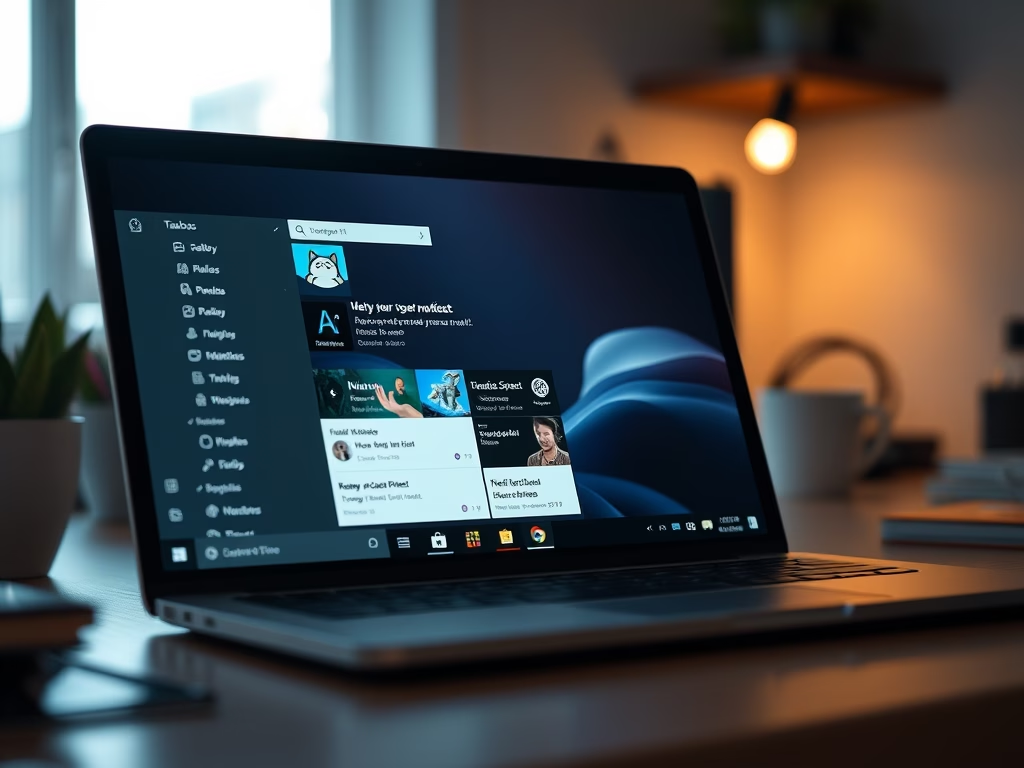
The Windows 11 Notification Center is a built-in panel that holds all your system alerts, app messages, and quick settings in one place. Pressing Win+N on your keyboard or clicking the date and time on the right side of the taskbar opens this menu instantly. This central hub stops constant pop-up interruptions and lets you check missed updates, calendar reminders, and system messages whenever you want.
Click the date and time on the taskbar or press Win+N. This opens the Notification Center, which displays all your app alerts and system notifications in one place.
How to Open Quick Settings
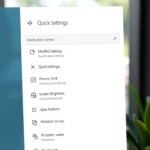
Quick Settings lets you change things like your volume or internet connection quickly. To open this menu, you can do any of the following:
- Click on the battery, network, or volume icon on the right side of the Taskbar .
- Press the Win+A on your keyboard.

How to Open the Notification Center
Opening the Windows 11 Notification Center lets you check all your pending alerts and quick settings in one place. You can open it instantly by pressing the Win and N on your keyboard at the same time, or by clicking the clock and date display located on the far right side of your Taskbar .
- Click the date and time display on your Taskbar .
- If you have a touchscreen, swipe in from the right edge of your screen.
- Press the Win+N on your keyboard.
Managing Your Notifications
Click any alert to read more details. Click the X next to an alert to remove it individually, or click Clear all to remove everything at once.
Using Focus Sessions and Do Not Disturb
Using Focus Sessions and Do Not Disturb in Windows 11 helps you block distracting alerts while you work. You can turn on Focus Sessions through the Settings app to set an automatic timer, or use the Do Not Disturb toggle right inside the Windows 11 Notification Center to silence all incoming notification banners immediately.
Administrative Control: Registry and Group Policy
Administrative control over the Windows 11 Notification Center allows network managers to block access for users using either the Registry Editor or the Local Group Policy Editor. By modifying specific registry keys or policy settings, administrators can completely disable the notification panel on managed computers.
Navigate to: HKEY_CURRENT_USER\Software\Policies\Microsoft\Windows\Explorer
Create a new DWORD value named DisableNotificationCenter, setting its value to 1. Alternatively, you can use the Group Policy Editor (gpedit.msc) by going to User Configuration Administrative Templates Start Menu and Taskbar.
Summary
Open the Windows 11 Notification Center by clicking the date and time on your taskbar or by pressing the Windows logo key and the 'N' key together. This central hub helps you manage alerts and quick settings, keeping your computer organized.
Was this guide helpful?

About the Author
Richard
Tech Writer, IT Professional
Richard is a writer at Geek Rewind who turns complex IT tasks into clear, step-by-step guides. He draws on years of hands-on experience in system administration and enterprise IT operations, focusing on Windows, Linux and WordPress: the problems people actually run into, and the fixes that work. His server and WordPress guides come from systems he runs himself. Richard builds and maintains the platform behind Geek Rewind, from its Ubuntu servers and Nginx configuration to its custom WordPress plugins. Many new tutorials start with readers' questions, and he's always glad to answer them in the comments.
No comments yet — be the first to share your thoughts!