How to Add or Remove Widgets on Windows 11 Taskbar
The Windows 11 taskbar widgets button brings up a panel with live updates like weather, news, sports scores, and stock prices right next to your Start button . Microsoft introduced this feature in Windows 11 build 22000 to give you quick access to personalized information.
You can turn off this button in under a minute if you find it distracting or want to clean up your taskbar space. Turning off the icon just hides it from view, and you can easily put it back on your screen whenever you want.
To remove widgets from your Windows 11 taskbar, open Settings , go to Personalization, select Taskbar, and toggle Widgets to Off. You can also use the Registry Editor by navigating to 🗝️HKEY_CURRENT_USER\
What Are Widgets in 🪟 Windows 11?
Windows 11 widgets are like small apps that give you quick updates right on your taskbar . You can see things like your local weather, current news headlines, or stock prices without opening a full app or web page. Clicking the Widgets button opens a board filled with these helpful updates.
- Weather for your area.
- Current news.
- Stock market prices.
- Sports scores.
When you click the Widgets button on your taskbar , a special board opens with these updates. They are meant to give you information fast without needing to open a full web browser.
Option 1The Easy Way Using Settings
This method is built right into Windows 11.
Step 1Open Windows Settings
Press the Win+I on your keyboard together. Alternatively, click the Start button and then click the Settings gear icon.
Step 2Go to Personalization and Taskbar Settings
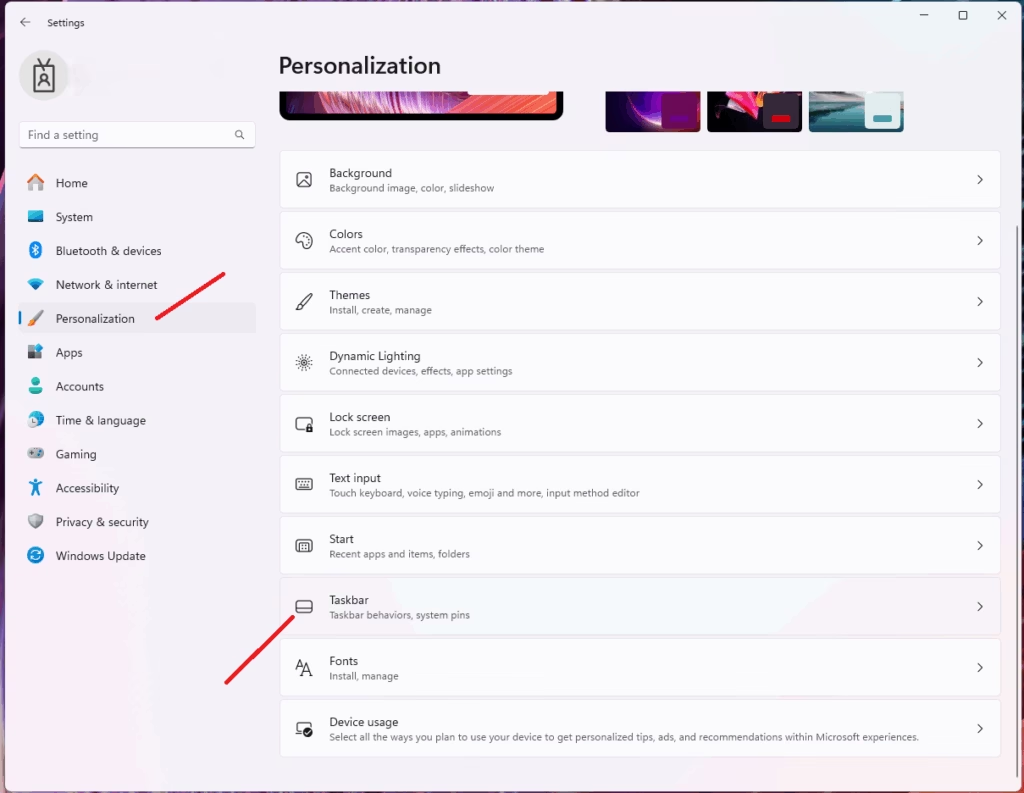
In the Settings window, click on Personalization in the left-hand menu. On the right side, click on Taskbar.

Step 3Change Taskbar Items
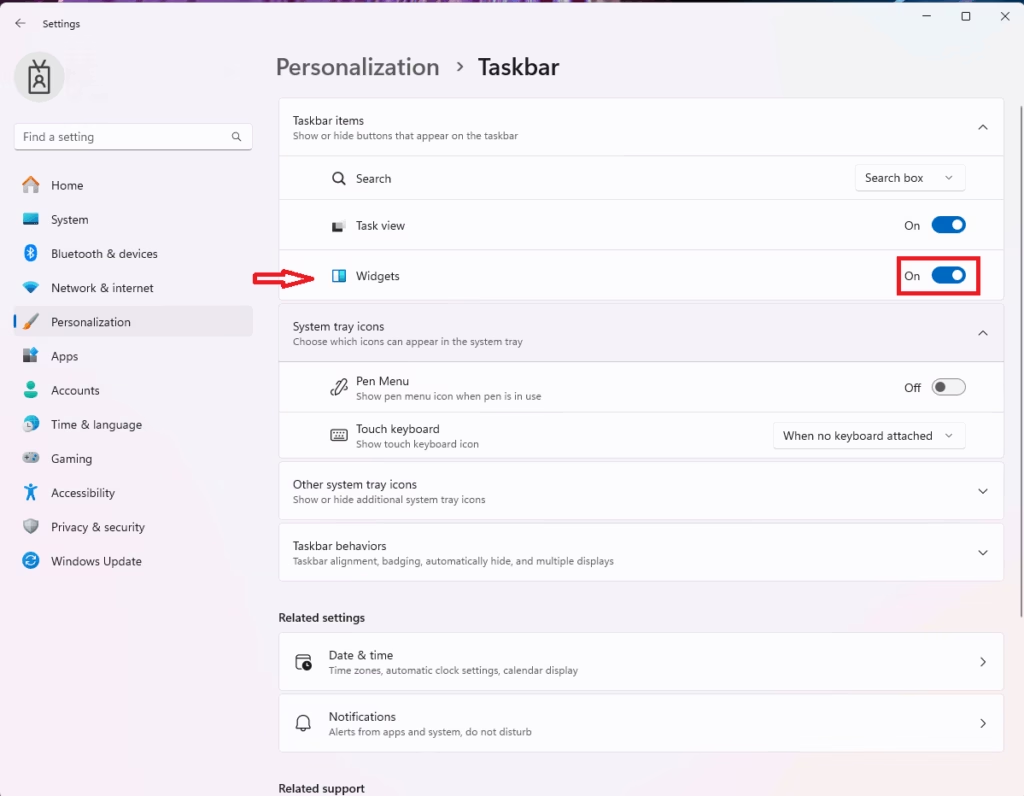
The Taskbar items section contains a switch labeled 'Widgets.' Toggle the switch on to show the Widgets button, or turn it off to hide it from the taskbar.

The adjustment appears on your taskbar immediately, with no computer restart required.
Step 4Close Settings
You can now close the Settings window. Your taskbar will reflect your chosen setting.
Option 2Using the Registry Editor (For Advanced Users)
You can add or remove the Widgets button on your Windows 11 taskbar using the Registry Editor (a database for storing low-level settings for the operating system and installed applications). The Windows Registry holds important settings; therefore, back up the Windows Registry before making any changes to avoid problems.
Before you start, it's wise to back up your Registry. Open Registry Editor, go to File Export, and save a copy of your Registry to a safe place.
Step 1Open the Registry Editor
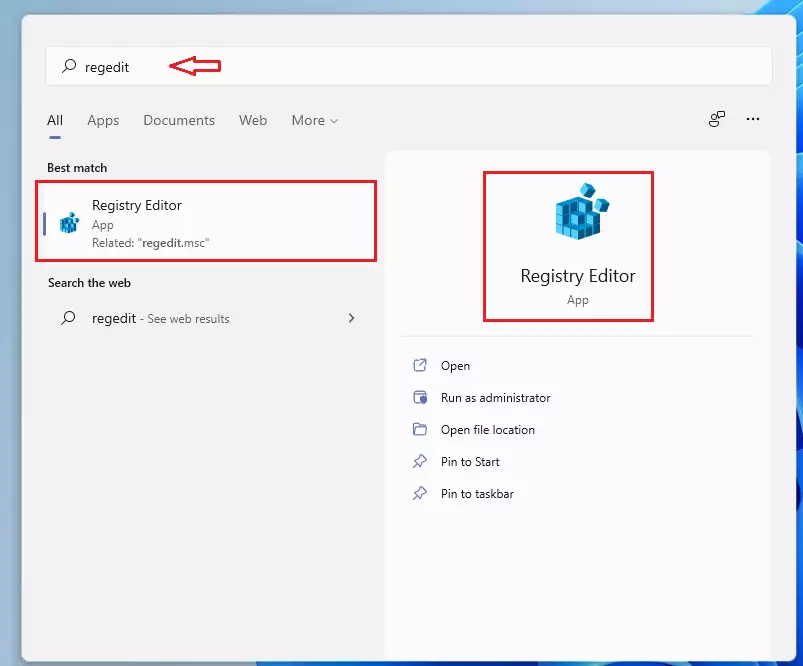
Press the Windows key + R on your keyboard. This opens the Run box. Type regedit and press Enter or click OK. You may see a message asking for permission; click Yes.
Step 2Go to the Right Location
In the Registry Editor, find and open this folder path:
HKEY_CURRENT_USER\Software\Microsoft\Windows\CurrentVersion\Explorer\Advanced
You can type this path into the address bar at the top of the Registry Editor and press Enter, or navigate through the folders in the left panel.
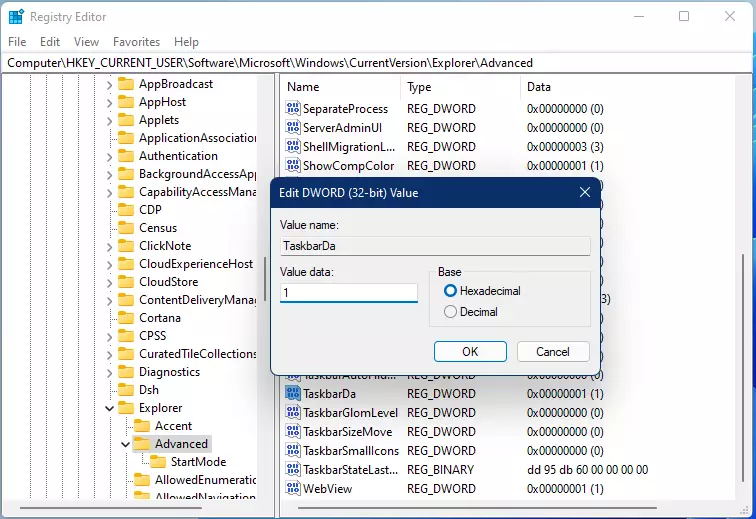
Step 3Find and Change the 'TaskbarDa' Value
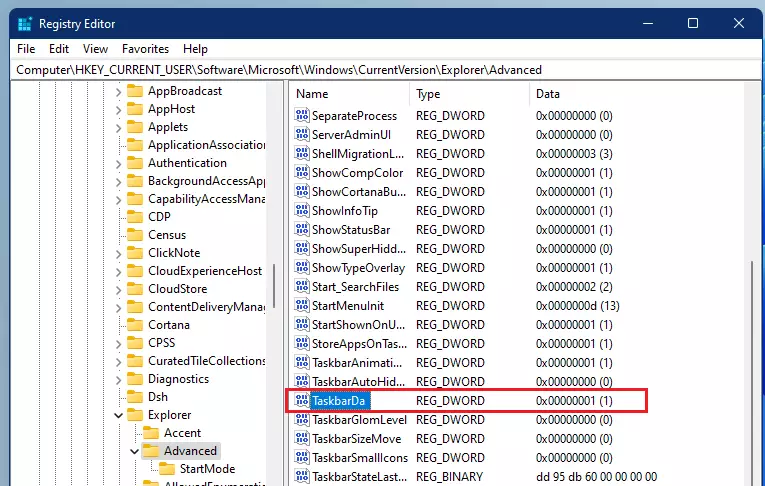
Once you're in the correct Registry folder, you need to find a specific setting called TaskbarDa. This setting controls whether the Widgets button appears on your taskbar. If you don't see TaskbarDa, you'll need to create it as a new DWORD value first.
Double-click on TaskbarDa to change it.
Step 4Set the Value Data
- To ADD the Widgets button: Set the "Value data" to
1. - To REMOVE the Widgets button: Set the "Value data" to
0.
To add the Widgets button, set the value data to 1. To remove it, set the value data to 0. After typing either 1 or 0, click OK, and you might need to restart your computer or Windows Explorer for the change to show up.
To restart Windows Explorer, open Task Manager (press Ctrl+Shift+Esc), find Windows Explorer in the Processes tab, right-click it, and select Restart.
Step 5Close the Registry Editor
You are finished with the Registry Editor. You can now close the window.
Summary
You can show or hide the Widgets button on your Windows 11 taskbar through the Settings app by going to Personalization, then Taskbar, and toggling the Widgets option. Alternatively, you can use the Registry Editor to change the TaskbarDa value: set it to 1 to show the Widgets button or 0 to hide it.
How to add widgets in 🪟 Windows 11 taskbar?
To open the widgets board, you can press Windows logo key + W or select the Widgets icon on the taskbar. Select your avatar to open the Widget settings①. Under Add widget, select the Plus sign ② next to any widget to add it to your board.
How do I remove widgets from the toolbar?
Right-click the taskbar, then select Taskbar settings. Under Taskbar items, toggle the Widgets switch Off or On.
How to remove unwanted icons from taskbar 🪟 Windows 11?
Click the Windows icon on the taskbar, and select Settings (the Gear icon) to open Settings. Select Personalization. Click Taskbar on the left, and scroll down to find Select which icons appear on the taskbar. Turn on or off the icons as desired for the Notification Area (lower right corner of task bar).
Was this guide helpful?
About the Author
Richard
Tech Writer, IT Professional
Richard, a writer for Geek Rewind, is a tech enthusiast who loves breaking down complex IT topics into simple, easy-to-understand ideas. With years of hands-on experience in system administration and enterprise IT operations, he’s developed a knack for offering practical tips and solutions. Richard aims to make technology more accessible and actionable. He's deeply committed to the Geek Rewind community, always ready to answer questions and engage in discussions.
[…] Widgets board is a new feature that provides quick access to news, weather, sports, and other information. It can […]
[…] Windows 11 is centered on the screen and shows the Start menu, Search, Task View, Widgets, Teams Chat, File Explorer, Microsoft Edge, and Microsoft Store buttons by […]
[…] When you swipe from the right edge of your screen, it opens the Notification Center. If you do the same from the left side, it opens Windows Widgets. […]
[…] change it, open the Widgets by pressing the Windows key + W on the […]
[…] post shows students and new users steps to sign in or out of the Widgets board in Windows […]
[…] The Widgets board is a new feature that provides quick access to news, weather, sports, and other information. It can be accessed by clicking the Widgets icon in the taskbar or pressing the Windows key + W shortcut. The board appears as a slide-out panel on the left side of the screen and can be customized to show or hide specific feeds. […]
[…] The Taskbar in Windows 11 is centered on the screen and shows the Start menu, Search, Task View, Widgets, Teams Chat, File Explorer, Microsoft Edge, and Microsoft Store buttons by […]