How to Disable Editing Quick Settings in Windows 11

Disabling the ability to edit Quick Settings in Windows 11 locks down the taskbar flyout menu so nobody can add, remove, or rearrange buttons like Wi-Fi and Bluetooth . This feature prevents accidental or unwanted changes to your layout on Windows 11 Pro, Enterprise, and Education editions.
Group Policy Editor (a built-in Windows tool that lets you change deep system settings) handles this change through a specific security policy. You need administrator rights on your PC to complete these steps.
Disable Quick Settings editing in Windows 11 by using the Local Group Policy Editor or Registry Editor. Navigate to User Configuration\Administrative Templates\Start Menu and Taskbar and enable “Remove access to the Quick Settings panel” or create a DisableQuickSettingsEditing DWORD value set to 1 in the registry.
Why disable Quick Settings editing?
Maintaining a consistent layout for system controls helps prevent user errors in shared or office environments.
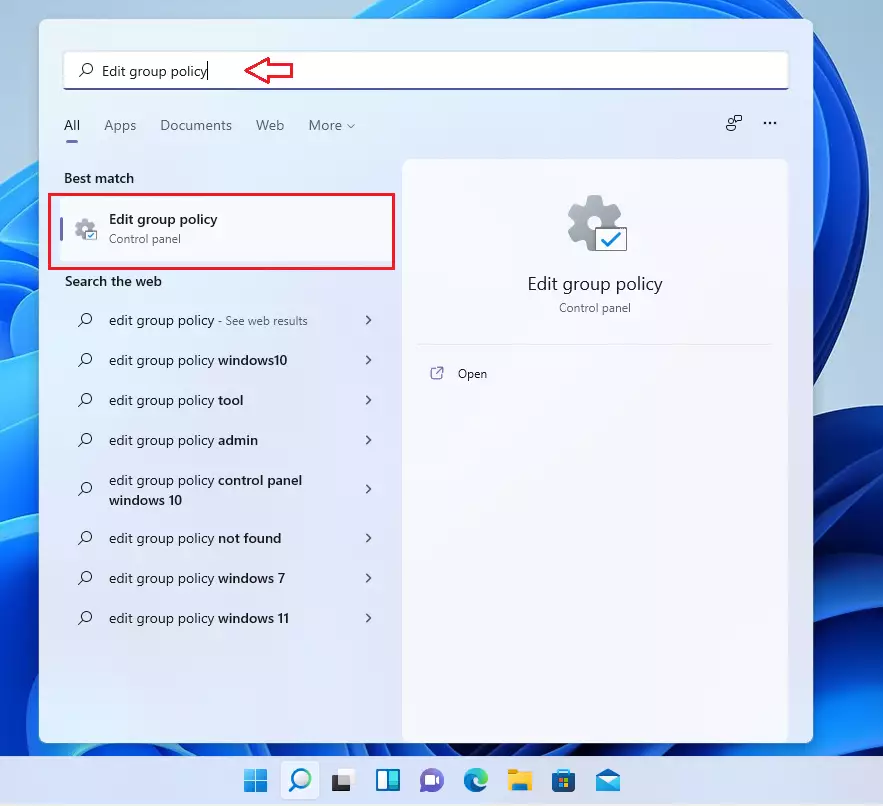
Method 1Using Local Group Policy Editor (Pro/Enterprise Only)
- Press Win+R, type
gpedit.msc, and hit Enter. - Navigate to:
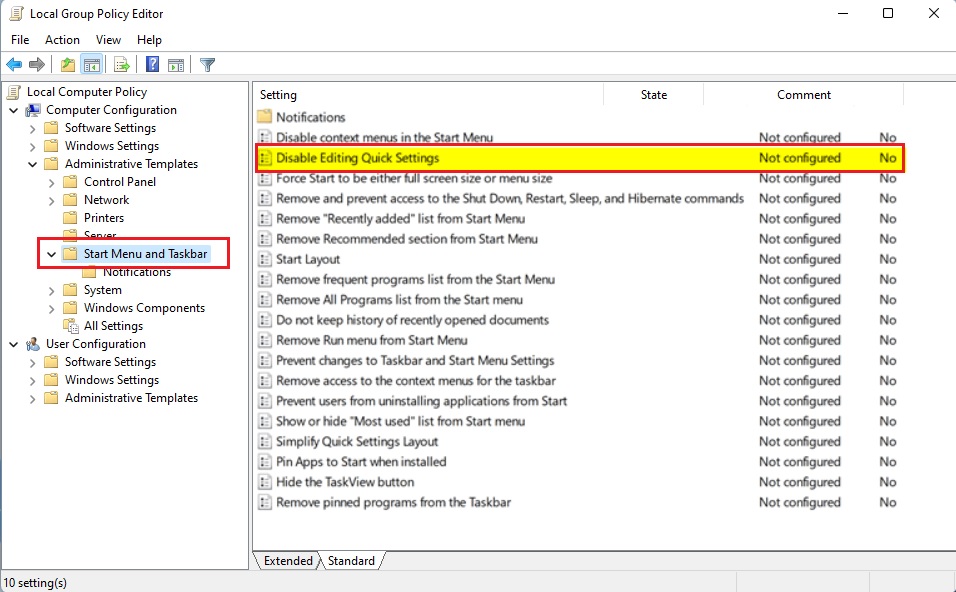
User Configuration\Administrative Templates\Start Menu and Taskbar
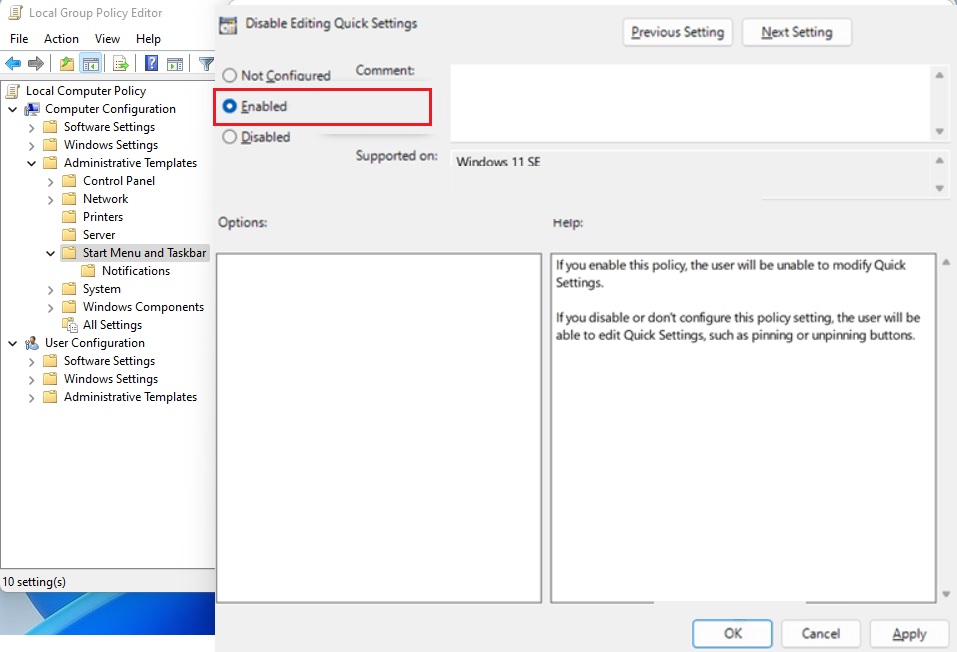
3. Locate the 'Disable Editing Quick Settings' option and double-click it.
4. Select Enabled and click OK.
Method 2Using Registry Editor (All Editions)
Registry Editor (a database for low-level system and application settings) lets you disable Quick Settings editing on any Windows 11 edition, including Windows 11 Home. This method stops anyone from adding, removing, or rearranging buttons on the taskbar panel. You can apply this fix safely by following a few steps to create and change a specific registry value.
1. Press Win + R, type regedit, and hit Enter.
2. Navigate to the following registry path:
HKEY_CURRENT_USER\Software\Policies\Microsoft\Windows\Explorer
3. Right-click in the right pane, choose New DWORD (32-bit) Value, and name it DisableQuickSettingsEditing.
4. Set the value to 1.
5. Restart your computer to apply changes.
Method 3Using PowerShell
PowerShell (a command-line shell for running system commands) lets you disable Quick Settings editing quickly by running a single command. This approach works best if you prefer using text commands instead of clicking through menus. You need to open PowerShell with administrator permissions so the command can change your user policies and lock the panel layout.
Disabling Quick Settings editing works equally well by running a command inside PowerShell. Elevated PowerShell windows run with administrator privileges, a requirement for modifying system-level settings. Executing this command prevents accidental alterations to the Quick Settings layout.
Set-ItemProperty -Path "HKCU:\Software\Policies\Microsoft\Windows\Explorer" -Name "DisableQuickSettingsEditing" -Value 1
Reverting the configuration requires changing the value back to 0.
Conclusion
Locking the Quick Settings menu maintains a clean and controlled Windows 11 interface. Enterprise environments benefit from Group Policy management, while individual setups rely effectively on Registry modifications.
Can I disable Quick Settings for specific users only?
Yes, disabling Quick Settings editing for specific users or groups works through the Local Group Policy Editor or Group Policy Objects on a work network.
How do I revert the changes if I need to re-enable editing?
Reverting the change requires returning to the Local Group Policy Editor and setting the policy to Not Configured. Users of Registry Editor should change the DisableQuickSettingsEditing value back to 0 or delete the registry key entirely. A system restart is usually required for the changes to take effect.
Does disabling Quick Settings editing affect the Action Center?
No, disabling Quick Settings editing leaves notifications alone because Quick Settings replaced the legacy Action Center, and this specific tweak only restricts button customization within that menu.
Is this feature available in 🪟 Windows 11 Home edition?
Windows 11 Home users can still disable Quick Settings editing through Registry Editor, bypassing the absence of the Local Group Policy Editor.
Was this guide helpful?

About the Author
Richard
Tech Writer, IT Professional
Richard, a writer for Geek Rewind, is a tech enthusiast who loves breaking down complex IT topics into simple, easy-to-understand ideas. With years of hands-on experience in system administration and enterprise IT operations, he’s developed a knack for offering practical tips and solutions. Richard aims to make technology more accessible and actionable. He's deeply committed to the Geek Rewind community, always ready to answer questions and engage in discussions.



No comments yet — be the first to share your thoughts!