How to Create a Guest Account on Windows 11

A guest account on Windows 11 is a separate local user profile that lets friends or family use your PC safely without touching your personal files. Because Windows 11 does not include a built-in guest mode, you have to set up a standard local account manually through the Settings app.
Standard user accounts block most app installations and system changes, so visitors cannot accidentally mess up your computer. You can create this backup login in just a few minutes whenever someone needs to borrow your device.
Create a standard local user account in Settings. Go to Accounts, then Family & other users, and click Add account. Name the account (e.g., “GuestUser”) and leave the password blank for easy guest access.
Why create a guest account?
Setting up a restricted profile lets someone use your PC without risking your personal files or settings.
What happens when you are done?
The new user profile allows your guest to log in to the computer. This guest’s computer activities remain separate from your activities. After your guest finishes using the computer, you can delete the guest account to wipe their computer history.
Method 1Using System Settings
You can create guest account Windows 11 setups directly through the main system menu without touching the command line. This gives visitors a clean profile to browse the web safely while keeping your personal files, passwords, and apps locked away from prying eyes.
- Open Settings by pressing the Win+I on your keyboard.
- Click on Accounts in the left menu.
- Select Family & other users.
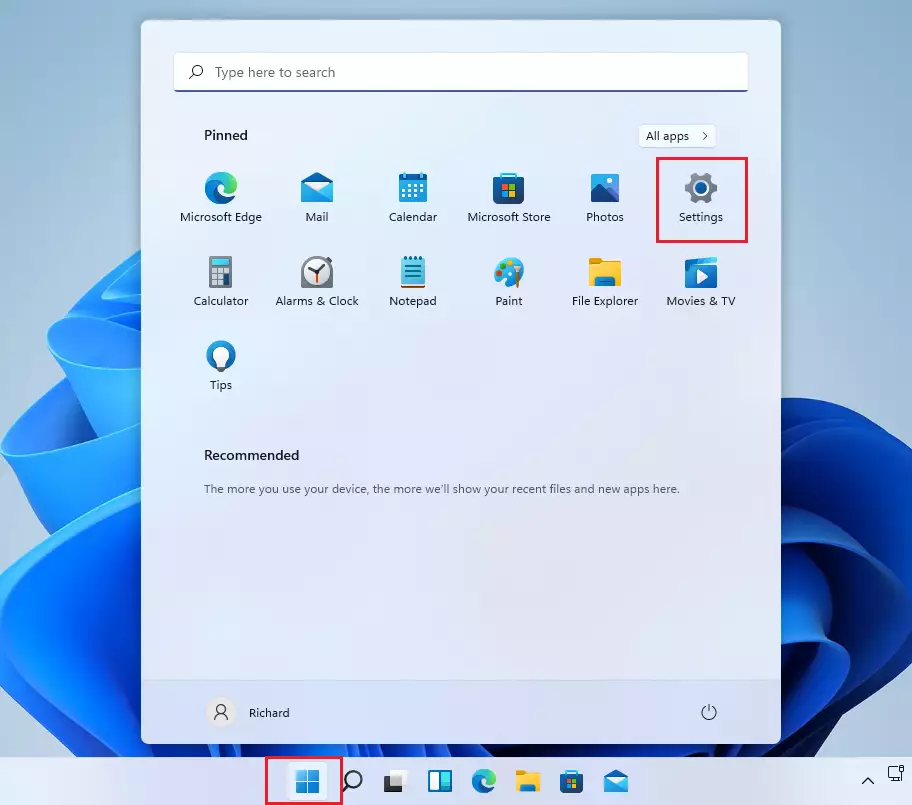
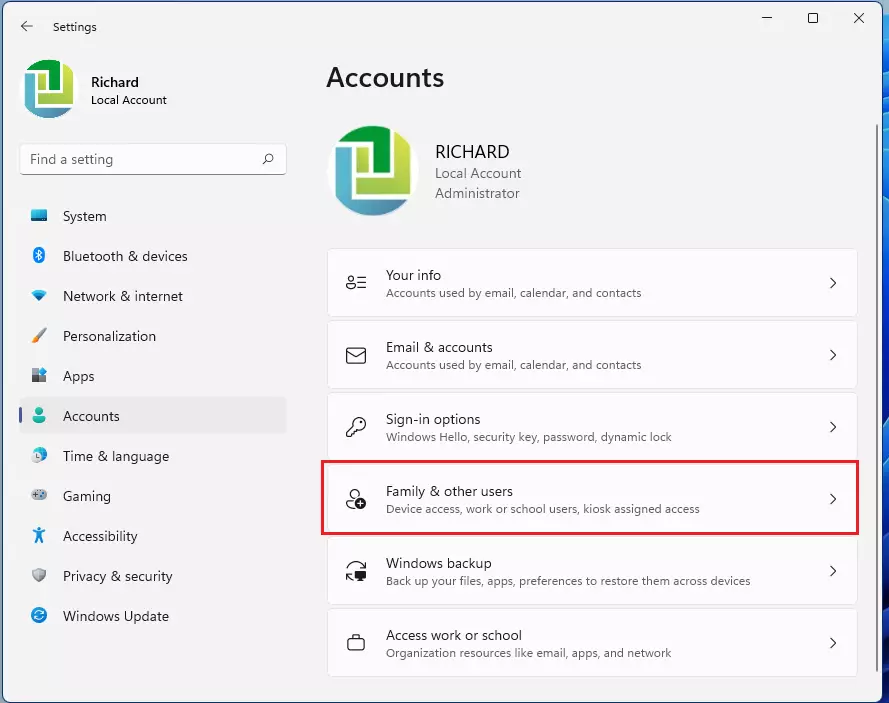
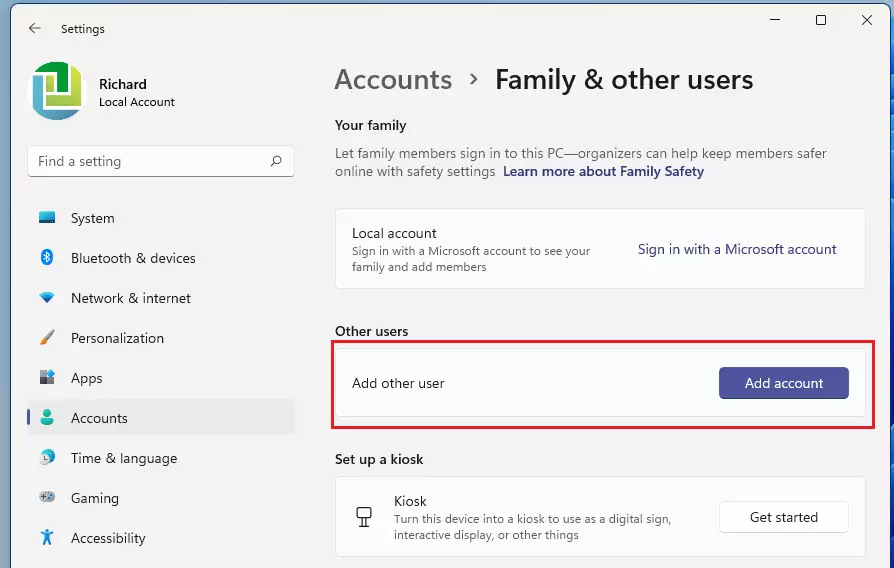
- Look for the Other users section and click the Add account button. (Requires admin privileges)
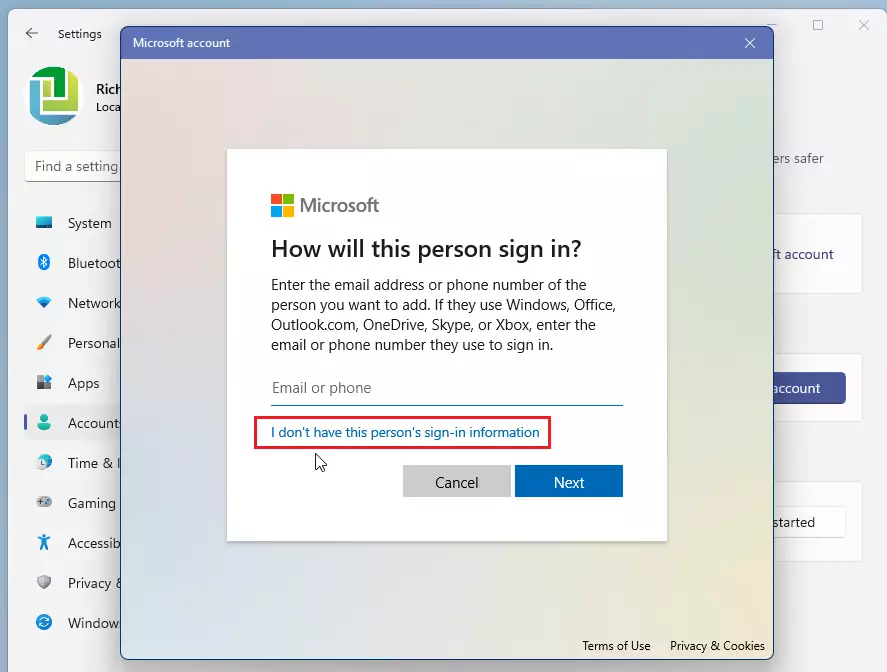
- When the Microsoft sign-in window pops up, click I don’t have this person’s sign-in information.
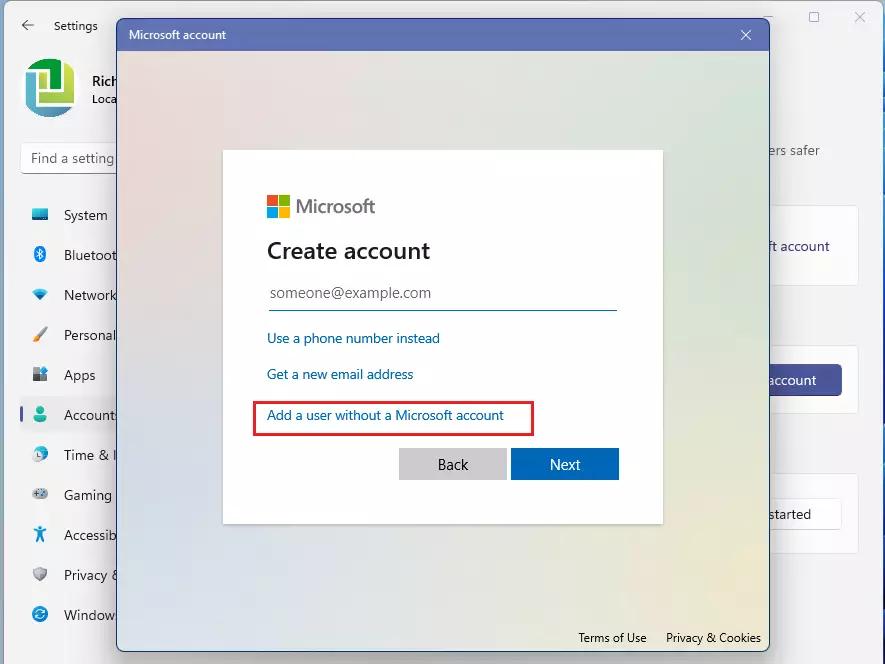
- Click Add a user without a Microsoft account.
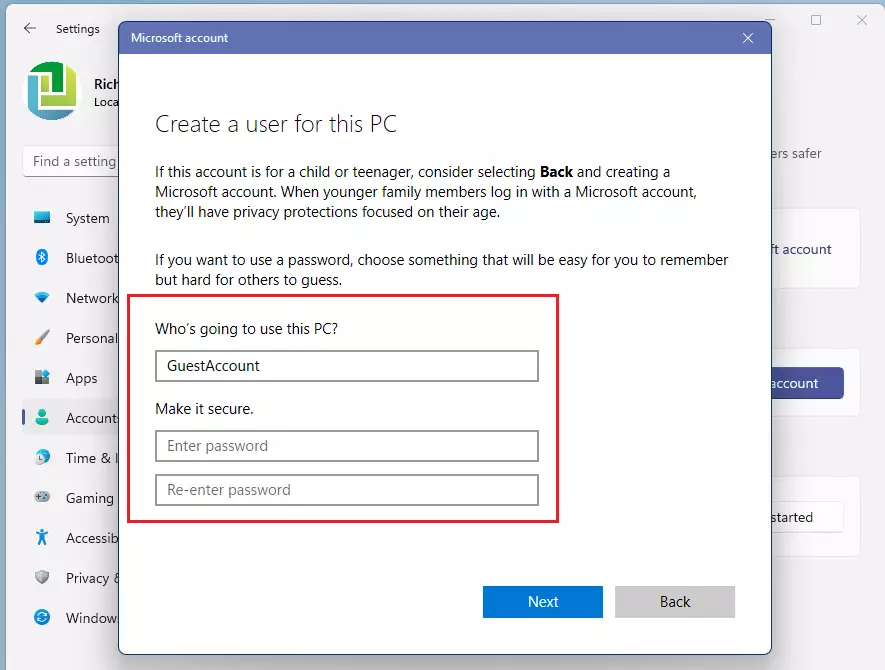
- Type a name for the account (like “GuestUser”). Windows will not let you name it “Guest.”
- Leave the password fields blank to make it easy for guests to sign in.
- Click Next.
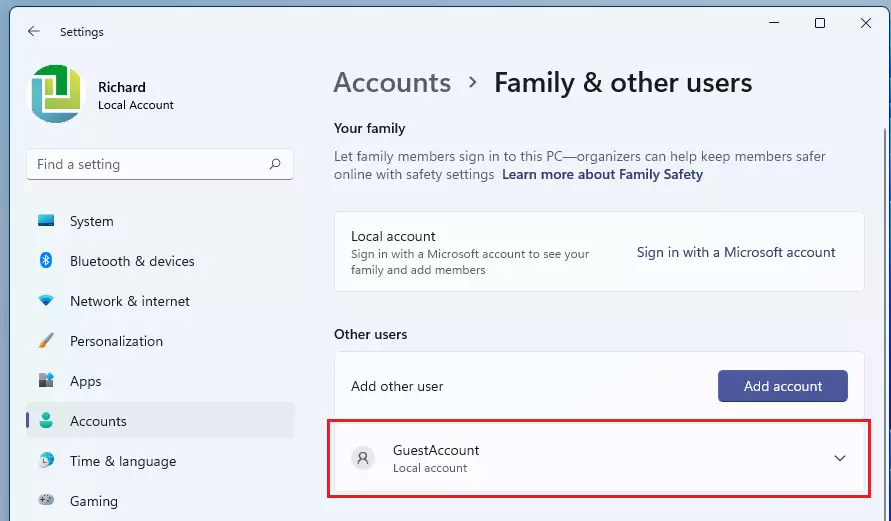
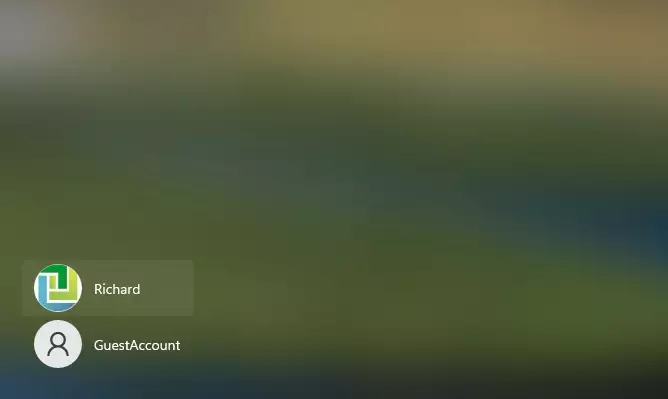
Switching between users takes seconds when pressing Win+L on your keyboard to lock the screen and choose another profile.
Method 2Using Command Prompt
Command Prompt offers another way to build a guest profile using a single terminal command.
- Search for cmd in the Start menu.
- Right-click it and select Run as administrator.
- Type the following command and press Enter:
net user GuestAccount /add /active:yesWarning for 🪟 Windows 11 Home Users
Windows 11 Home editions lack the Local Users and Groups tool (lusrmgr.msc), a management snap-in for handling user profiles. Running this utility on Home editions triggers an error message. Sticking to the Settings app method avoids compatibility hurdles.
How to Delete the Guest Account
Purging old guest profiles keeps storage drives clean and protects privacy. The Settings app deletes the user account alongside all generated files in one sweep.
Summary
While Windows 11 lacks a native guest account, creating a local standard user account serves as a reliable alternative. Private files remain secure, and system settings stay locked down against accidental changes. Sharing hardware safely requires following the outlined steps.
Why was the guest account feature removed in 🪟 Windows 11?
Microsoft removed the old built-in guest login to push people toward using proper Microsoft accounts for better security and cloud syncing. You can still get the exact same visitor setup by making a standard local user account with limited permissions that cannot see your personal files.
Can I use a Microsoft account for a guest user?
Avoid using a Microsoft account for a guest user on Windows 11. Doing so can link their data to your PC and compromise your privacy.
Was this guide helpful?

About the Author
Richard
Tech Writer, IT Professional
Richard, a writer for Geek Rewind, is a tech enthusiast who loves breaking down complex IT topics into simple, easy-to-understand ideas. With years of hands-on experience in system administration and enterprise IT operations, he’s developed a knack for offering practical tips and solutions. Richard aims to make technology more accessible and actionable. He's deeply committed to the Geek Rewind community, always ready to answer questions and engage in discussions.



No comments yet — be the first to share your thoughts!