How to Transfer Files from USB to Windows 11

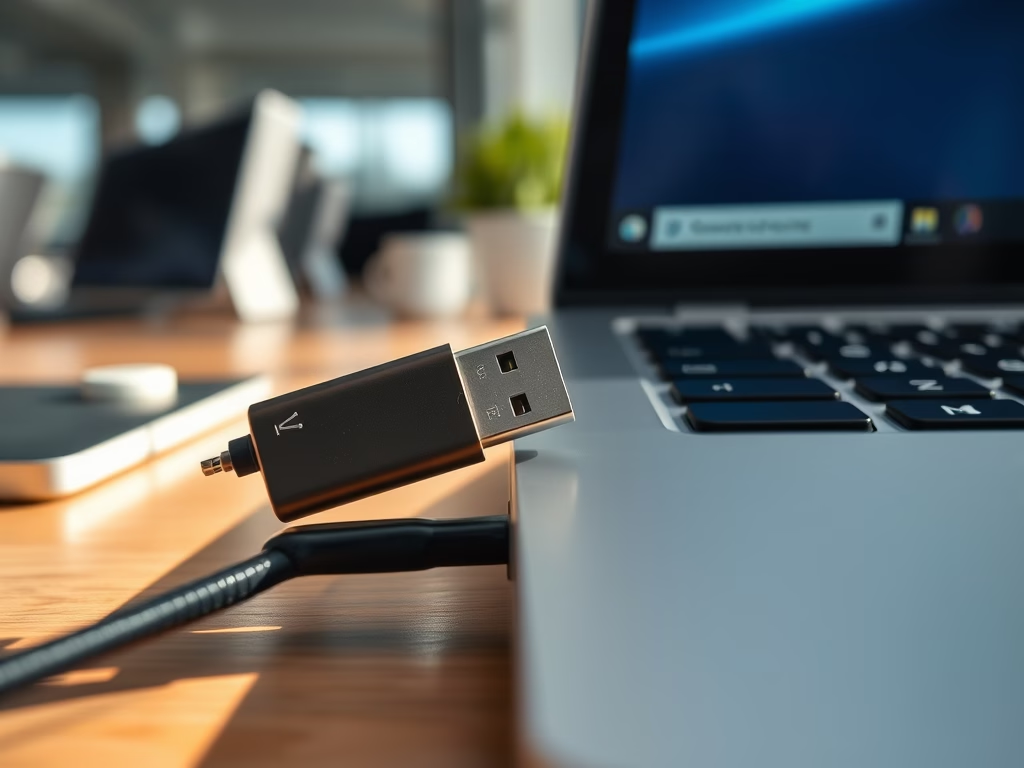
Transferring files from a USB drive to Windows 11 copies photos, documents, and videos from an external stick onto your internal storage using File Explorer (the built-in file manager). Moving these items takes just a few clicks when you drag and drop them or copy and paste them between folders.
Backing up data this way keeps your large media collections safe and organized on your PC. You can then manage and access everything right from your desktop whenever you need it.
Copy and paste or drag and drop files from your USB drive into a Windows 11 folder. Plug in the USB, open File Explorer , locate the drive, select files, and paste them to your desired PC location.
What You Need
Transfer files USB Windows 11 tasks require a compatible flash drive, a working USB port, and enough storage space on your computer. Windows 11 supports most USB drives, including USB 2.0, USB 3.0, and USB-C models. Check your drive format first, because older FAT32 formats cannot handle individual files larger than 4GB. Use NTFS or exFAT formats for large video and game files.
How to Transfer Files from USB to 🪟 Windows 11
Step 1Plug In Your USB Drive
Transfer files USB Windows 11 safely by plugging your flash drive into an open USB port on your computer. Push the drive all the way into the port so it does not lose connection. Look for ports with a blue interior if your drive uses USB 3.0 or higher for faster transfer speeds.
Step 2Wait for Windows to Recognize the Drive
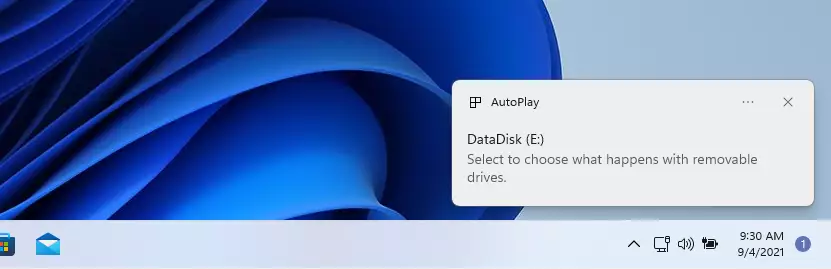
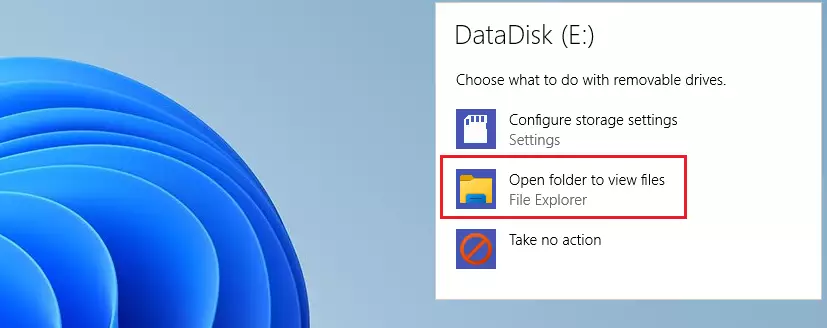
Windows 11 usually shows a notification; click ‘Open folder to view files’ when it appears.
Step 3Find Your USB Drive (If No Pop-Up Appears)
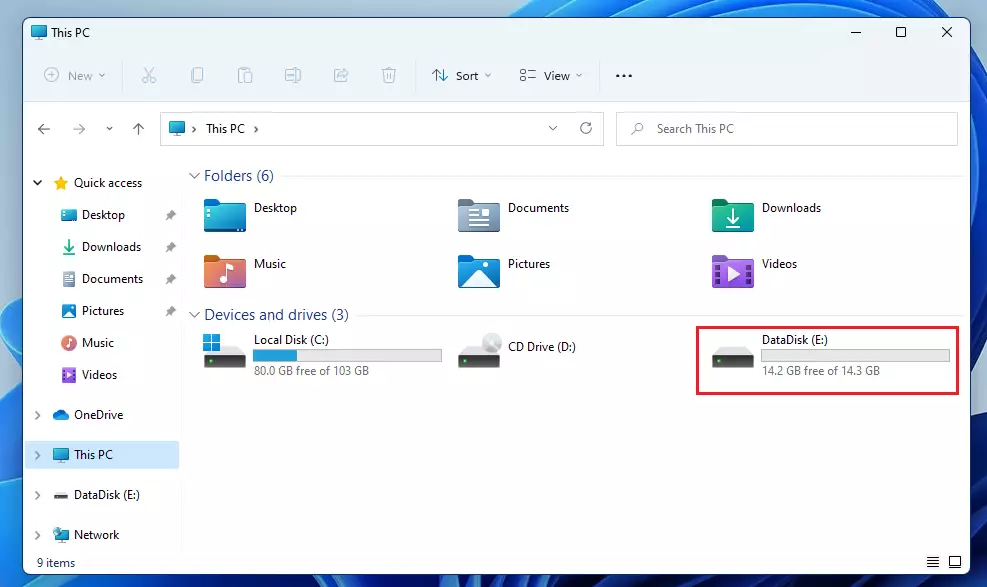
If nothing happens, open File Explorer by pressing Windows key + E. Click 'This PC' on the left. Your USB drive appears under 'Devices and drives'.
Step 4Pick Which Files You Want to Copy
Step 4: Choose Your Files Highlight the files you want to move. Press Ctrl+C to copy and Ctrl+V to paste rather than using right-click menus. This method proves faster than using the mouse.
Step 5Paste Your Files
Transfer files USB Windows 11 by opening the destination folder on your computer and pressing the Ctrl and V keys at the same time. This action pastes your copied files from the flash drive onto your hard drive. Wait for the progress window to close completely before you close any folders.
When transferring very large files, like video projects or large game installs, verify your USB drive has enough free space and uses the NTFS or exFAT format. FAT32 cannot handle files larger than 4GB.
Troubleshooting USB Recognition Issues
If your USB drive is not detected, try these steps:
- Try a different USB port on your computer.
- Open Device Manager (requires admin privileges) to check for driver errors.
- Use Disk Management to see if the drive needs a drive letter assigned.
Transfer Speed Optimization
For the fastest file transfer speeds, connect your USB 3.0 drive to a blue USB 3.0 port on your computer. Cheap USB hubs often reduce transfer speed, so avoid using them for optimal performance.
Latest Update
For the fastest file transfer speeds, connect your USB 3.0 drive to a blue USB 3.0 port on your computer. Newer USB standards like 3.1 and 3.2 offer faster speeds. Cheap USB hubs often reduce transfer speed, so avoid using them for optimal performance.
File System Compatibility
Transfer files USB Windows 11 issues often happen when drives use the older FAT32 format instead of NTFS or exFAT. FAT32 blocks single files larger than 4GB from moving to your computer. Fix this restriction by formatting your drive to NTFS, but remember that formatting erases everything currently stored on the flash drive.
If your USB drive remains undetected, check if it has a drive letter assigned. Assign one in Disk Management (search for it in the Windows search bar). Also, ensure the USB drive is not corrupted; you might need to reformat it, which erases all data.
Choosing a File System
- FAT32: Widely compatible, but individual files cannot exceed 4GB.
- NTFS: Best for Windows internal drives, supports large files and security features.
- exFAT: Good for flash drives and external drives, supports large files, and is compatible with macOS.
Summary
Transferring files from a USB to Windows 11 uses File Explorer, allowing you to move documents, photos, and videos.
Was this guide helpful?
100% of readers found this helpful (1 votes)

About the Author
Richard
Tech Writer, IT Professional
Richard is a writer at Geek Rewind who turns complex IT tasks into clear, step-by-step guides. He draws on years of hands-on experience in system administration and enterprise IT operations, focusing on Windows, Linux and WordPress: the problems people actually run into, and the fixes that work. His server and WordPress guides come from systems he runs himself. Richard builds and maintains the platform behind Geek Rewind, from its Ubuntu servers and Nginx configuration to its custom WordPress plugins. Many new tutorials start with readers' questions, and he's always glad to answer them in the comments.

hello, I switched to using a laptop with Windows 11 (passed down to me by another person), so i am trying to copy over files and folders from my existing laptop (Windows 10). I copied the files and folders onto an external hard disk drive. when i try to copy over to the other laptop, some folders it just doesn’t copy over. when i clicked paste, there is no response, any idea? thanks! i am searching google and YouTube but not getting any hint yet.
Copying files from external HDD to Windows 11 HDD forces those files to be stored on OneDrive. As only 5 GiG is available on the “free” storage of OneDrive, anything over that gets tagged as a error being unavailable.
The easy option is to fork out more money to Microsoft for more storage where it is downloaded from when needed, another slow process, costly, and not all that secure. Microsoft has our files, not us. We just provide Microsoft with the medium to stalk us.
Windows 11 is NOT free. In exchange for Windows 11, we give up our rights to privacy.
To transfer all files docs/pics/video/downloads etcetera, is to search the Internet or Google, for how to disable OneDrive. Then copy the file to where you want them, not where Windows wants them.
10000%
I’m really beginning to hate Windows 11!!!
[…] with the Microsoft Windows operating system. A graphical user interface lets you view, copy, move, delete, and rename files and folders and organize them […]
[…] is included in the Microsoft Windows operating system. A graphical user interface lets you view, copy, move, delete, and rename files and folders and organize them […]
[…] How to copy files to USB devices in Windows 11 […]
[…] included in the Microsoft Windows operating system. A graphical user interface lets you view, copy, move, delete, and rename files and folders and organize them […]
[…] included in the Microsoft Windows operating system. A graphical user interface lets you view, copy, move, delete, and rename files and folders and organize them […]
[…] you don’t want Windows Updates to download all previously downloaded updates again, you can copy the content from the old SoftwareDistribution.old Folder into the newly created symlink SoftwareDistribution […]
[…] is included in the Microsoft Windows operating system. A graphical user interface lets you view, copy, move, delete, and rename files and folders and organize them […]
[…] is included in the Microsoft Windows operating system. A graphical user interface lets you view, copy, move, delete, and rename files and folders and organize them […]
[…] large files between computers can be slow and frustrating. Most people rely on USB drives to copy files from one computer to another, but this is often inefficient for big data transfers. Using File Explorer can also make your […]