How to Check DirectX Version in Windows 11


- 6 steps
- Needs administrator rights
- Includes a restart or sign-out
The DirectX version in Windows 11 shows whether your PC meets the graphics requirements for modern games and 3D apps. DirectX is a collection of built-in Microsoft tools that lets your graphics card communicate smoothly with your software.
Most Windows 11 computers run DirectX 12 by default to handle advanced visuals and high frame rates. Checking your current version takes only a few seconds and helps troubleshoot game crashes or setup errors. You do not install DirectX as a separate product on Windows 11. It ships with the operating system, and Windows Update keeps it current.
Press Win+R, type dxdiag, and press Enter to open the DirectX Diagnostic Tool. Your DirectX version appears on the System tab in the DirectX Version line, normally showing DirectX 12 on current Windows 11 PCs.
Prerequisites
Head to your graphics card manufacturer’s website (NVIDIA, AMD or Intel) to grab the latest driver if you plan to update it later. Checking your version requires no special permissions, though installing system updates needs administrator rights.
The steps below work the same on Windows 11 Home and Pro. If you are signed in with a standard account and a later step asks for admin approval, you will need an administrator to enter their credentials.
How to find your DirectX version
You can check the DirectX version on your Windows 11 PC with the built-in DirectX Diagnostic Tool. Press the Win on your keyboard, type dxdiag, and hit Enter to open the tool. Look at the bottom of the System tab to find your exact DirectX Version number.
The full steps are below. Follow them in order.
- Click the Search icon on your taskbar . A search box opens, and you can start typing right away.
- Type
dxdiagand press Enter. The DirectX Diagnostic Tool window opens. On a first launch, a prompt about digital signatures may appear first (see the section on that prompt further down). - Look at the System tab. It is selected by default and lists your computer name, operating system, processor and memory under System Information.
- Find the line that says DirectX Version to see your current number. On a current Windows 11 PC it normally reads DirectX 12.
Alternatively, the Run utility provides another path. It is quicker if you prefer the keyboard, or if taskbar search is slow or not returning results:
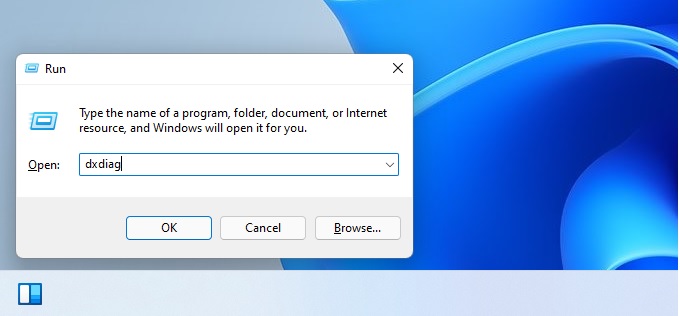
- Press Win+R on your keyboard. The Run dialog box appears in the lower-left corner of the screen.
- Type
dxdiaginto the box and press Enter. The DirectX Diagnostic Tool opens on the System tab, where you can read the DirectX Version line as before.
First-time openings of this tool might trigger a prompt asking to verify digital signatures for drivers. Select Yes to confirm those drivers remain safe and verified. The check only looks at whether your drivers are signed. It does not change anything on your PC.
If you select No, the tool still opens and shows the DirectX version. You just skip the signature check, and you will see it again the next time you launch the tool.
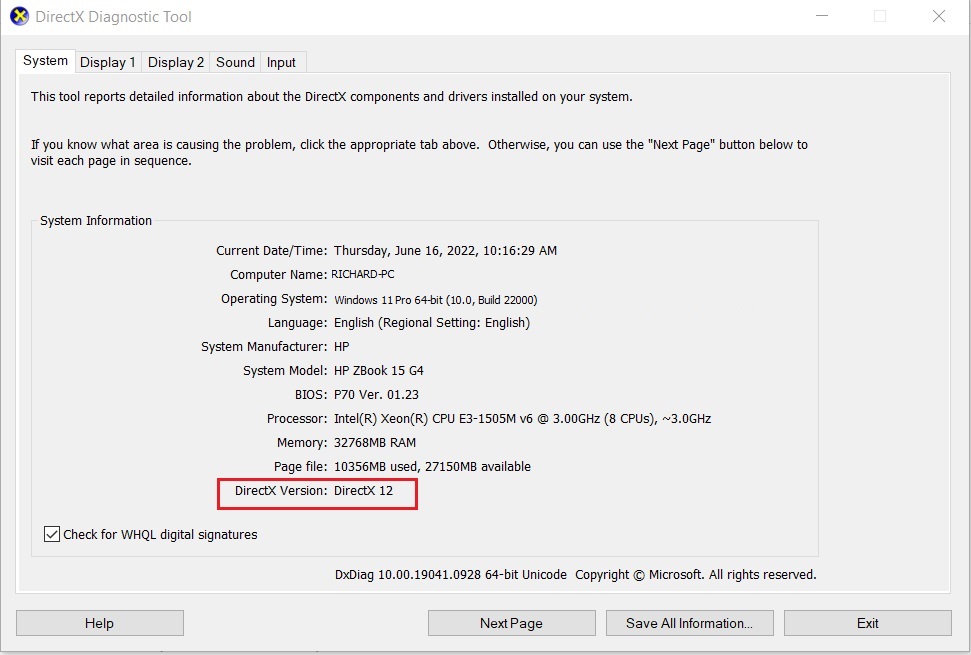
Any user account can open the tool and read the version. If you need to send the results to someone, use the Save All Information button at the bottom of the window to export a text file.
Understanding DirectX Feature Levels
The core DirectX version is not the only metric that matters. Your graphics card (GPU) must also support a specific DirectX feature level. This determines which advanced rendering effects your hardware handles. Review this information inside the Display tab within the dxdiag utility under the Drivers section.
Here is how the two numbers relate. The DirectX Version on the System tab tells you what Windows itself provides. The feature levels tell you what your GPU and its driver can actually do. A PC can report DirectX 12 and still have a GPU that tops out at a lower feature level, such as 11_1. If a game demands a higher level than your card lists, updating Windows will not fix it. You need a newer driver or a newer card.
Updating DirectX
Windows 11 manages DirectX updates automatically through Windows Update. There is no standalone DirectX 12 download to install, so if the version looks old, check for pending updates first. If a game reports errors about missing files, download the DirectX End-User Runtime Web Installer from the official Microsoft website to restore them. It adds older DirectX support files that some games still rely on, and it does not replace the DirectX 12 that ships with Windows.
Troubleshooting
To fix DirectX errors when you check DirectX version problems on Windows 11, you usually need to update your graphics driver or install pending system updates. Outdated hardware software and missing Windows updates often cause games to crash or fail to start properly. Work through the list below from top to bottom, and test the game after each item.
- Update your graphics driver via Device Manager. Expand Display adapters, right-click your GPU, and choose Update driver. If Windows says the best driver is already installed, get the newest one from NVIDIA, AMD or Intel directly. Restart your PC if the installer asks you to.
- Run the Windows Update tool to ensure your Windows Display Driver Model (WDDM) is current. Open Settings Windows Update and select Check for updates. Installing updates needs administrator rights, and some will ask for a restart.
- Check if your game requires legacy components. You may need to enable them in Turn Windows features on or off. Older titles sometimes need items such as DirectPlay under Legacy Components. Tick only what the game asks for. You can untick it later to undo the change.
Summary
Knowing your DirectX version helps resolve game crashes and optimizes system performance. Check the version and the GPU feature level, keep your graphics driver and Windows up to date, and you will rule out the most common causes of DirectX trouble.
Have a question about this guide?
Answered by AI from this guide. Good questions may be added to this page — please don't include personal details.
Did this guide fix your problem?

About the Author
Richard
Tech Writer, IT Professional
Richard is a writer at Geek Rewind who turns complex IT tasks into clear, step-by-step guides. He draws on years of hands-on experience in system administration and enterprise IT operations, focusing on Windows, Linux and WordPress: the problems people actually run into, and the fixes that work. His server and WordPress guides come from systems he runs himself. Richard builds and maintains the platform behind Geek Rewind, from its Ubuntu servers and Nginx configuration to its custom WordPress plugins. Many new tutorials start with readers' questions, and he's always glad to answer them in the comments.
No comments yet — be the first to share your thoughts!