How to Enhance Video Quality on Windows 11 While Streaming


Enhancing video quality on Windows 11 lets you fix choppy playback, blurry details, and frustrating buffering while watching movies and shows online. Better picture quality comes from adjusting specific display settings and internet controls.
Matching your monitor refresh rate to 60Hz or higher stops visual stuttering during fullscreen playback. Turning on hardware acceleration in Windows 11 also shifts heavy video processing tasks directly to your graphics card to keep streams running smoothly.
Enhance video quality on Windows 11 by going to Settings, then Apps, and selecting Video playback. Toggle the “save network bandwidth” option to adjust resolution for streaming. For further improvements, install HEVC Video Extensions and calibrate HDR settings.
How to change video playback settings
You can enhance video quality Windows 11 streams by opening the built-in video playback settings. Press Win+I to open Settings , select Apps, and click Video playback. From here, you can turn on HDR streaming and let Windows automatically process video to make dark scenes clearer and colors brighter.
Press Win+I to open Settings .
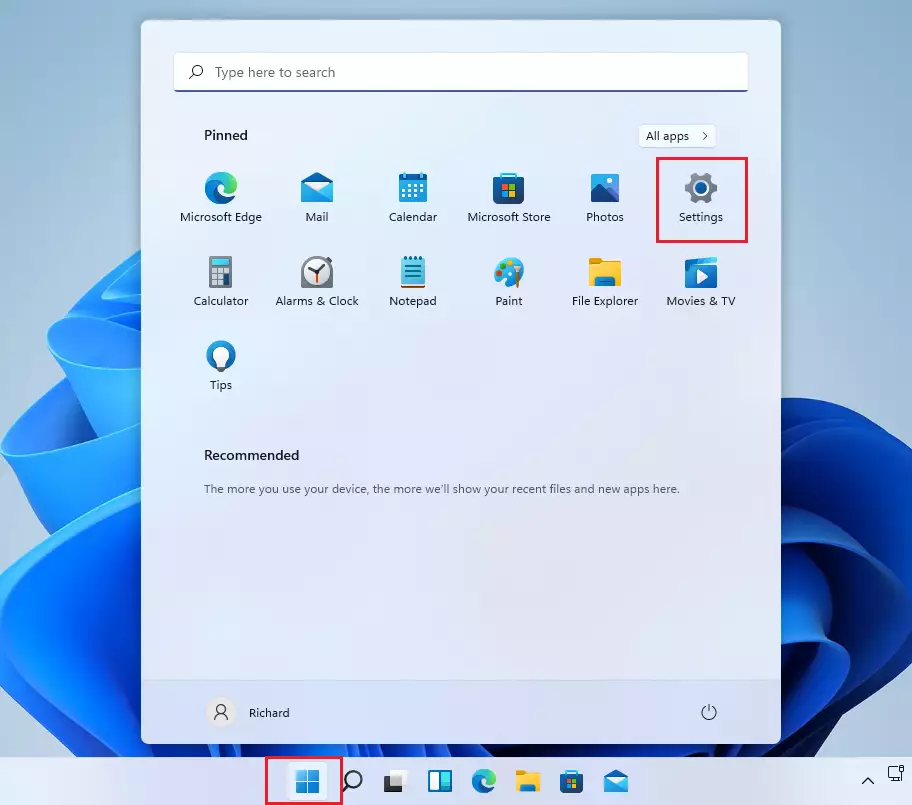
- Once the Settings window is open, click on Apps in the left sidebar.
- Select the Video playback tile on the right.
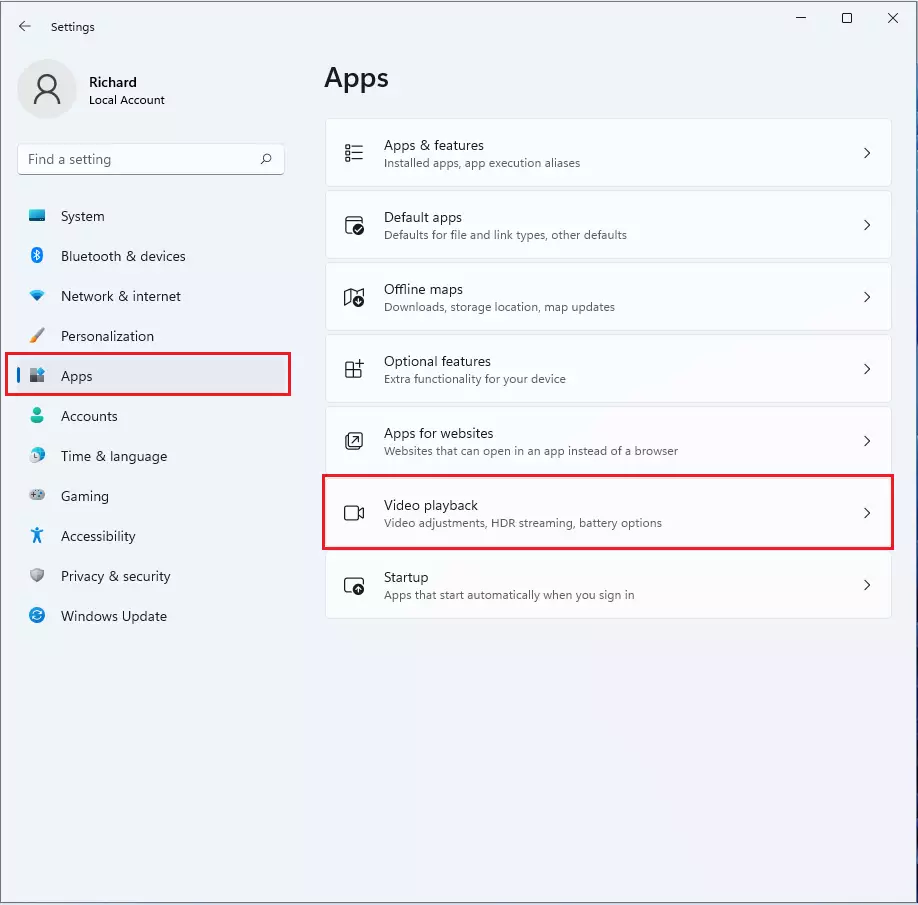
On the next screen, look for the option to save network bandwidth by playing video at a lower resolution. Toggle the switch On or Off, depending on your connection.

Essential Video Enhancements
To get the best results when you enhance video quality Windows 11 streams, install HEVC Video Extensions (a format that helps high-definition videos play smoothly without stuttering) from the Microsoft Store. You should also download the Windows HDR Calibration App to fix washed-out colors and make bright highlights pop on your screen.
Next, launch the Windows HDR Calibration App to tune your display for better color depth and brightness. Graphics cards handle rendering tasks, and modern GPUs support a feature called hardware-accelerated GPU scheduling. Head to Settings System Display Graphics to make sure it is turned on for lower latency and better performance.
AI Upscaling and Hardware Acceleration
AI upscaling uses your graphics card to sharpen blurry videos in real-time.
Summary
Enhancing video quality on Windows 11 involves adjusting playback settings in the Settings app, installing HEVC extensions, calibrating HDR, and keeping GPU drivers updated for sharp visuals.
Does 🪟 Windows 11 have a built-in video enhancer?
Windows 11 includes built-in video playback settings that allow you to optimize battery life and bandwidth. While it does not have a universal AI enhancer for all apps, it supports hardware-accelerated features and HDR calibration to improve color and clarity for supported media content and streaming services.
Why does my video look blurry on 🪟 Windows 11?
Blurry video is often caused by low-resolution streaming, outdated GPU drivers, or incorrect display scaling settings. Check if your hardware acceleration is enabled and ensure you have the necessary codecs, like HEVC, installed. Also, verify that your display resolution matches your monitor's native settings in the Windows display menu.
Was this guide helpful?

About the Author
Richard
Tech Writer, IT Professional
Richard, a writer for Geek Rewind, is a tech enthusiast who loves breaking down complex IT topics into simple, easy-to-understand ideas. With years of hands-on experience in system administration and enterprise IT operations, he’s developed a knack for offering practical tips and solutions. Richard aims to make technology more accessible and actionable. He's deeply committed to the Geek Rewind community, always ready to answer questions and engage in discussions.


No comments yet — be the first to share your thoughts!