How to Optimize HDR and SDR Brightness Settings in Windows 11

You optimize HDR and SDR brightness settings in Windows 11 to ensure your display accurately presents both standard and high dynamic range content.
HDR (High Dynamic Range) provides a broader range of brightness and color compared to SDR (Standard Dynamic Range), making visuals in games and movies appear more lifelike. Windows 11 offers dedicated controls for managing these different signal types on your PC.
Adjusting these settings is crucial because each monitor interprets HDR and SDR signals uniquely, which can lead to washed-out or overly dark images. Properly calibrating them unlocks your display’s maximum potential for peak brightness and color fidelity.
For example, Windows 11 includes a peak brightness slider that directly impacts how vibrant your HDR content appears. Fine-tuning these settings ensures a consistent and stunning visual experience across all your applications and media.
Adjust SDR content brightness using the slider in Windows 11 display settings under the HDR section. This corrects washed-out colors by recalibrating how standard content appears within the HDR color space.
Understanding HDR vs. SDR Content
SDR is what most of your computer shows, like websites and apps, use normally. HDR, on the other hand, offers brighter colors and a wider range, but sometimes it can make your regular SDR content look a bit off. If your screen looks washed out when HDR is on, you’ll need to adjust the SDR brightness settings.
How to Calibrate Your Monitor
For the best results, download the Windows HDR Calibration app from the Microsoft Store. This tool helps you set the minimum and maximum brightness levels for your specific display, ensuring that VESA DisplayHDR standards are met.
Steps to Adjust Settings
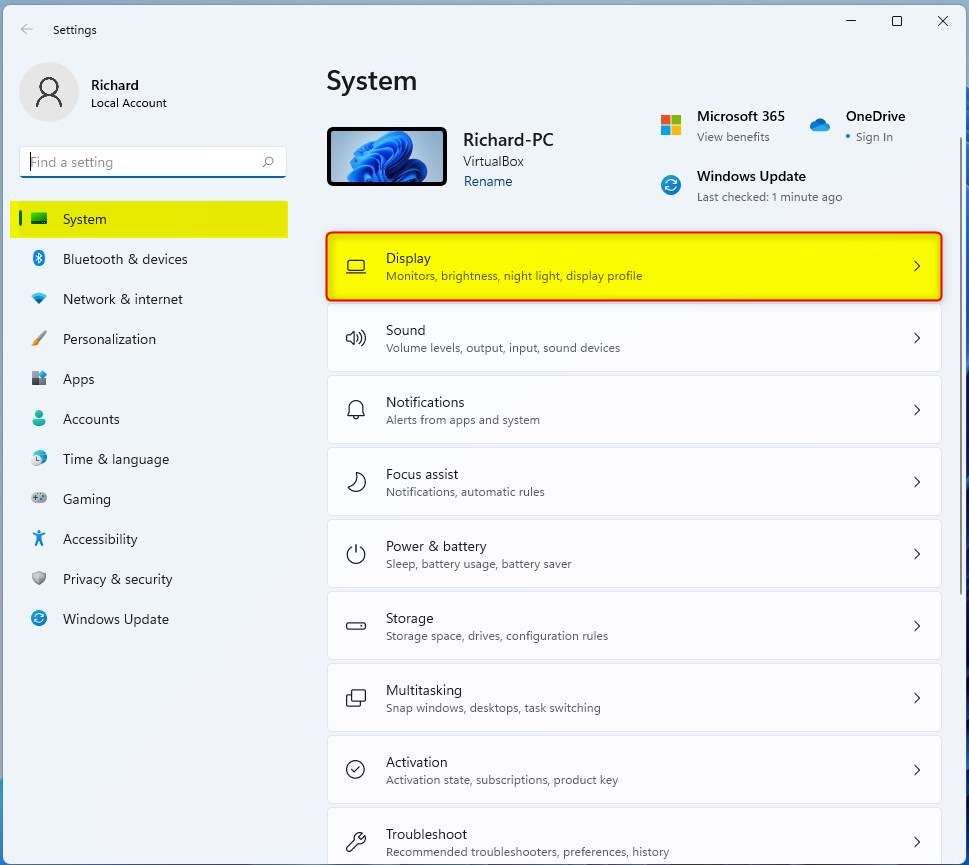
To change your HDR and SDR brightness settings in Windows 11, first open the Settings app by pressing Windows key + I. Then, click on ‘Display’ on the right side. You’ll find the brightness and color options here, including specific sliders for HDR and SDR content.
You can open System Settings by pressing the Windows key + I, or by clicking the Start button and then selecting Settings.

Once the Settings window opens, click on the Display tile on the right side of the screen.
Under the Brightness & color section, click on the HDR or Use HDR tile to see more options.
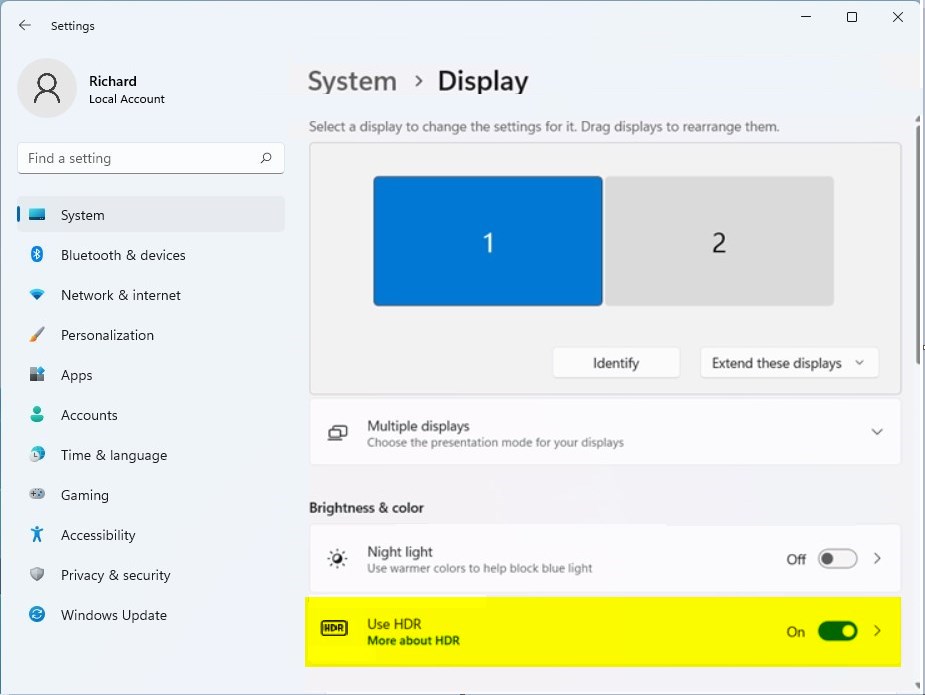
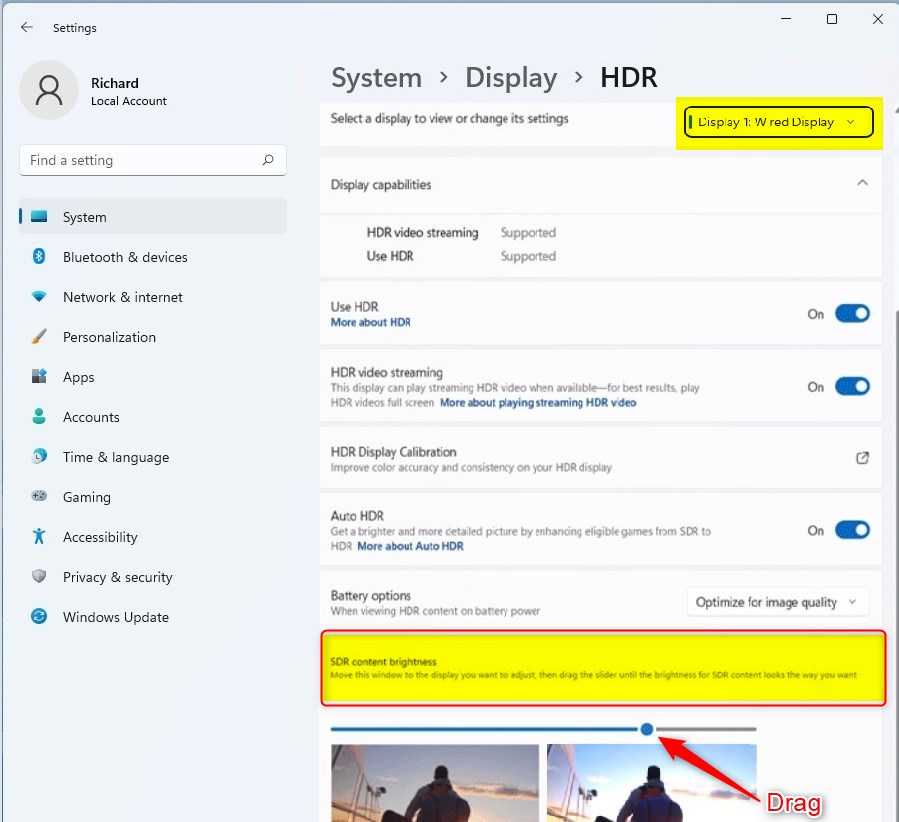
If you have multiple monitors, select the specific display you want to change.
Look for the SDR content brightness or HDR content brightness slider. Drag this slider left or right until the brightness looks perfect to your eyes.
Note: Some advanced system changes may require admin privileges. If you are prompted for a password, ensure you have the necessary permissions to continue.
Troubleshooting Common Issues
If your screen looks dim or the colors seem off when adjusting HDR and SDR brightness settings, try checking a few things. Make sure ‘Night light’ isn’t turned on, as it can change how colors look. Also, ensure your graphics drivers are up to date, which can fix flickering or other display problems.
Summary
Changing your SDR and HDR brightness settings in Windows 11 is a simple way to make your videos and pictures look much better. Using the display settings and the HDR Calibration app helps you get the clearest, most accurate picture possible, making everything you view more enjoyable.
Why does my SDR content look washed out in HDR mode?
SDR content often looks washed out because Windows is trying to map standard colors into a wider HDR range. You can fix this by adjusting the SDR content brightness slider in your Windows display settings until the colors appear natural and the contrast matches your expectations.
Does HDR affect battery life on laptops?
Yes, HDR significantly increases power consumption on laptops. Because HDR requires the screen to reach higher peak brightness levels and process more data, your battery will drain faster. It is recommended to keep HDR off when running on battery power to extend your usage time.
Should HDR be brighter than SDR?
HDR (High Dynamic Range) is a display technology that increases contrast, brightness, and color range compared to Standard Dynamic Range (SDR). It allows screens to show deeper blacks, brighter highlights, and more realistic colors by expanding the dynamic range of the image.
What is the best brightness for SDR?
Usually a correct value is around 40-50 with normal setting of game brightness and win hdr brightness. 5% is 100 nits. Any other setting is objectively incorrect. you need to keep it between 0 and 10 and use the intensity slider in the gamebar to increase highlights.
Was this guide helpful?

About the Author
Richard
Tech Writer, IT Professional
Richard, a writer for Geek Rewind, is a tech enthusiast who loves breaking down complex IT topics into simple, easy-to-understand ideas. With years of hands-on experience in system administration and enterprise IT operations, he’s developed a knack for offering practical tips and solutions. Richard aims to make technology more accessible and actionable. He's deeply committed to the Geek Rewind community, always ready to answer questions and engage in discussions.


No comments yet — be the first to share your thoughts!